1.1 System Overview
SAKSHAM (Stimulating Advanced Knowledge for Sustainable Health Management) is a digital learning initiative of the Ministry of Health and Family Welfare (MoHFW), Government of India, developed by the National Institute of Health and Family Welfare (NIHFW), New Delhi.
SAKSHAM LMIS was officially launched on 10 May 2023 and provides online training and medical education to health professionals across the country.
1.2 Purpose
This document describes the operational aspects of the LMIS (SAKSHAM) portal for its application users. This manual provides step-by-step instructions for using the portal, with numbered, highlighted screenshots for easy and clear understanding.
Official Document Reference: LMIS Application (SAKSHAM) User Manual (Version 1.7), prepared for NIHFW and Ministry of Health and Family Welfare.
1.3 Target Audience
This document is intended for all SAKSHAM/LMIS users — healthcare professionals, medical students, instructors, and administrators — to help them successfully register on and use the platform.
- Healthcare Professionals: Medical officers, doctors, specialists, AYUSH practitioners.
- Nursing & Allied Cadres: Staff nurses, ANMs, ASHAs, lab technicians, and pharmacists.
- Medical Students: Undergraduate and postgraduate students accessing NMCN modules.
- Instructors & Administrators: Course coordinators, training faculties, and state nodal officers.
1.4 Minimum System Requirements
Operating System:
Windows, macOS, or Linux
Web Browser:
A modern, up-to-date web browser (Chrome, Edge, or Firefox recommended)
Internet Connection:
An active internet connection
Responsive Access:
Compatible with desktop and mobile web browsers
Users can access LMIS (SAKSHAM) by entering the application URL in the address bar of a web browser. A new user must register for an account before they can log in; an already-registered user can log in directly with their credentials, as described below.
2.1 Home Page (Landing Page)
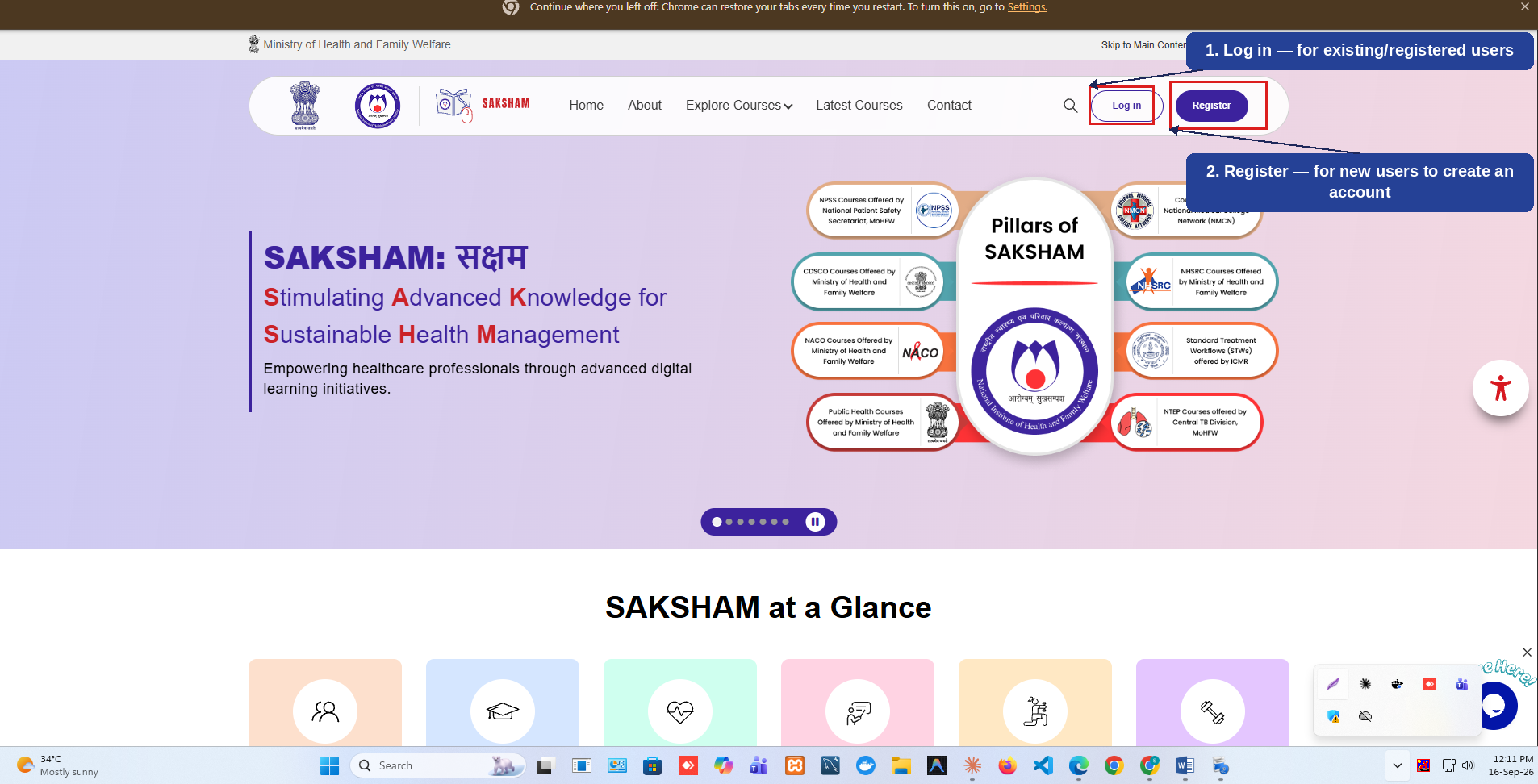
This is the first screen visible to a user when the SAKSHAM URL is opened. The header provides 'Log in' and 'Register' options for existing and new users respectively. The numbered callouts below highlight each option and what it is used for.
1
'Log in': For a user who is already registered, to sign in with their existing credentials.
2
'Register': For a new user who does not yet have an account, to create one.
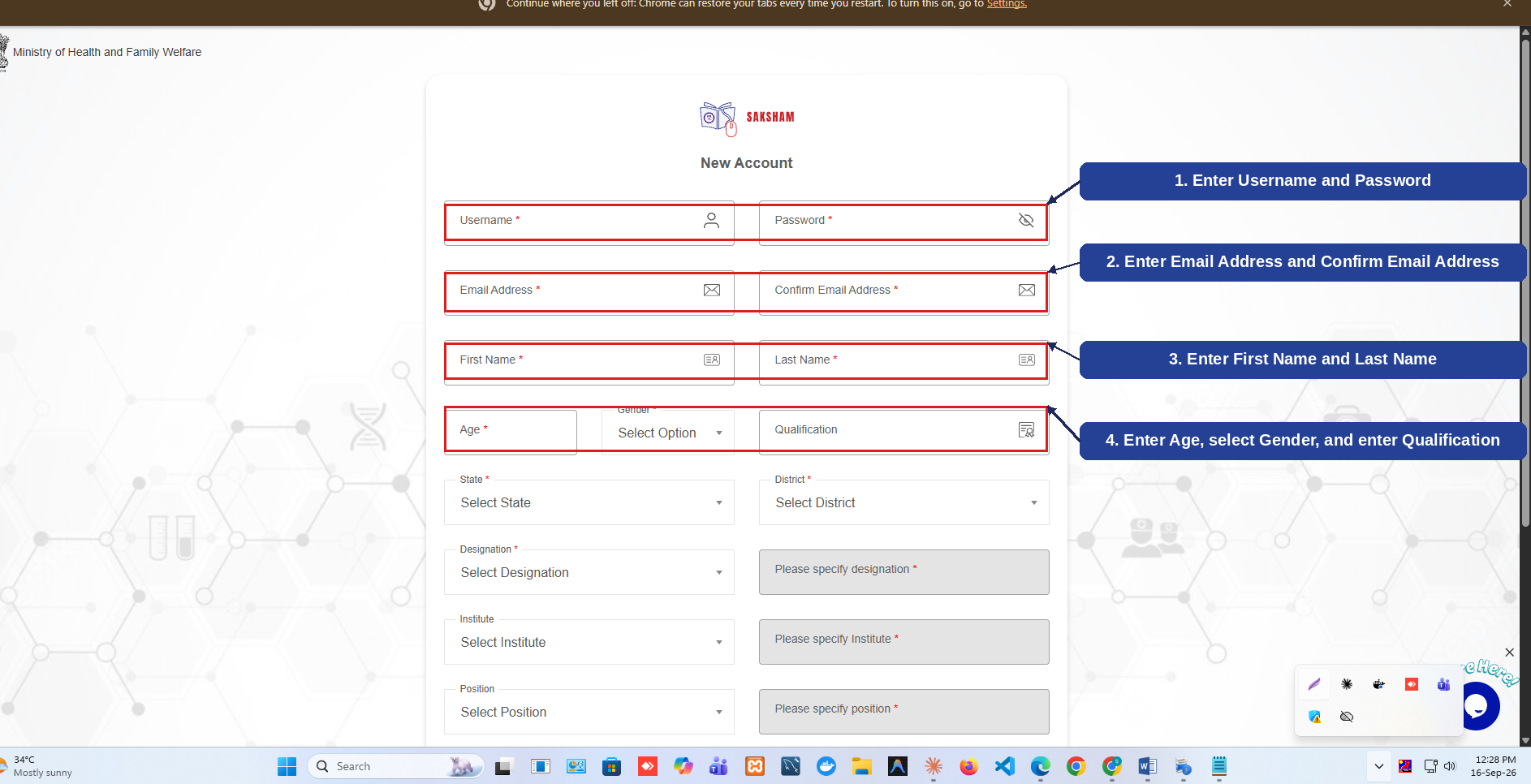
If the user is not already registered, selecting 'Register' on the Home Page opens the New Account form. The form is split across Account & Personal Details and Location & Professional Details. The numbered callouts below highlight the key fields.
2.2.1 Account & Personal Details
1
Enter a Username and Password, both required.
2
Enter the Email Address and re-enter it under Confirm Email Address, both required.
3
Enter the First Name and Last Name, both required.
4
Enter the Age, select the Gender, and optionally enter the Qualification.
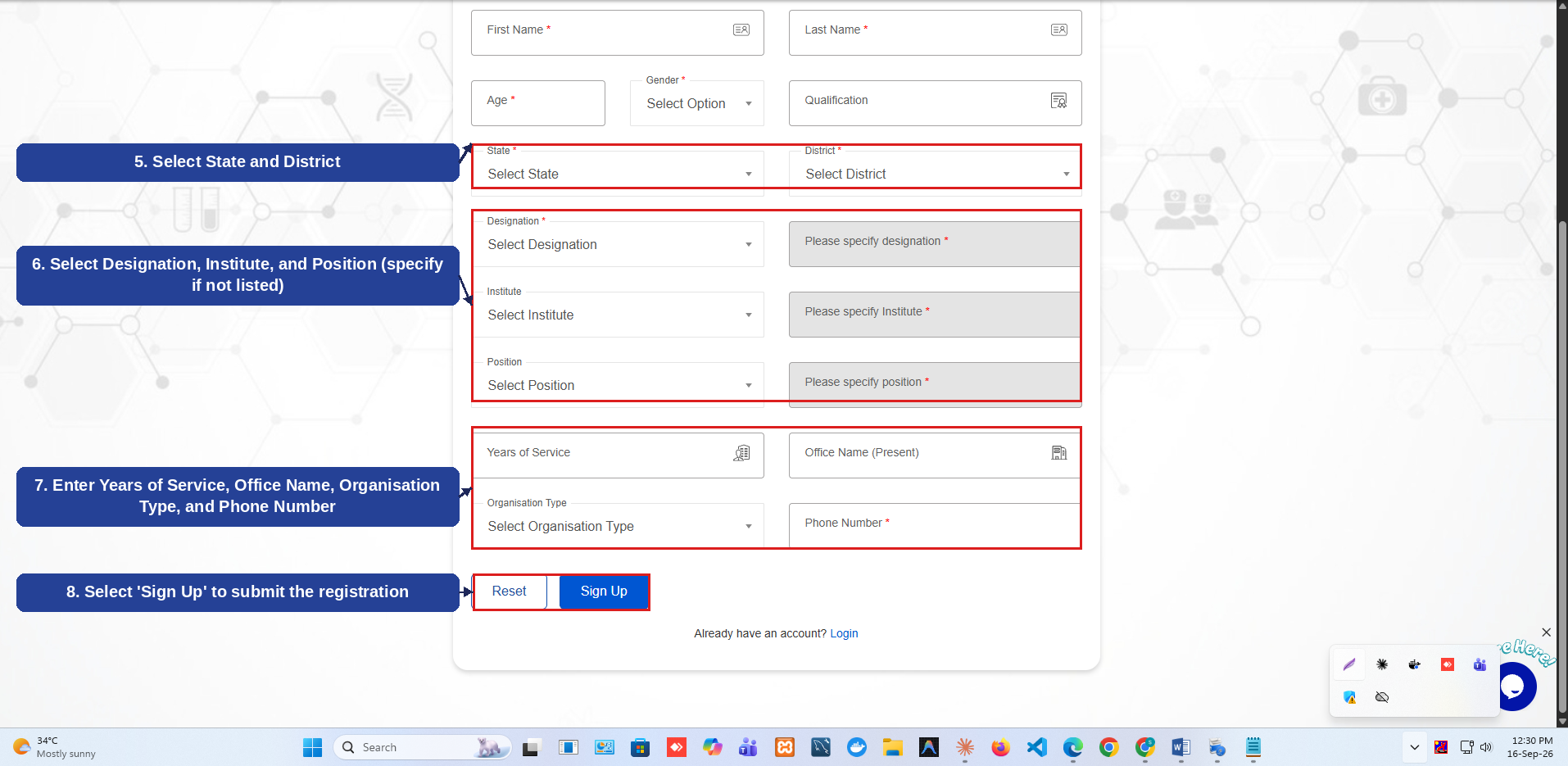
Scrolling the registration form further reveals the Location & Professional Details section, ending with the 'Sign Up' action. The numbered callouts below highlight this part of the form.
5
Select the State and District, both required.
6
Select the Designation, Institute, and Position — a 'Please specify' field appears if the option is not listed.
7
Enter the Years of Service, Office Name (Present), Organisation Type, and Phone Number.
8
Select 'Sign Up' to submit the registration and create the account.
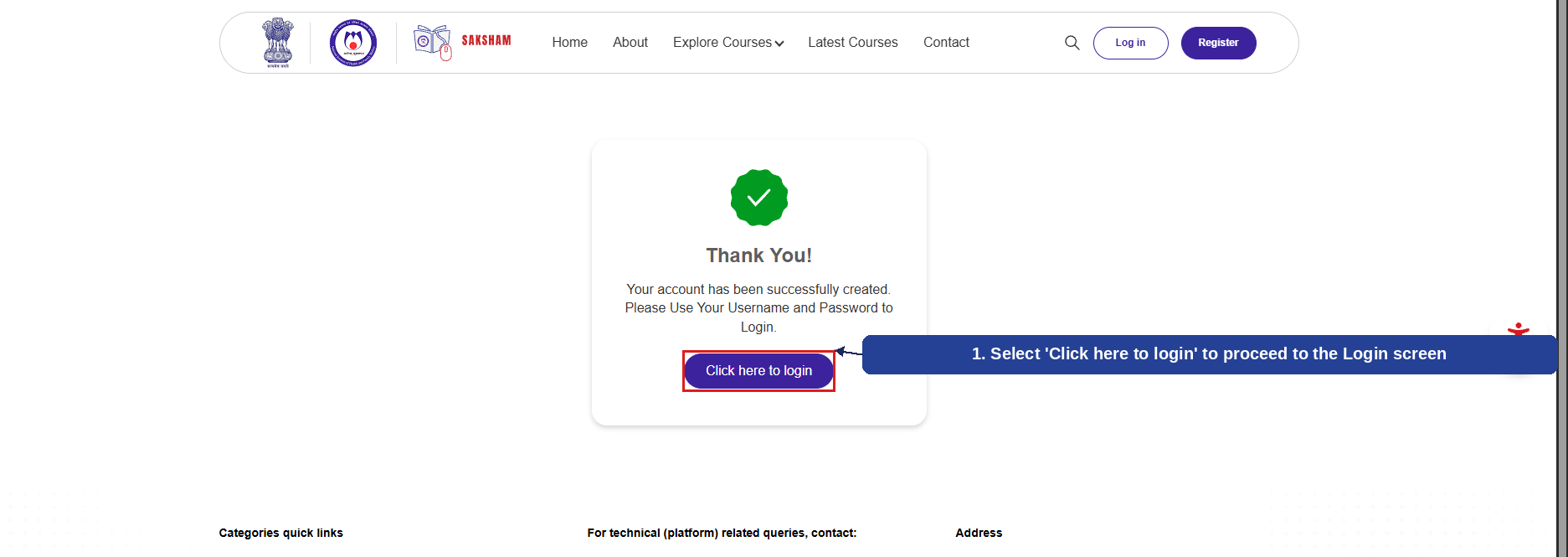
After successful registration, a confirmation message is displayed. The numbered callout below highlights the action to proceed.
1
A 'Thank You' message confirms the account has been successfully created; select 'Click here to login' to proceed to the Login screen.
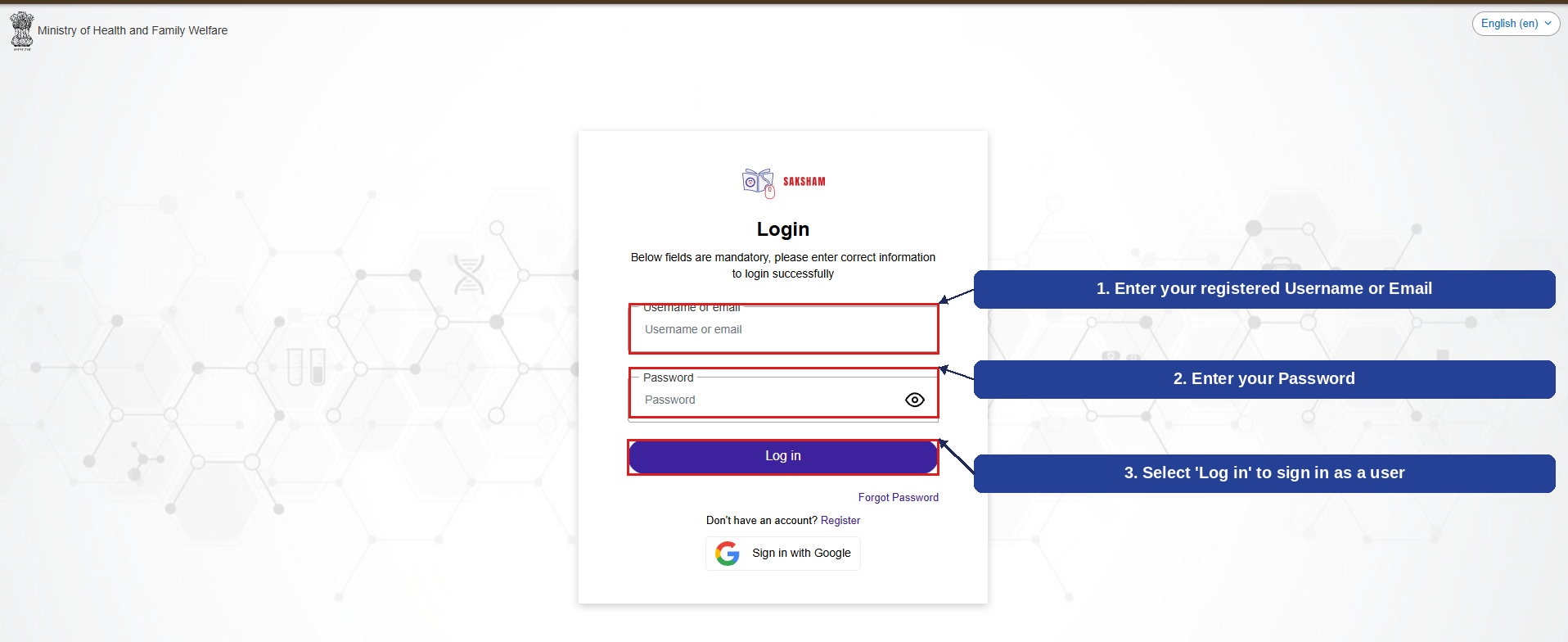
From the Home Page (or after registration) the user returns to the Login screen and signs in with their registered credentials. The numbered callouts below highlight the key fields and action.
1
Enter your registered Username or Email.
3
Select 'Log in' to sign in and access the portal as a user.
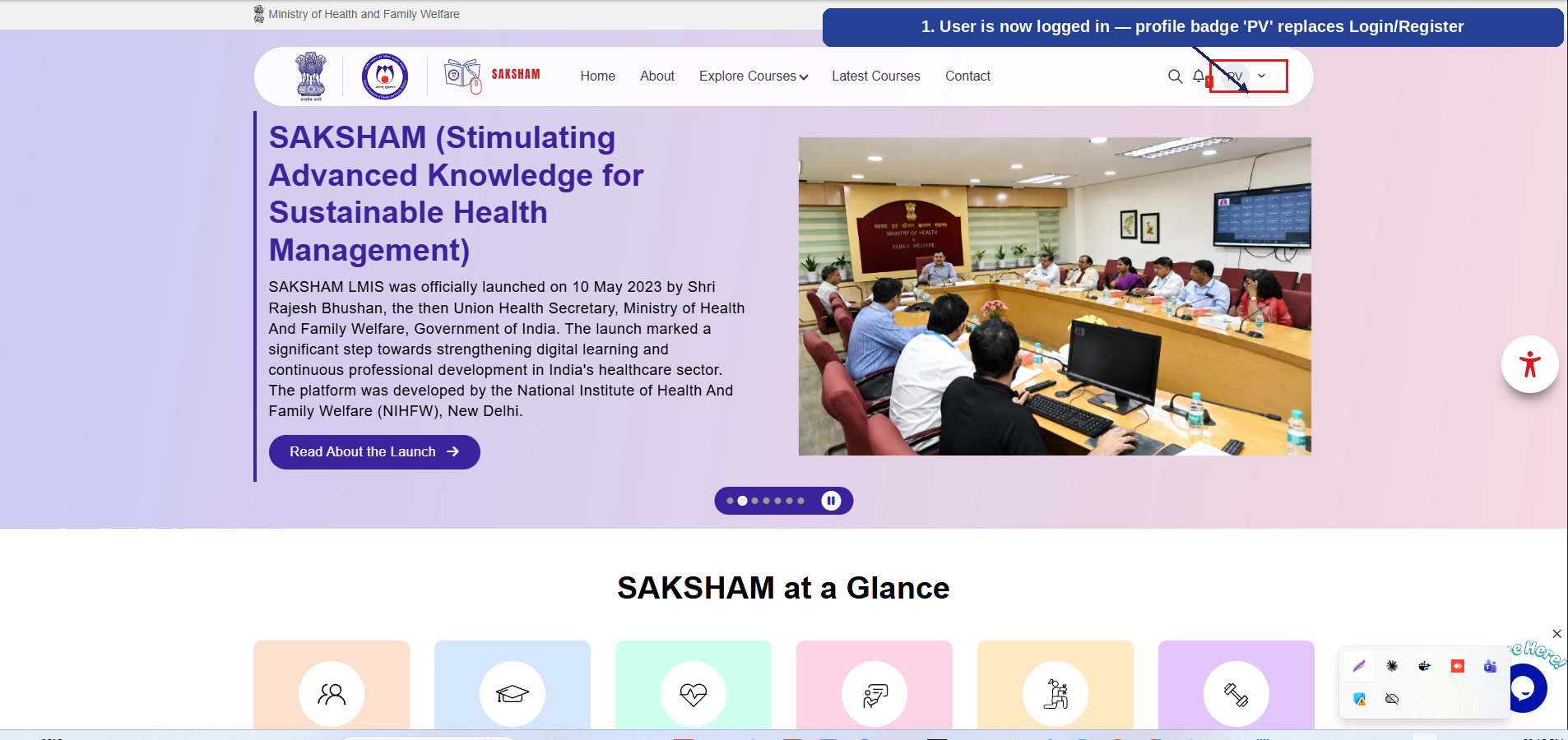
Once logged in, the user's profile initials replace the Login/Register options in the header, confirming a successful sign-in.
1
The profile badge (e.g., 'PV') now appears in place of Login/Register, confirming the user is logged in.
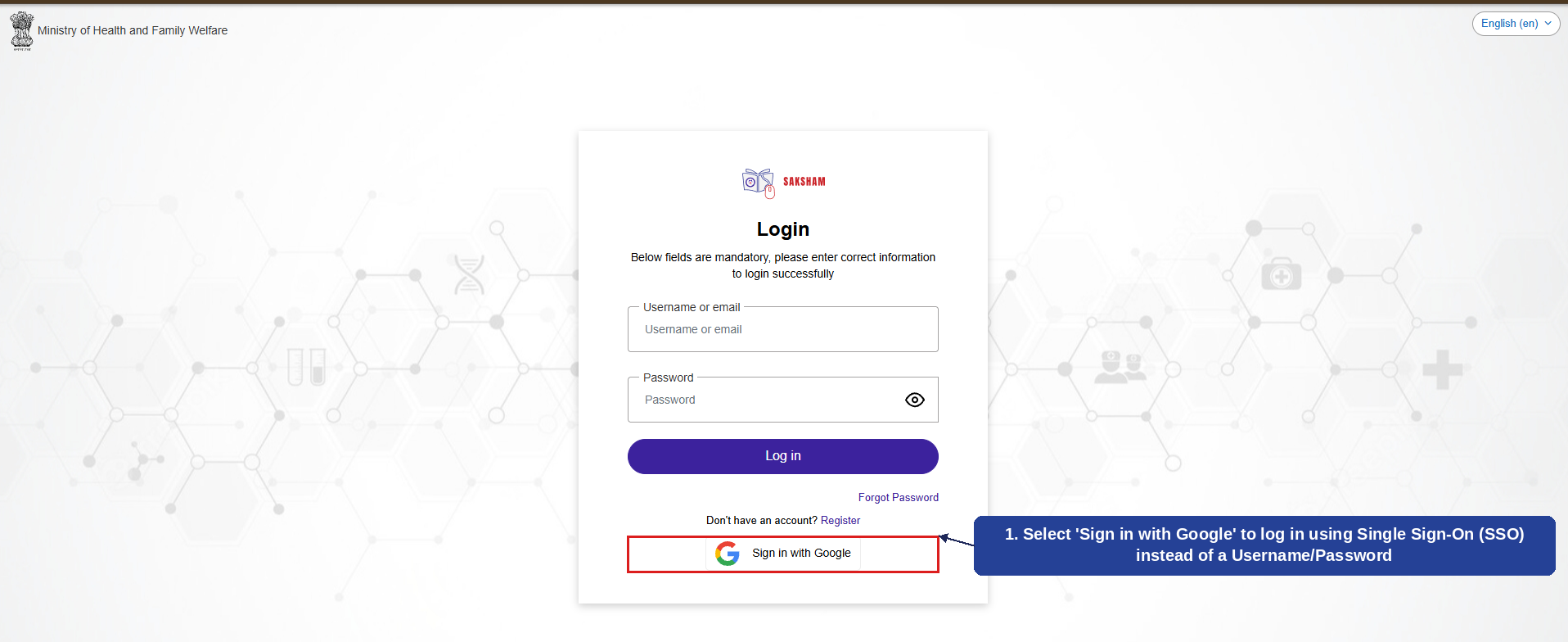
In addition to signing in with a Username/Email and Password, the Login screen offers a Single Sign-On (SSO) option so a user can log in directly using their Google account, without registering separately. The numbered callout below highlights this option.
1
Select 'Sign in with Google' to log in using SSO — the user is authenticated via their Google account instead of a Username/Password.
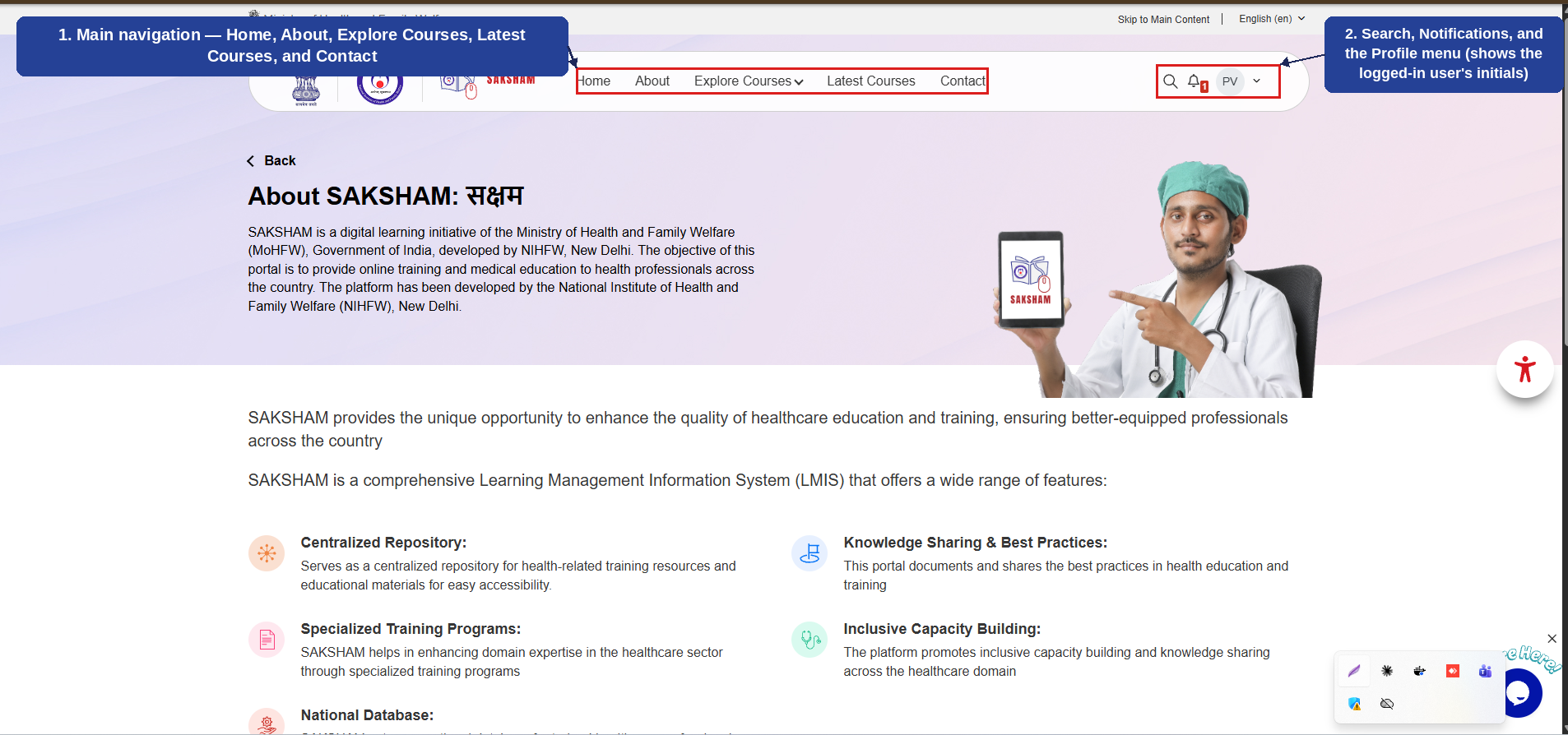
Once a user logs in — whether via Username/Password or SSO — the header changes to show the full navigation menu and the user's profile badge. Every module described in the rest of this manual is reached from this navigation bar. The numbered callouts below highlight its two parts.
1
The main navigation menu — Home, About, Explore Courses, Latest Courses, and Contact — links to every module covered in this manual.
2
Search, Notifications, and the Profile menu — the Profile menu shows the logged-in user's initials (e.g., 'PV') and gives access to account options.
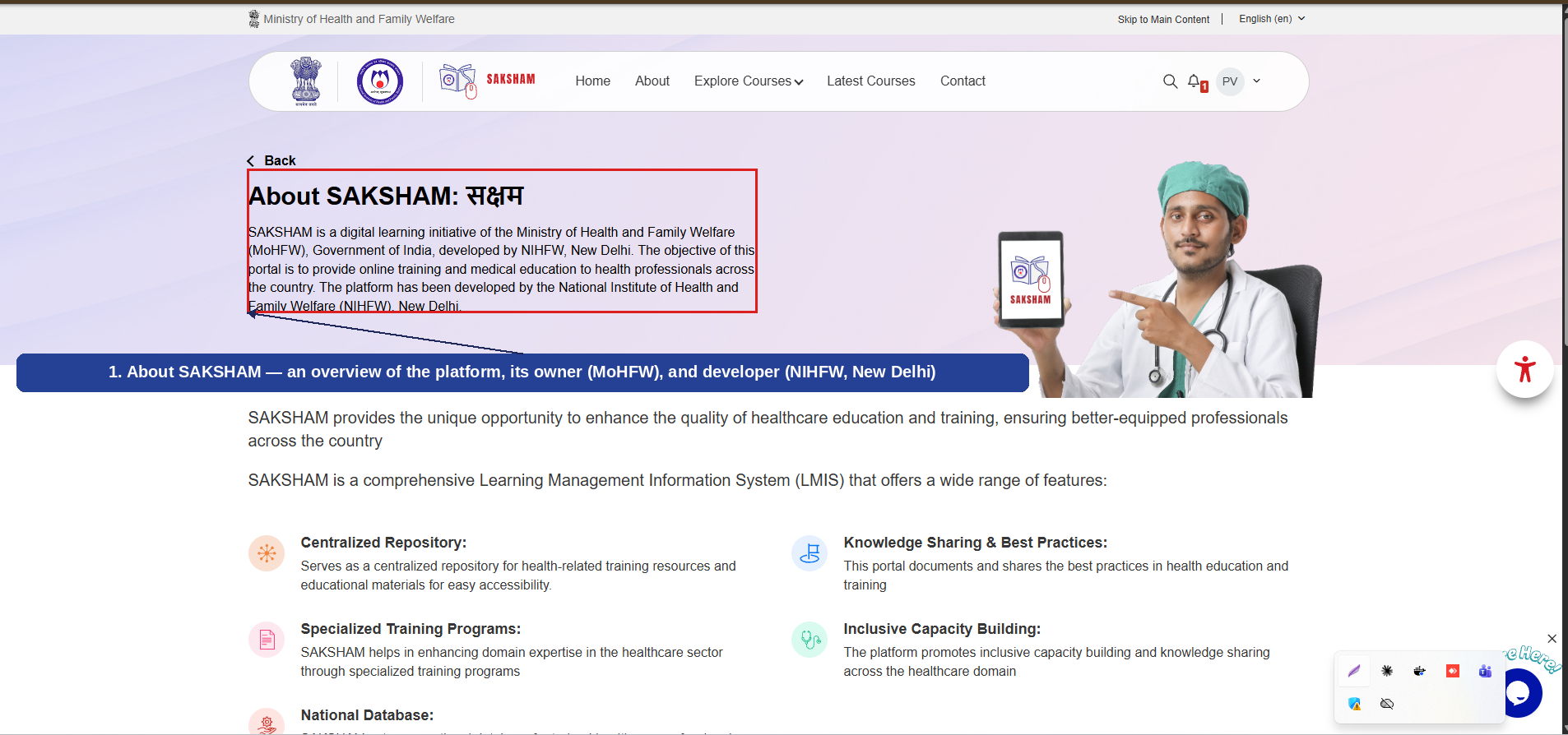
Selecting 'About' from the navigation bar opens the About SAKSHAM page, which introduces the platform, its purpose, and its objectives. The numbered callout below highlights the introductory section.
1
An overview of SAKSHAM — its purpose, owning Ministry (MoHFW) and developer (NIHFW, New Delhi).
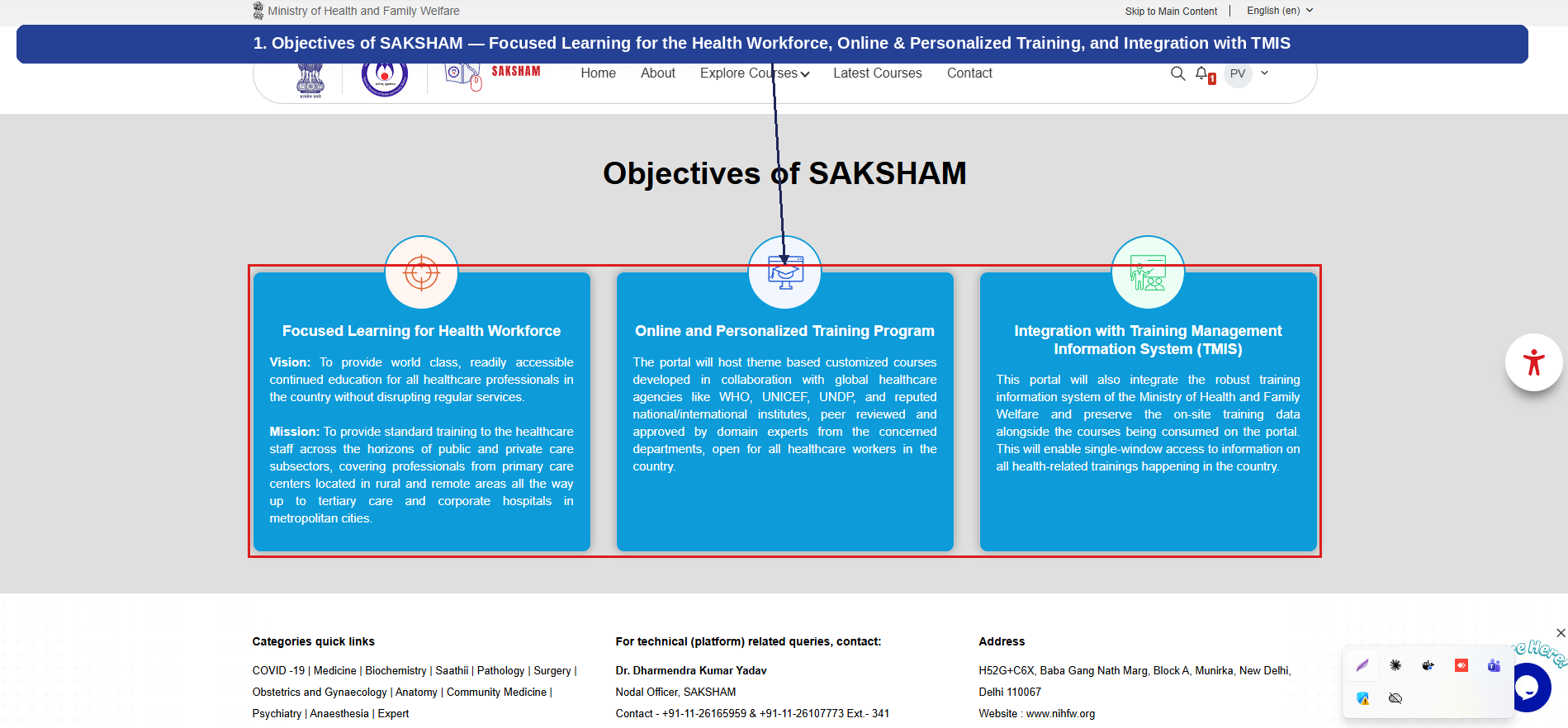
Scrolling the About page further reveals the Objectives of SAKSHAM, presented as three focus areas. The numbered callout below highlights this section.
1
Objectives of SAKSHAM — Focused Learning for the Health Workforce, Online & Personalized Training Program, and Integration with the Training Management Information System (TMIS).
Selecting 'Explore Courses' from the navigation bar opens a mega-menu listing every course category available on SAKSHAM, grouped under 'Courses' and 'Specialization'.
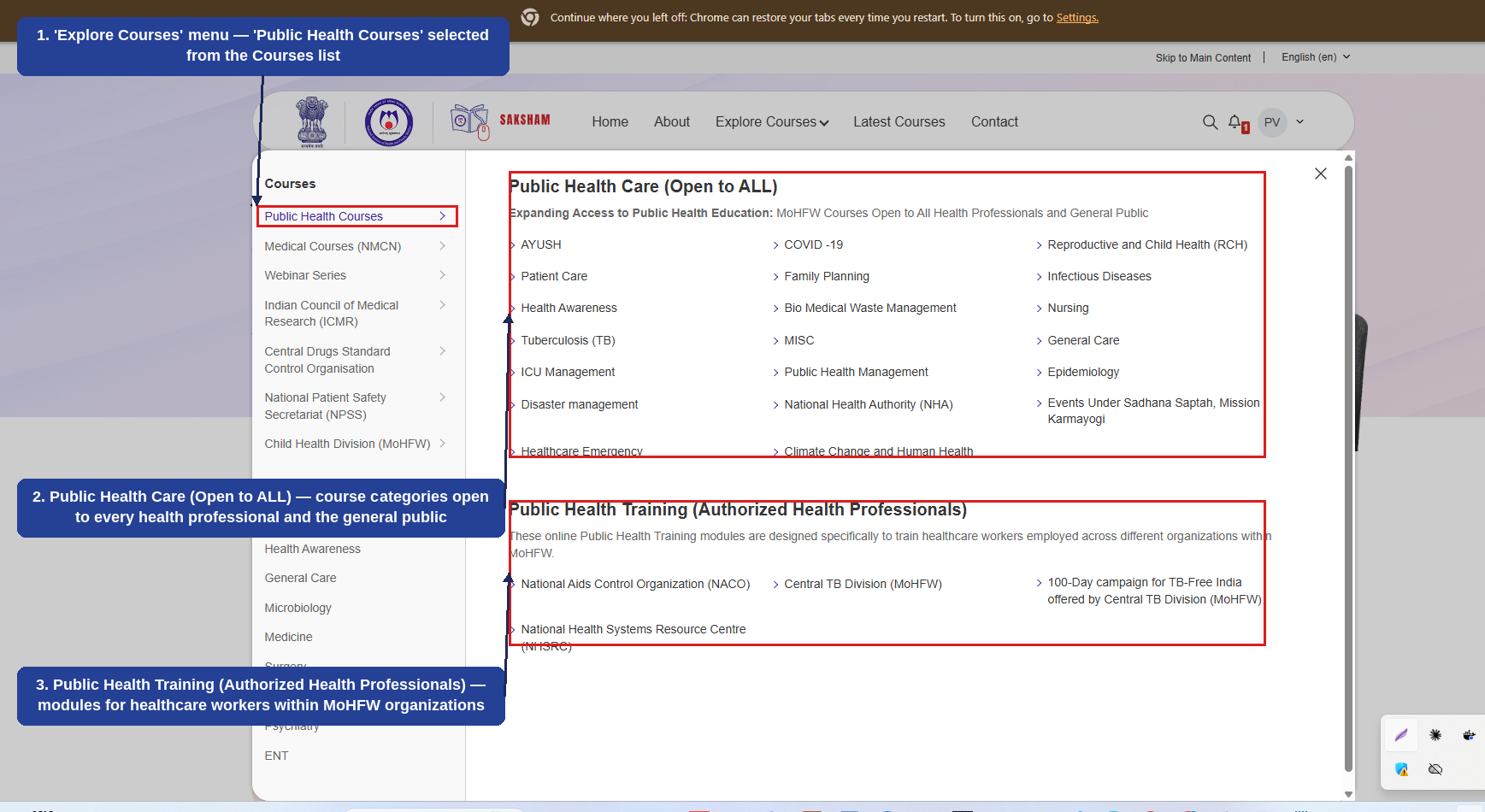
Selecting 'Public Health Courses' from the Explore Courses menu displays two groups of courses: Public Health Care, open to all health professionals and the general public, and Public Health Training, for authorized health professionals within MoHFW. The numbered callouts below highlight each part of the screen.
1
'Public Health Courses' selected from the Courses list on the left.
2
Public Health Care (Open to ALL) course categories such as AYUSH, COVID-19, Patient Care, Family Planning, and Reproductive and Child Health (RCH) open to every health professional and the general public.
3
Public Health Training (Authorized Health Professionals) modules such as National Aids Control Organization (NACO), Central TB Division (MoHFW), and National Health Systems Resource Centre (NHSRC) for healthcare workers within MoHFW organizations.
This section walks through the complete journey of enrolling in and completing a course under 'Public Health Related Courses (Open to ALL)' from browsing the course list to receiving the Certificate of Completion. The example below uses the 'Occupational Therapy: ADL skills and Energy Conservation Techniques' course under the AYUSH category, but the same steps apply to any Public Health course.
2.11.1 Browsing and Selecting a Public Health Course
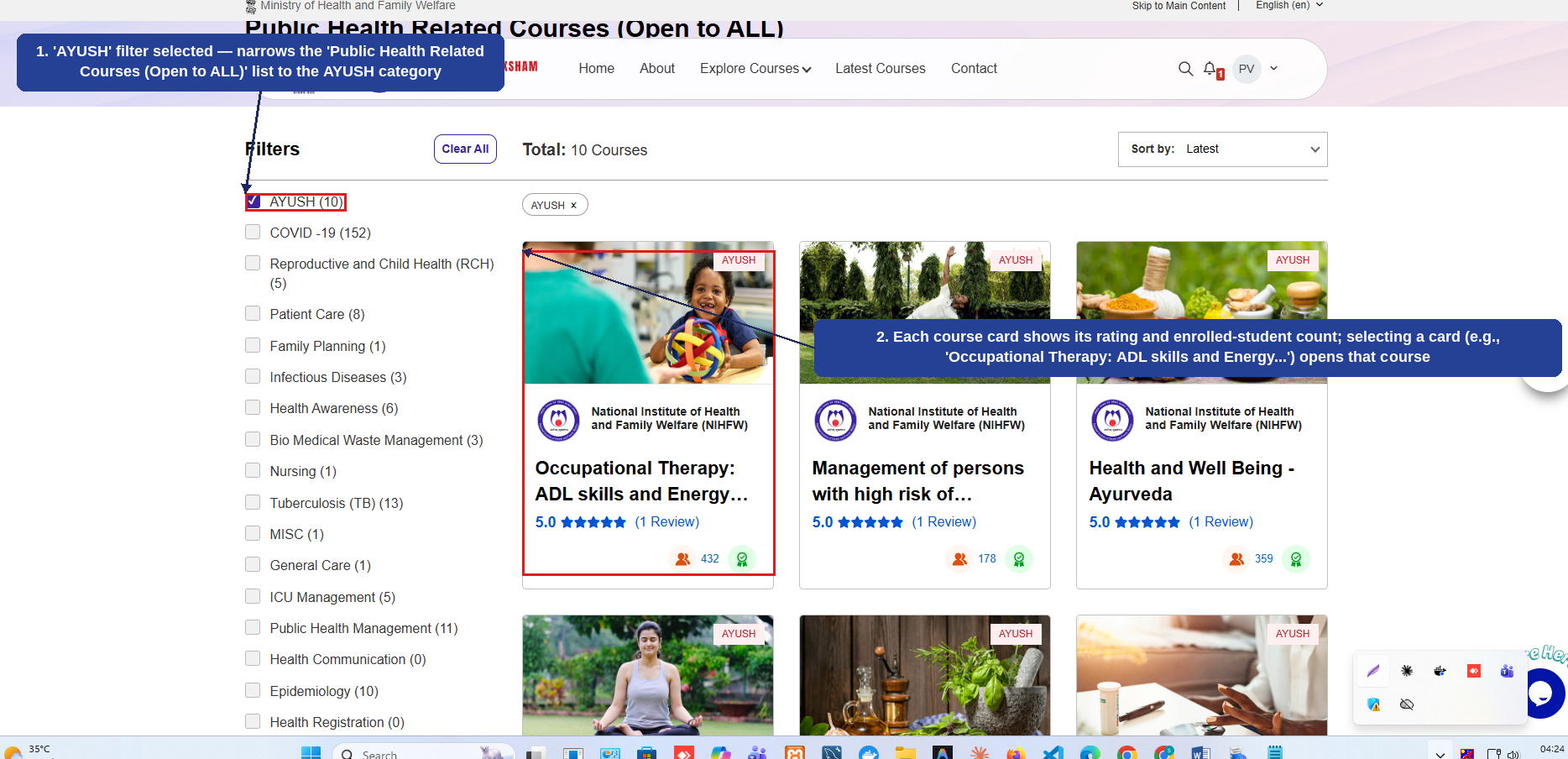
From the 'Public Health Related Courses (Open to ALL)' listing, the courses can be narrowed down using the category filters (such as AYUSH). Each course card shows its rating and the number of enrolled students; selecting a card opens that course's detail page. The numbered callouts below highlight this screen.
1
'AYUSH' filter selected — narrows the 'Public Health Related Courses (Open to ALL)' list to the AYUSH category.
2
Each course card shows its rating and enrolled-student count; selecting a card (e.g., 'Occupational Therapy: ADL skills and Energy Conservation Techniques') opens that course.
2.11.2 Enrolling in the Course
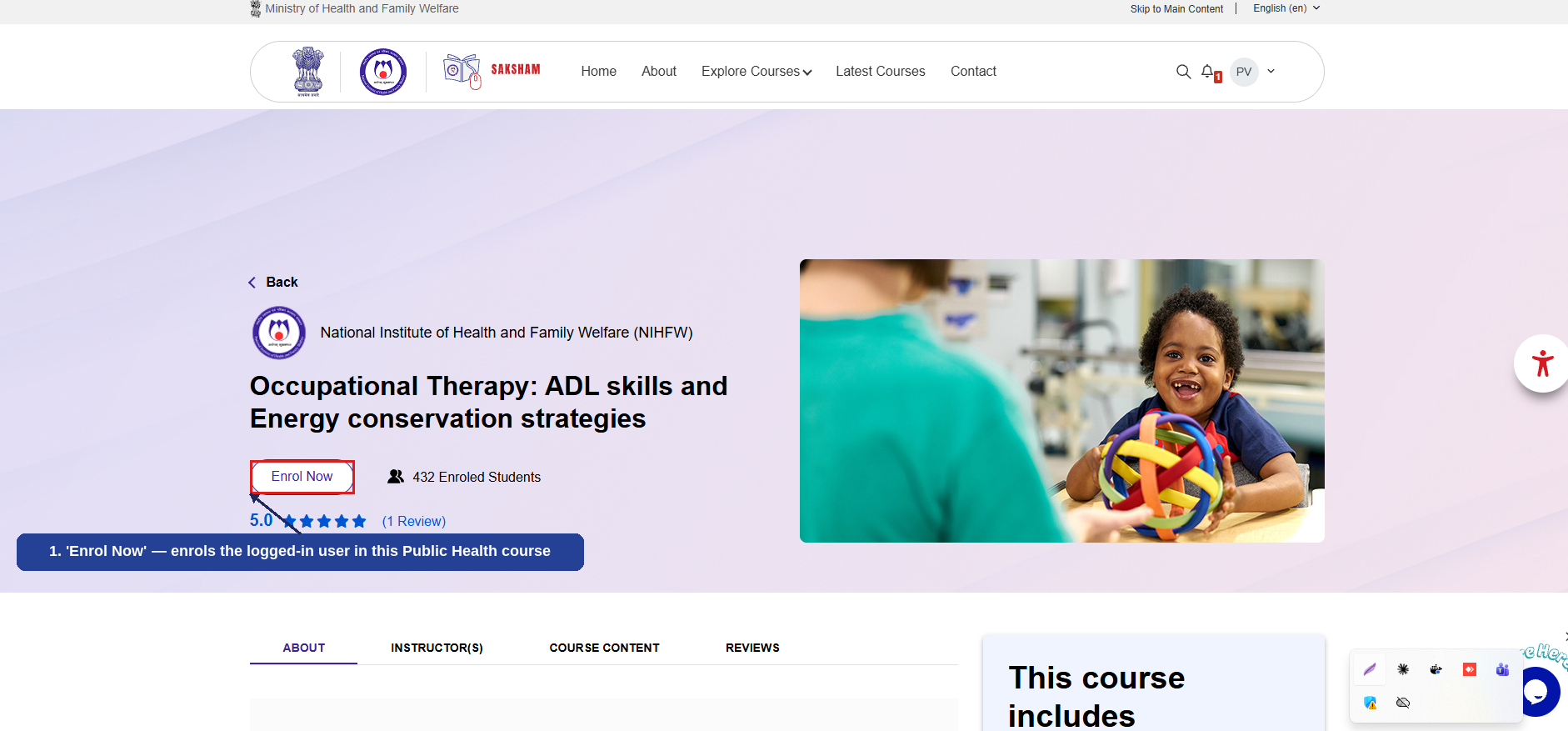
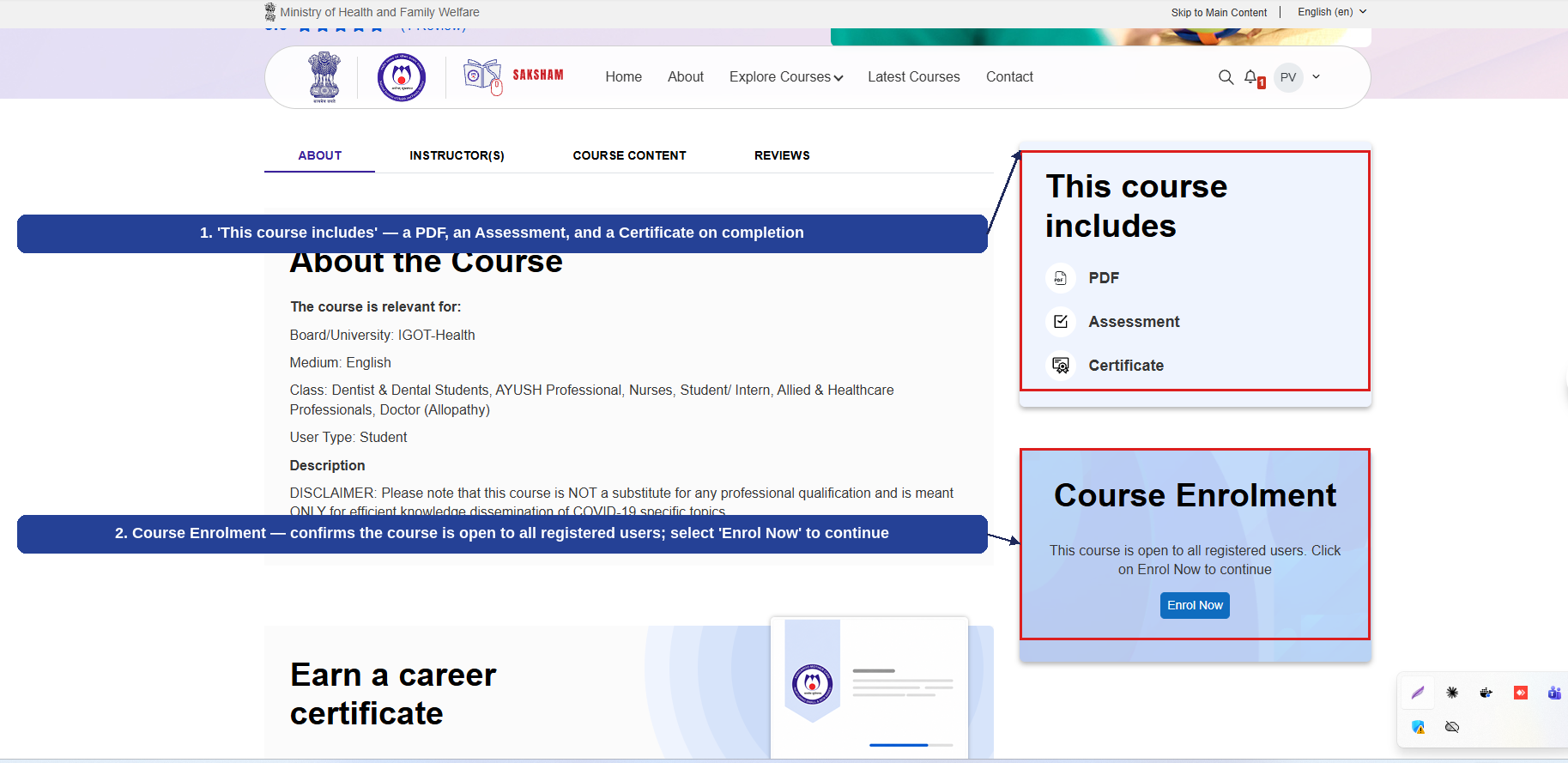
The course detail page shows an 'Enrol Now' button near the top. Scrolling down also shows a 'This course includes' summary and a Course Enrolment box confirming that the course is open to all registered users. The numbered callouts below highlight these elements.
1
'Enrol Now' — enrols the logged-in user in this Public Health course.
1
'This course includes' — a PDF, an Assessment, and a Certificate on completion.
2
Course Enrolment — confirms the course is open to all registered users; selecting 'Enrol Now' here also enrols the user.
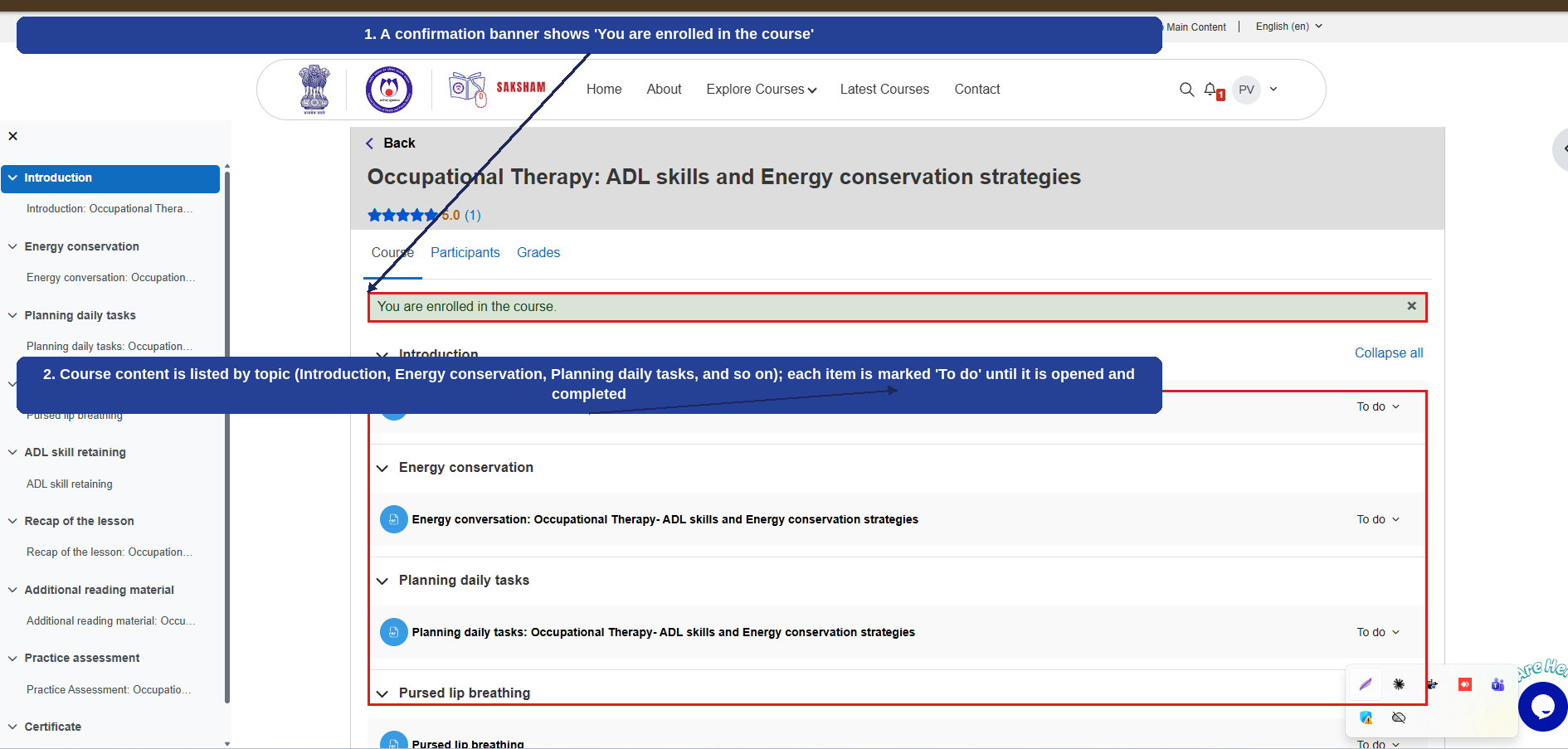
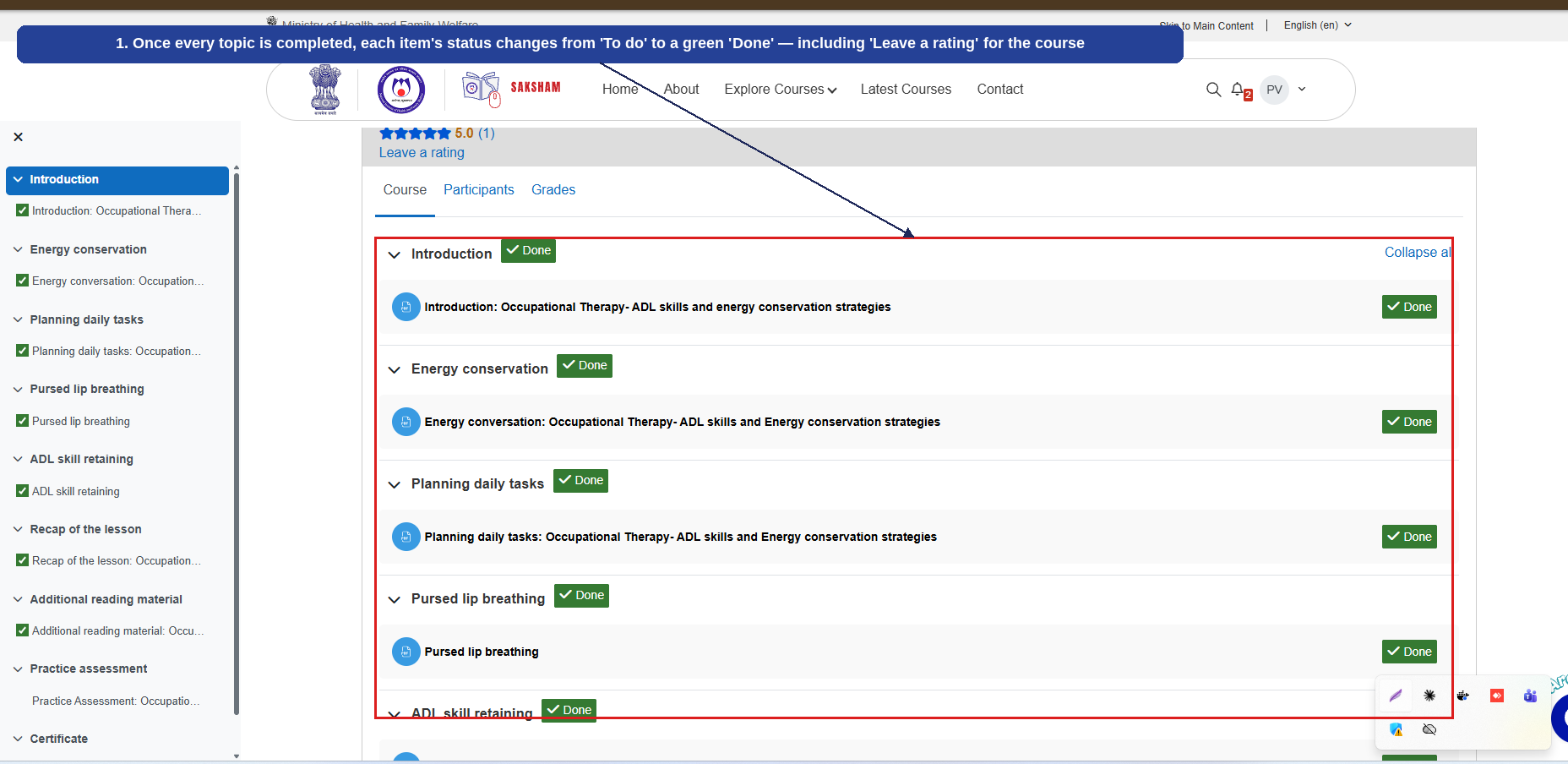
Once enrolled, a confirmation banner appears and the course content is listed by topic. Each topic is marked 'To do' until it has been opened and completed. Once every topic is completed, each item's status changes to a green 'Done', including an option to leave a rating for the course. The numbered callouts below highlight this progression.
1
A confirmation banner shows 'You are enrolled in the course'.
2
Course content is listed by topic (Introduction, Energy conservation, Planning daily tasks, and so on); each item is marked 'To do' until it is opened and completed.
1
Once every topic is completed, each item's status changes from 'To do' to a green 'Done' — including 'Leave a rating' for the course.
2.11.4 Email Notifications
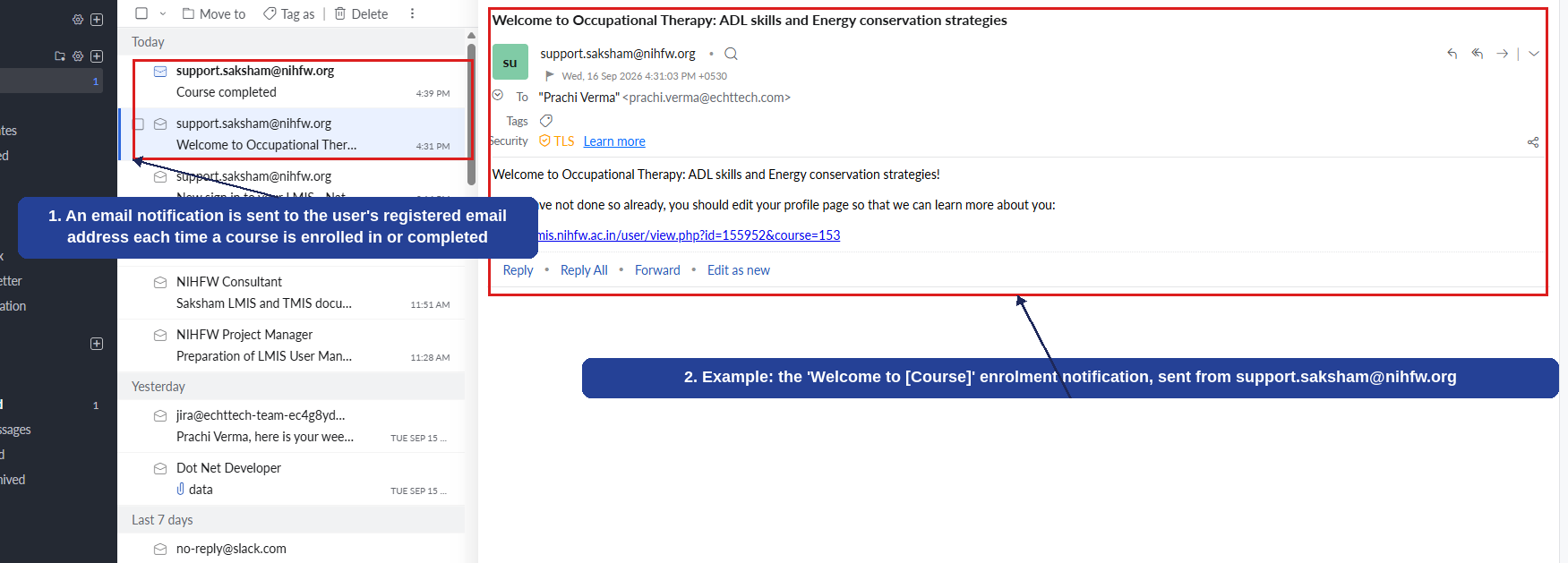
An important note: an email notification is sent to the user's registered email address every time a course is enrolled in or completed. The numbered callouts below show an example of such a notification.
1
An email notification is sent to the user's registered email address each time a course is enrolled in or completed.
2
Example: the 'Welcome to [Course]' enrolment notification, sent from support.saksham@nihfw.org.
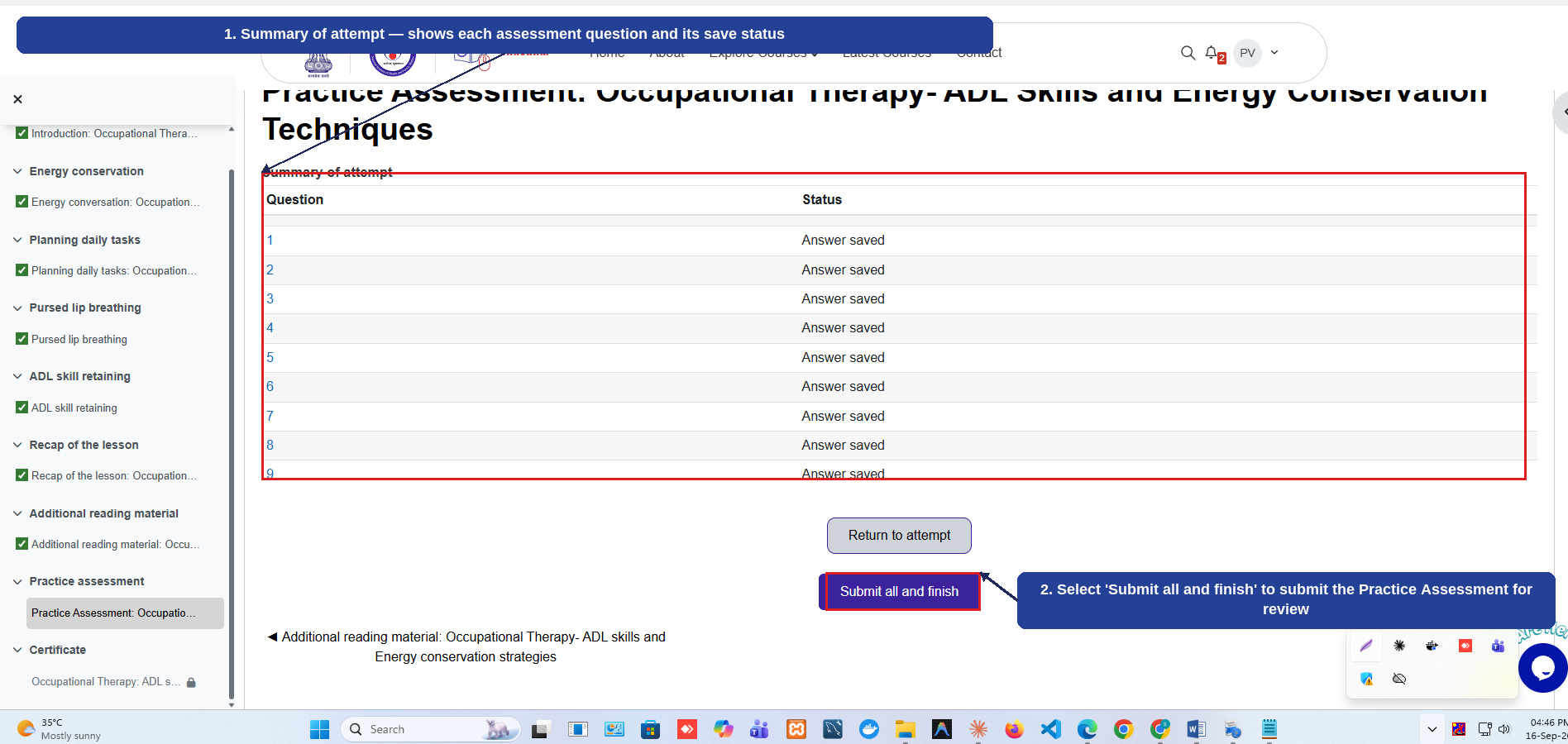
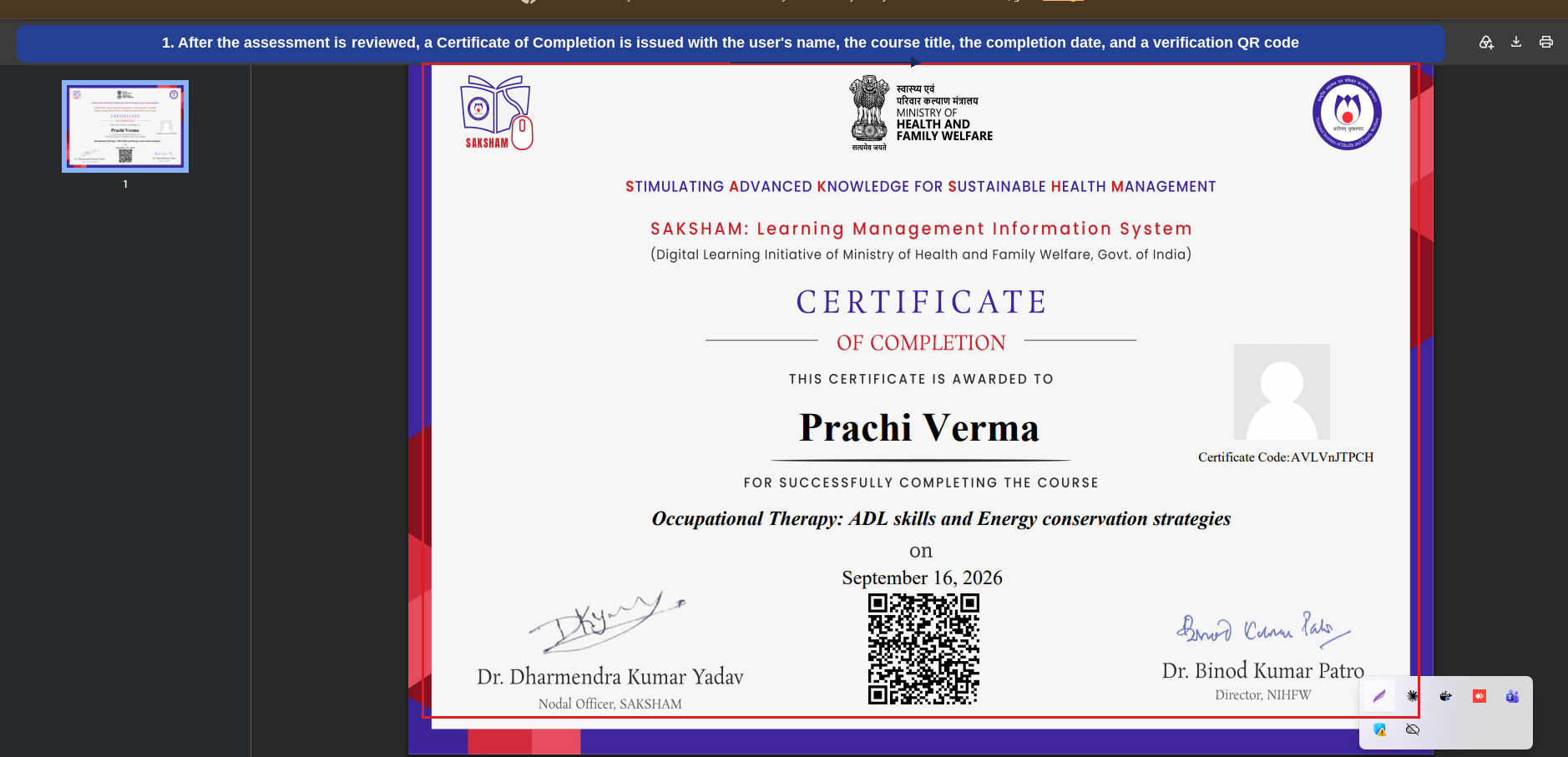
After completing all the course content, the user attempts the Practice Assessment. The 'Summary of attempt' screen shows each question and its save status before final submission. Once submitted, the assessment is reviewed, after which a Certificate of Completion is issued with the user's name, the course title, the completion date, and a verification QR code. The numbered callouts below highlight this final stage.
1
Summary of attempt — shows each assessment question and its save status.
2
Selecting 'Submit all and finish' submits the Practice Assessment for review.
1
After the assessment is reviewed, a Certificate of Completion is issued with the user's name, the course title, the completion date, and a verification QR code.
This completes the course enrolment-to-certificate journey for a Public Health course. The same flow applies to other courses under 'Public Health Related Courses (Open to ALL)'.
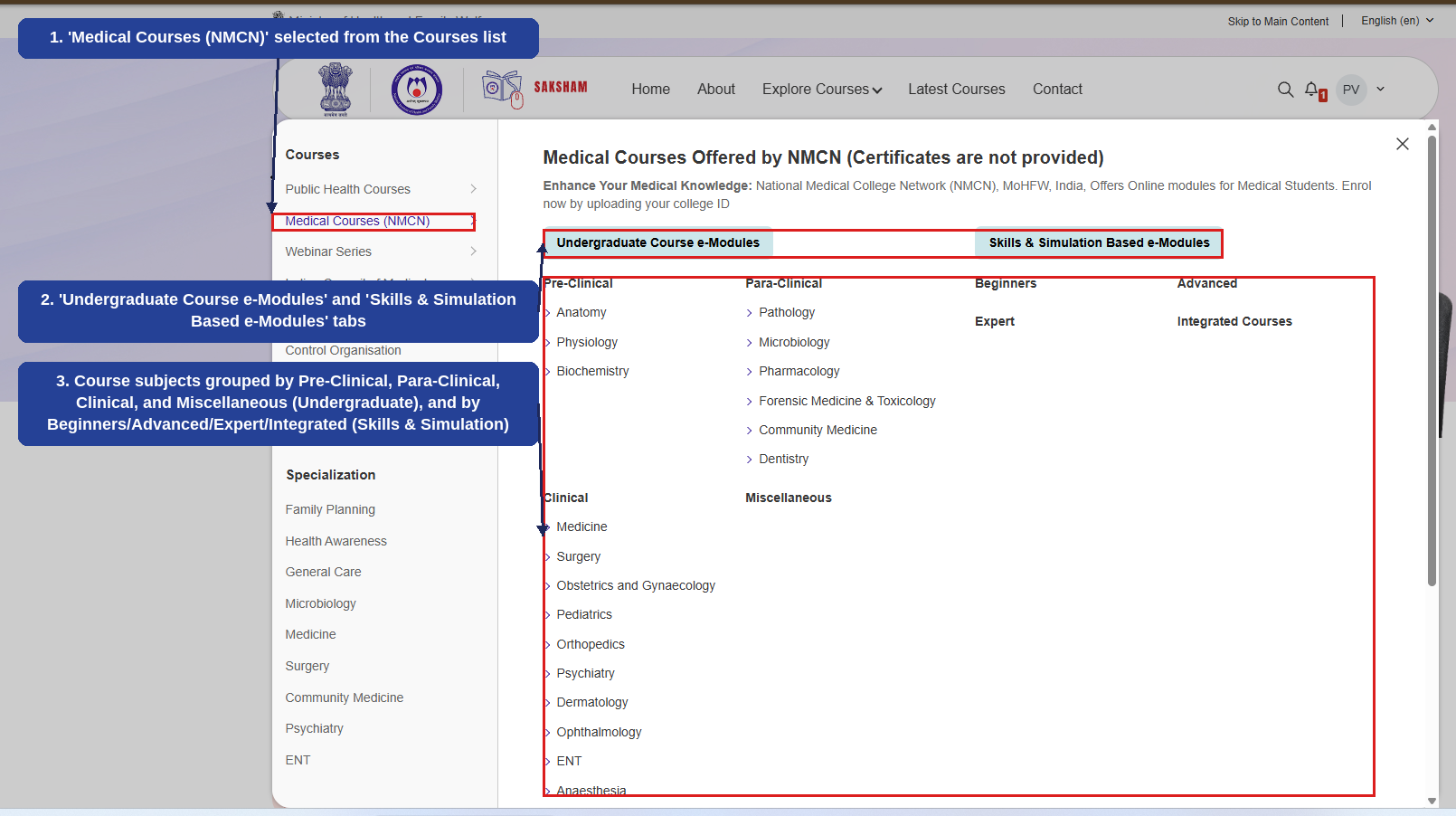
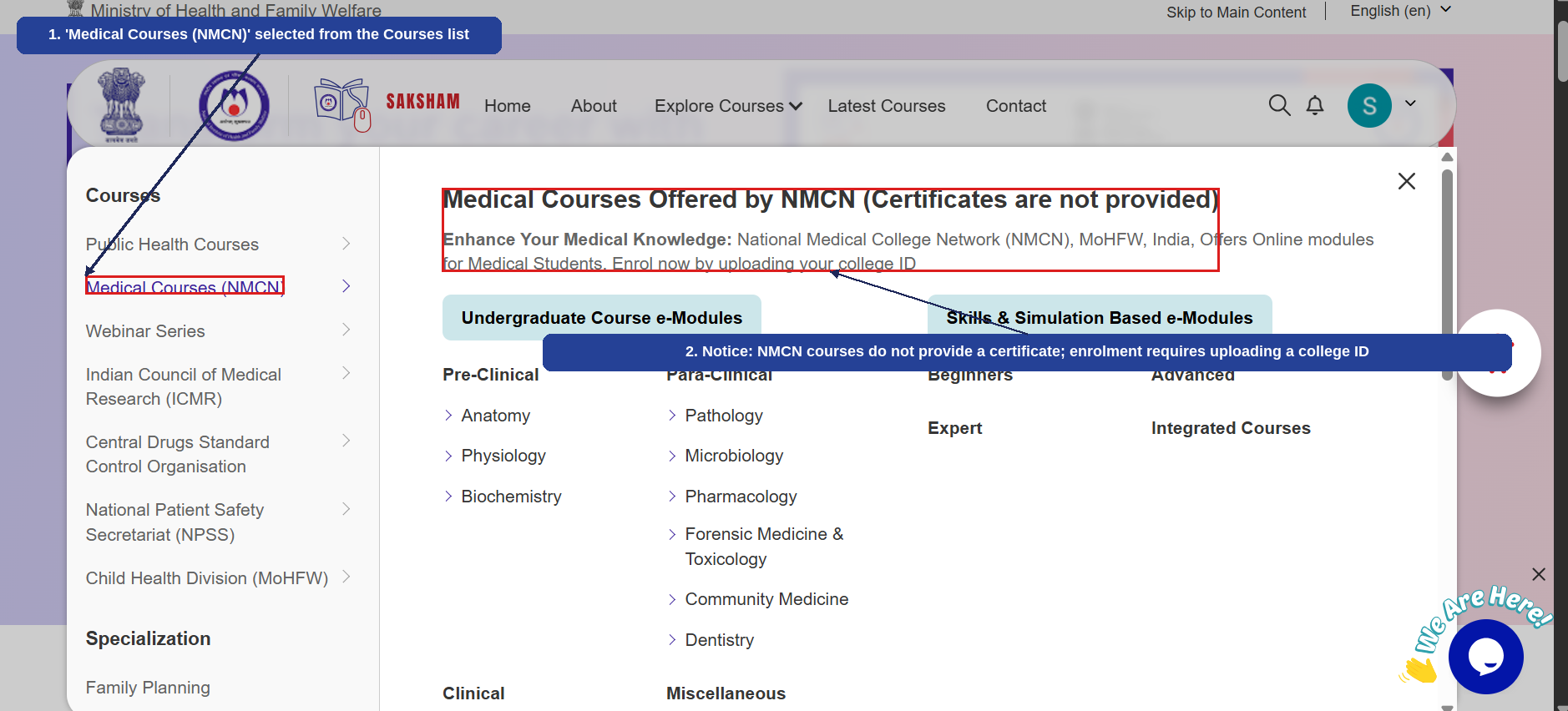
Selecting 'Medical Courses (NMCN)' from the Explore Courses menu displays courses offered by the National Medical College Network (NMCN), MoHFW, for medical students (enrolment requires uploading a college ID; certificates are not provided). The numbered callouts below highlight each part of the screen.
1
'Medical Courses (NMCN)' selected from the Courses list on the left.
2
'Undergraduate Course e-Modules' and 'Skills & Simulation Based e-Modules' tabs, switching between the two course tracks.
3
Course subjects grouped by Pre-Clinical, Para-Clinical, Clinical, and Miscellaneous under Undergraduate Course e-Modules, and by Beginners, Advanced, Expert, and Integrated Courses under Skills & Simulation Based e-Modules.
This section walks through enrolling in and completing a course under 'Medical Courses (NMCN)'. Unlike Public Health courses, NMCN courses require a government-certified ID (such as a college/institute ID) to be uploaded at the time of enrolment, and do not issue a Certificate of Completion. The example below uses the 'Anatomy of the Internal Ear' course under the Anatomy category, but the same steps apply to any NMCN course.
2.12.1 Browsing and Selecting a Medical Course (NMCN)
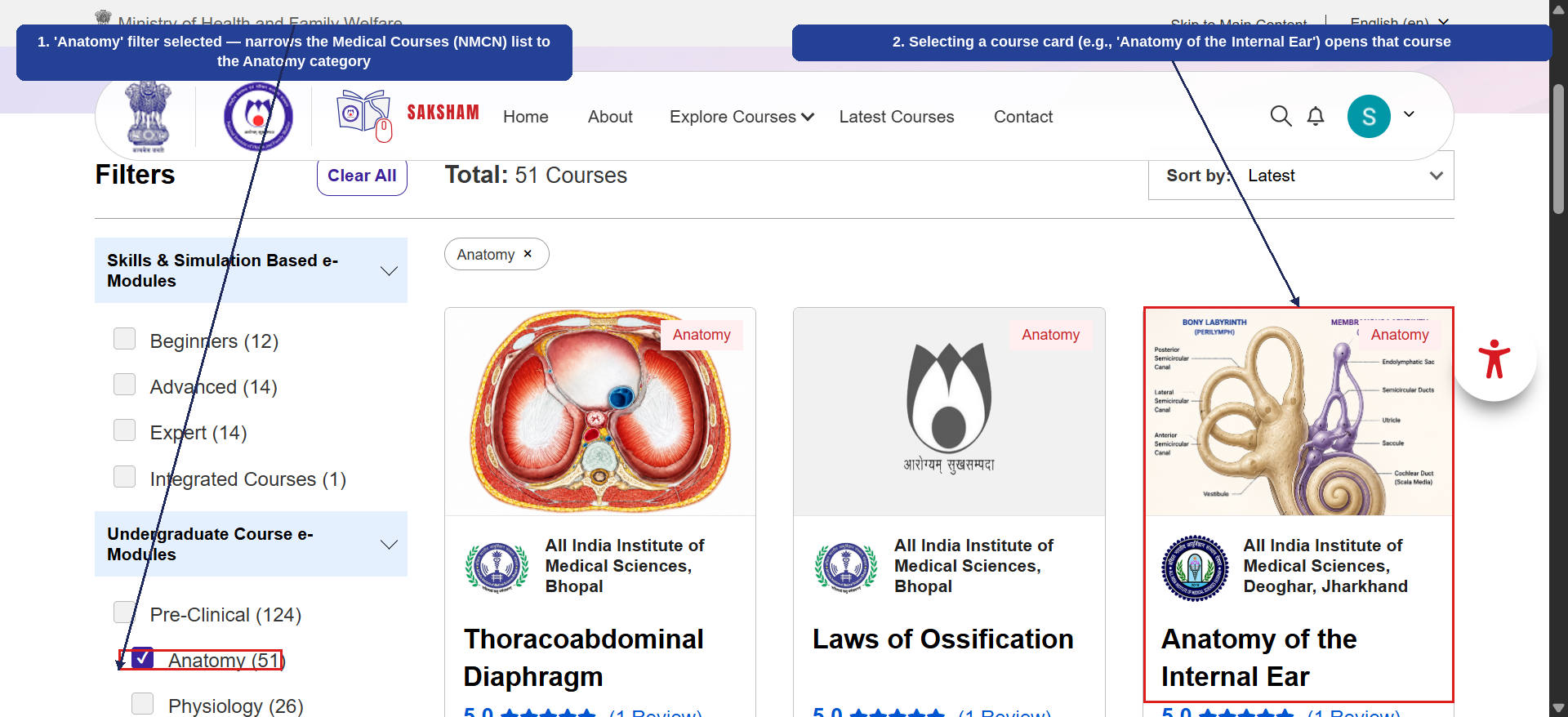
Selecting 'Medical Courses (NMCN)' from the Explore Courses menu displays a notice that certificates are not provided for these courses, and that enrolment requires uploading a college ID. Courses can be browsed under Pre-Clinical, Para-Clinical, Clinical, and other groupings, or narrowed using category filters (such as Anatomy). The numbered callouts below highlight this screen.
1
'Medical Courses (NMCN)' selected from the Courses list.
2
Notice: NMCN courses do not provide a certificate; enrolment requires uploading a college ID.
1
'Anatomy' filter selected — narrows the Medical Courses (NMCN) list to the Anatomy category.
2
Selecting a course card (e.g., 'Anatomy of the Internal Ear') opens that course.
2.12.2 Enrolling in the Course (ID Upload Required)
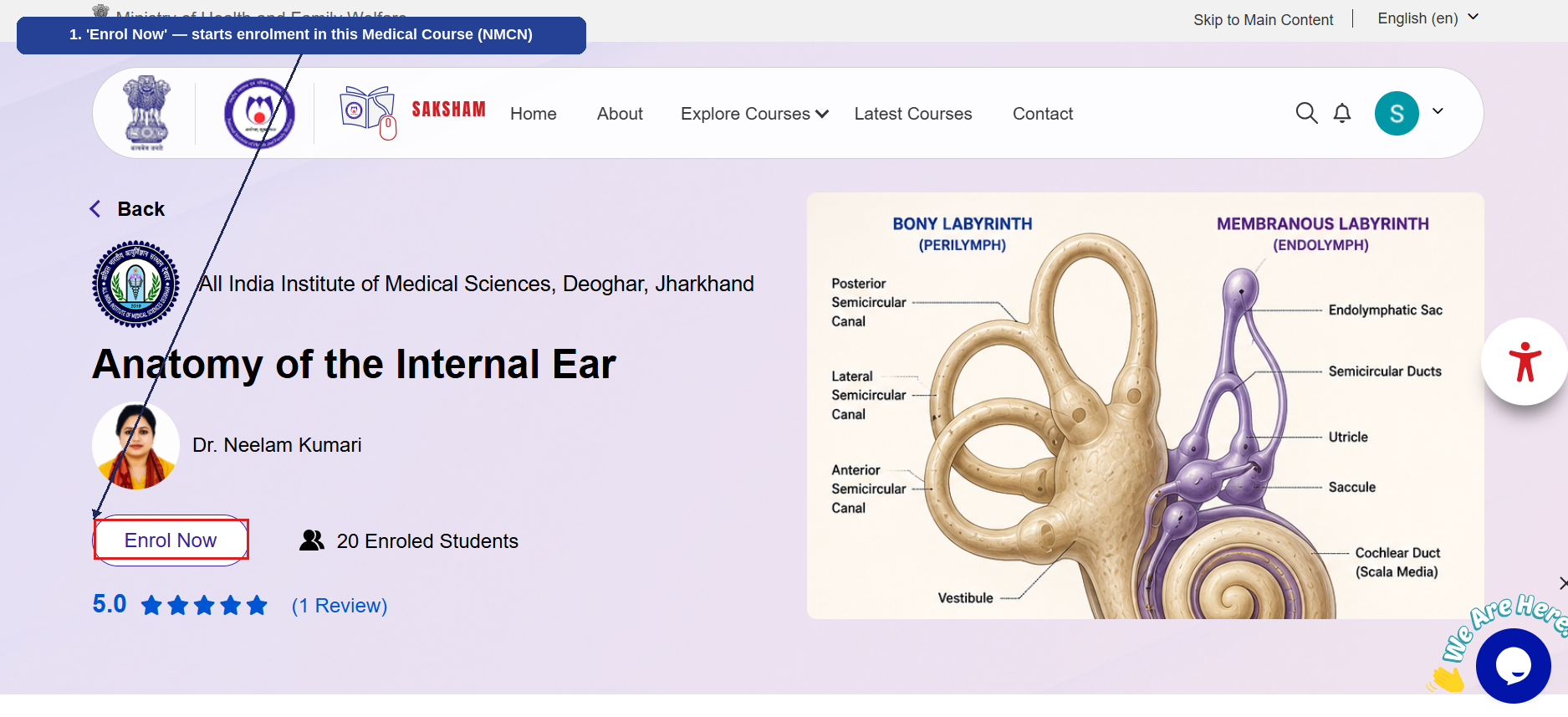
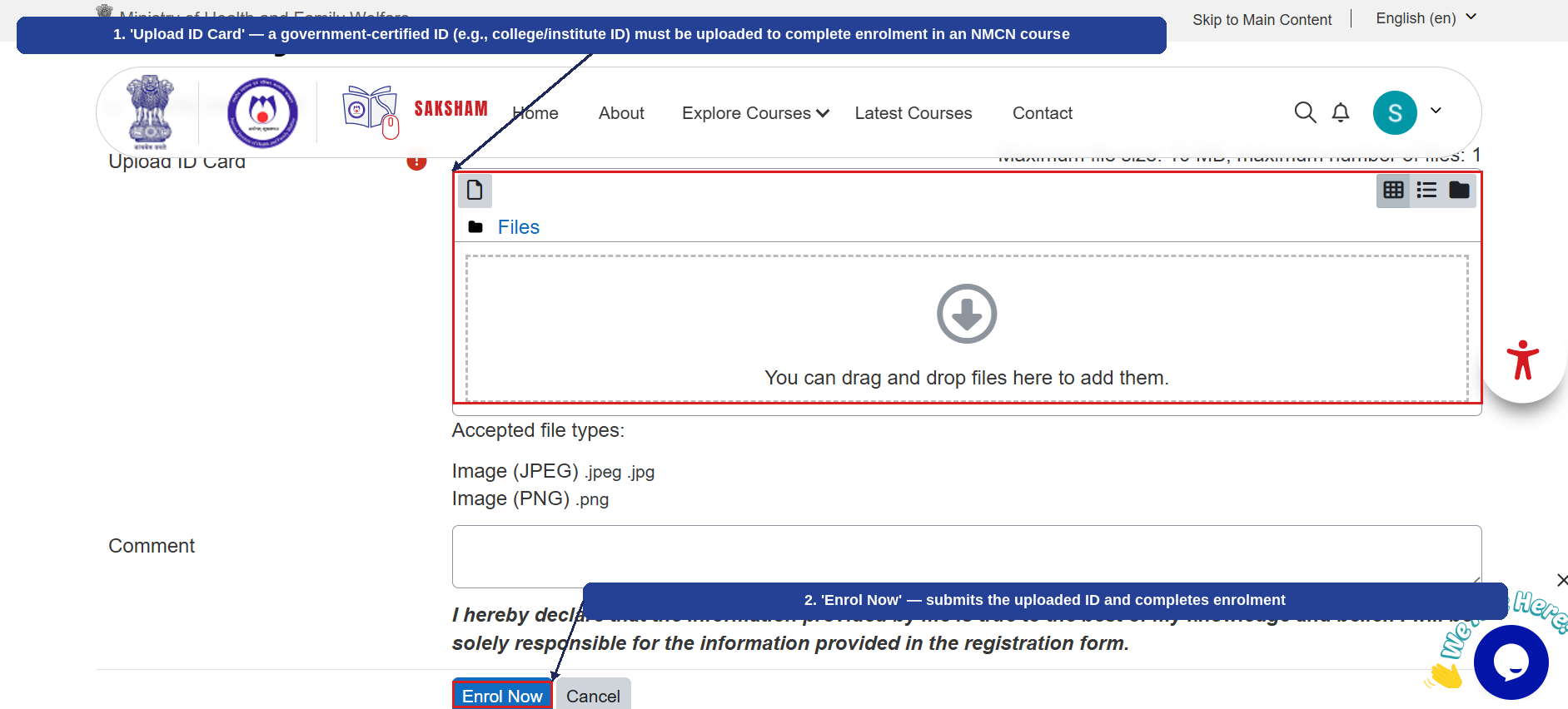
The course detail page shows an 'Enrol Now' button. Selecting it opens an enrolment form that requires a government-certified ID (such as a college/institute ID) to be uploaded before enrolment can be completed. The numbered callouts below highlight this flow.
1
'Enrol Now' — starts enrolment in this Medical Course (NMCN).
1
'Upload ID Card' — a government-certified ID (e.g., college/institute ID) must be uploaded to complete enrolment in an NMCN course.
2
'Enrol Now' — submits the uploaded ID and completes enrolment.
2.12.3 Completing the Course Content
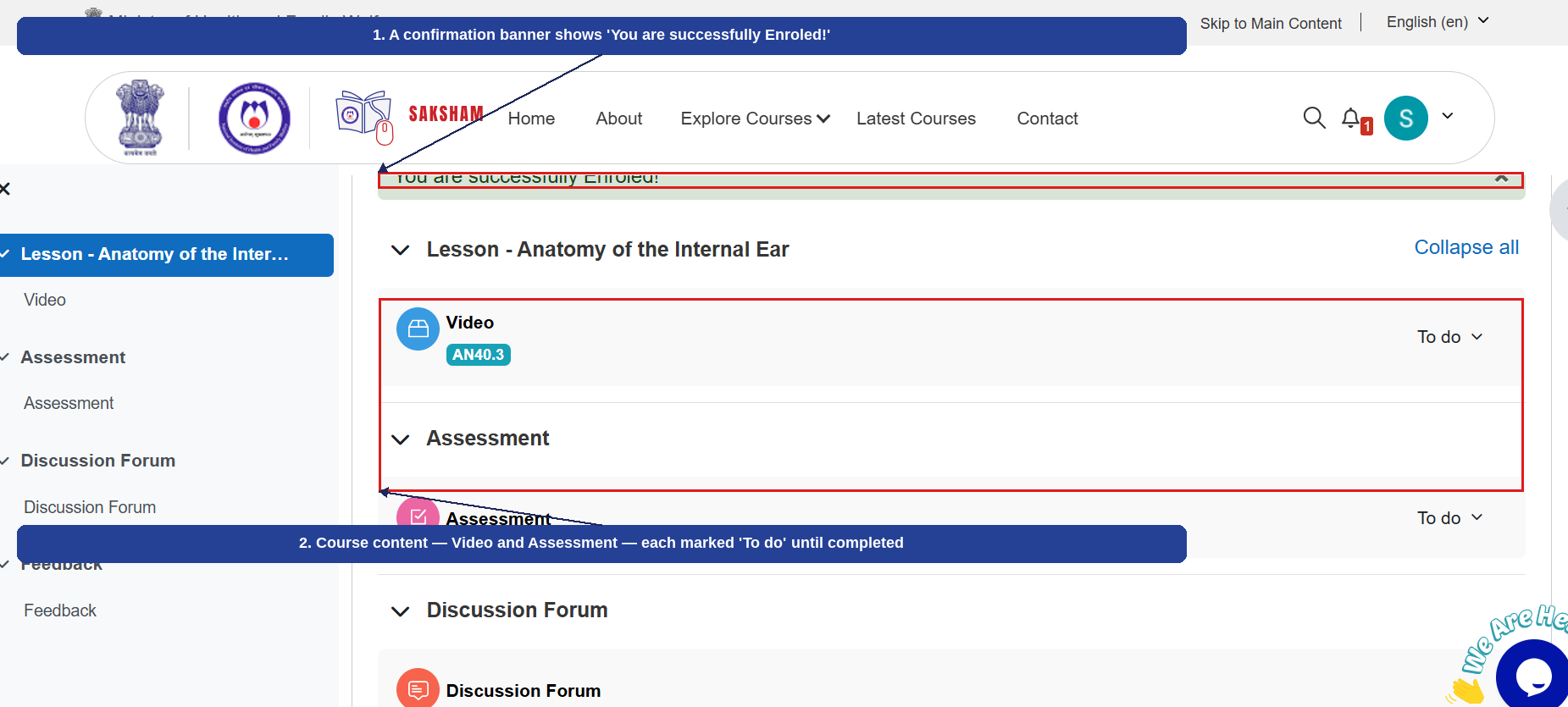
Once enrolled, a confirmation banner shows 'You are successfully Enroled!' and the course content — Video and Assessment — is listed, each marked 'To do' until completed. The numbered callouts below highlight this screen.
1
A confirmation banner shows 'You are successfully Enroled!'.
2
Course content — Video and Assessment — each marked 'To do' until completed.
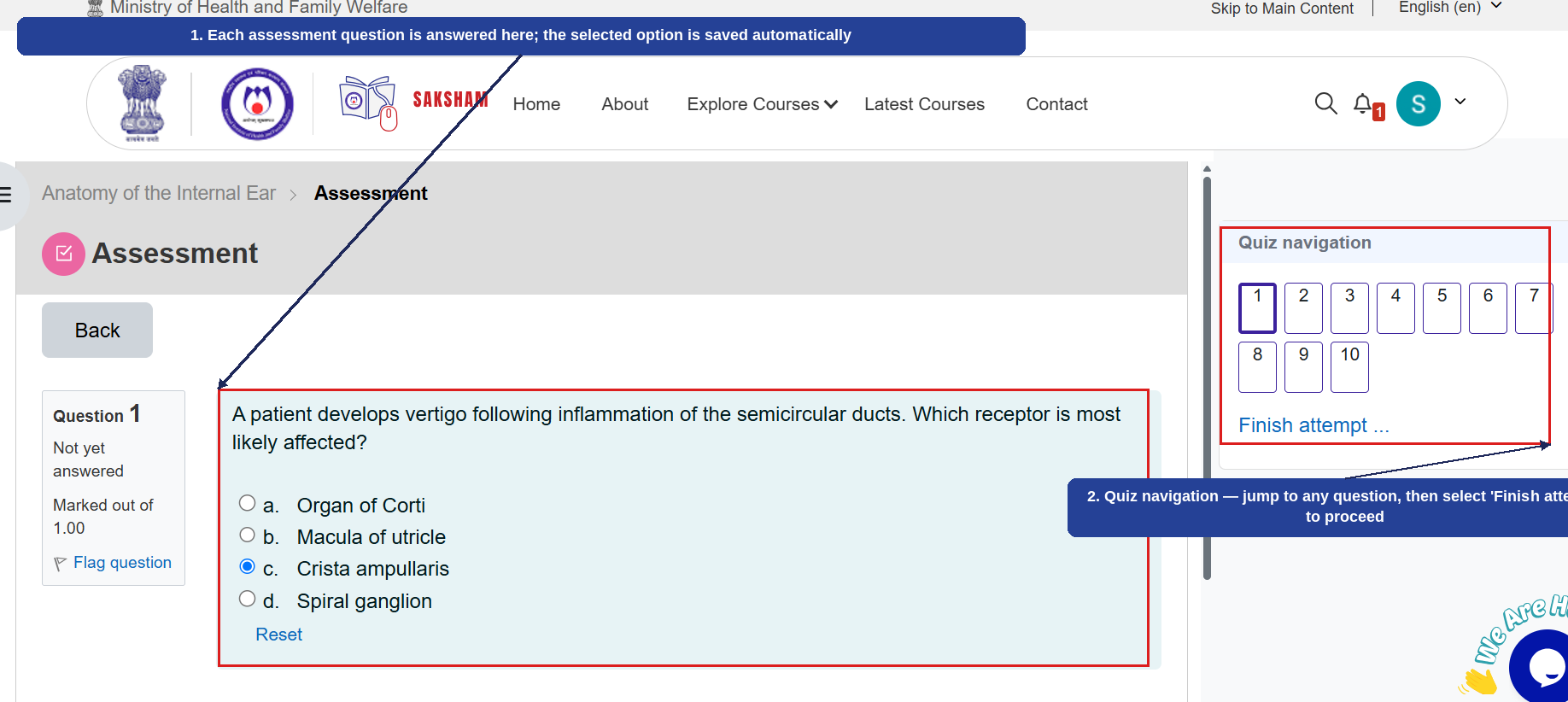
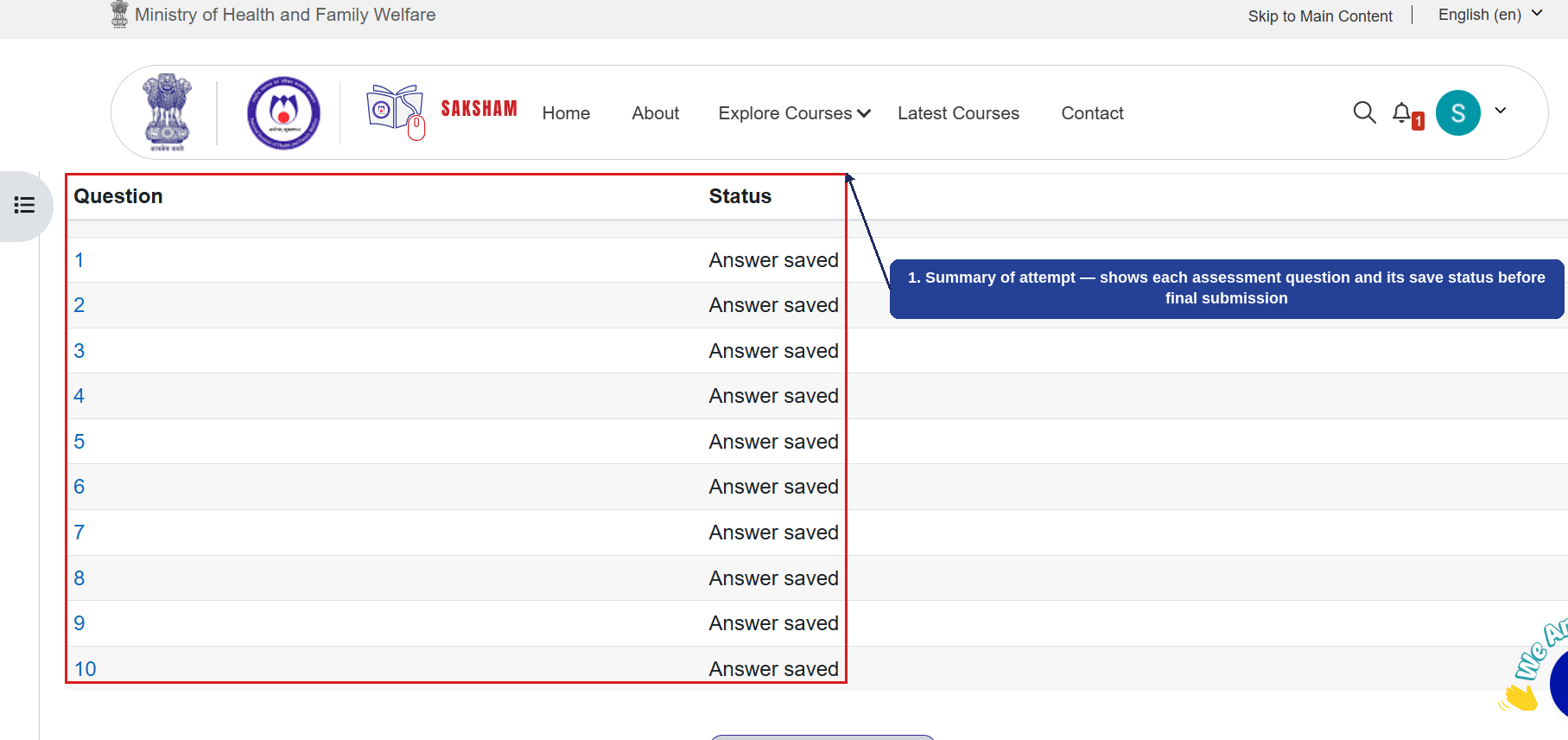
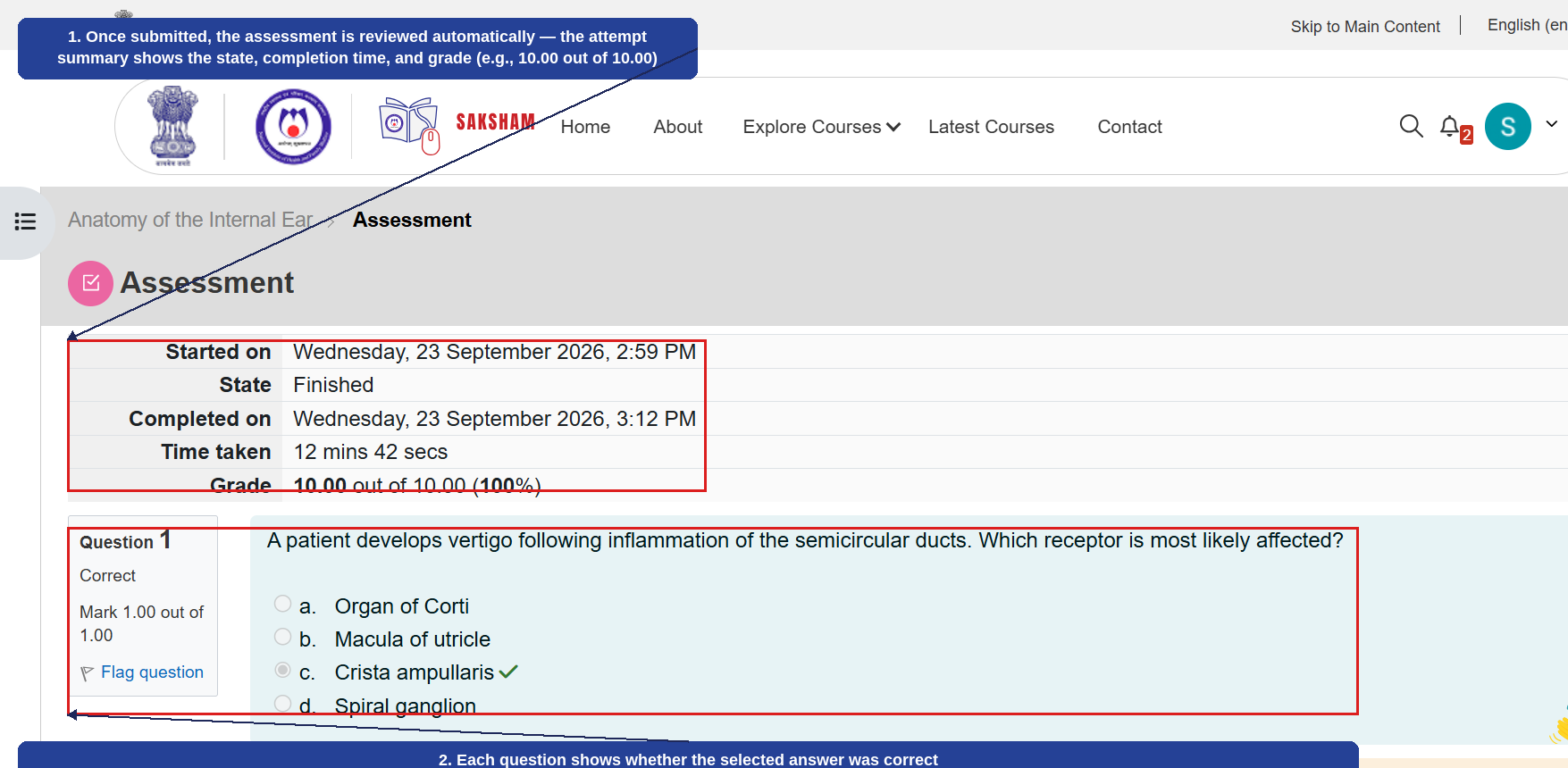
After viewing the course video, the user attempts the Assessment. Each question is answered and the selected option is saved automatically; the Quiz navigation panel allows jumping between questions before selecting 'Finish attempt'. A 'Summary of attempt' screen then shows each question's save status before final submission. Once submitted, the assessment is reviewed automatically, showing the completion time, grade, and whether each selected answer was correct. The numbered callouts below highlight each step.
1
Each assessment question is answered here; the selected option is saved automatically.
2
Quiz navigation — jump to any question, then select 'Finish attempt' to proceed.
1
Summary of attempt — shows each assessment question and its save status before final submission.
1
Once submitted, the assessment is reviewed automatically — the attempt summary shows the state, completion time, and grade (e.g., 10.00 out of 10.00).
2
Each question shows whether the selected answer was correct.
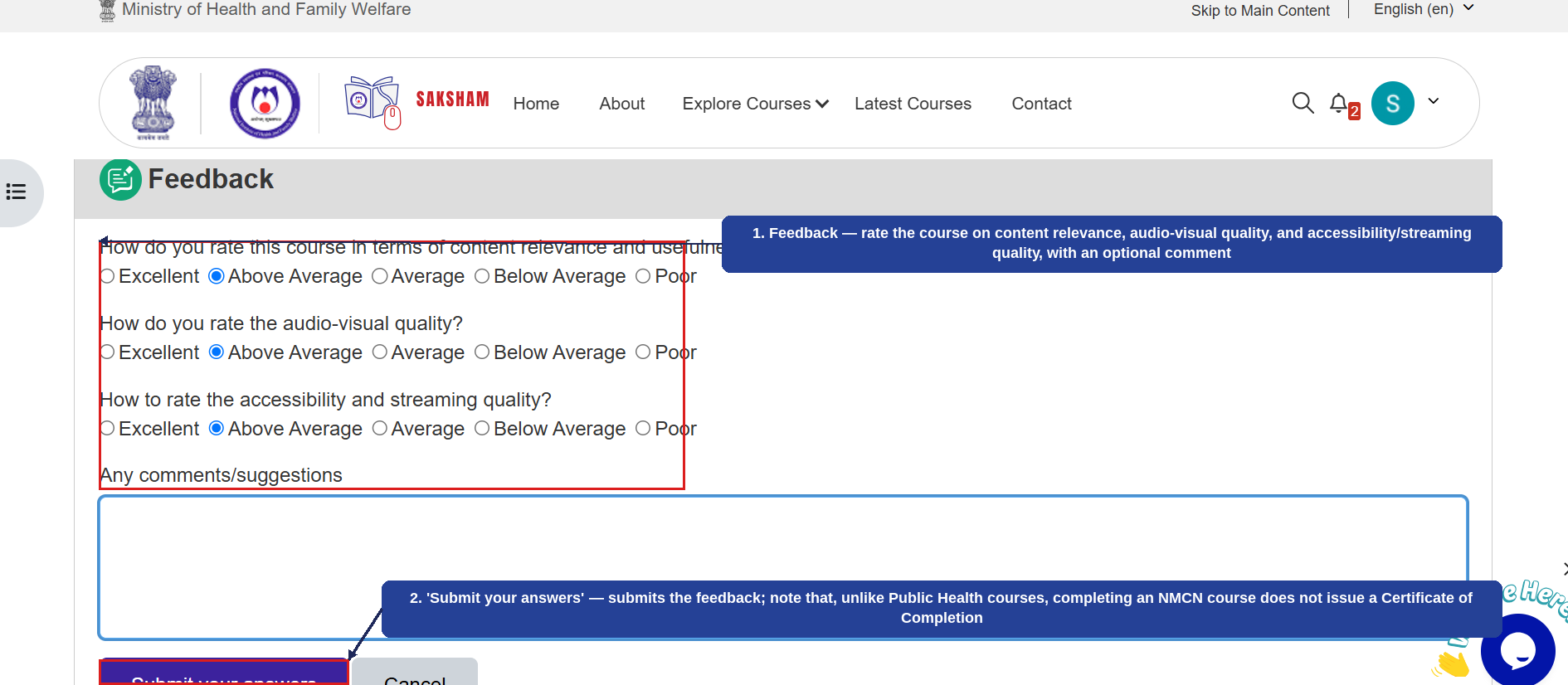
After the assessment is reviewed, the user submits Feedback rating the course on content relevance, audio-visual quality, and accessibility/streaming quality, with an optional comment. An important note: unlike Public Health courses, completing an NMCN course does not issue a Certificate of Completion. The numbered callouts below highlight this final screen.
1
Feedback — rate the course on content relevance, audio-visual quality, and accessibility/streaming quality, with an optional comment.
2
'Submit your answers' — submits the feedback; note that, unlike Public Health courses, completing an NMCN course does not issue a Certificate of Completion.
This completes the course enrolment-to-completion journey for a Medical Course (NMCN). The same flow — including the mandatory ID upload and the absence of a certificate — applies to other courses under 'Medical Courses (NMCN)'.
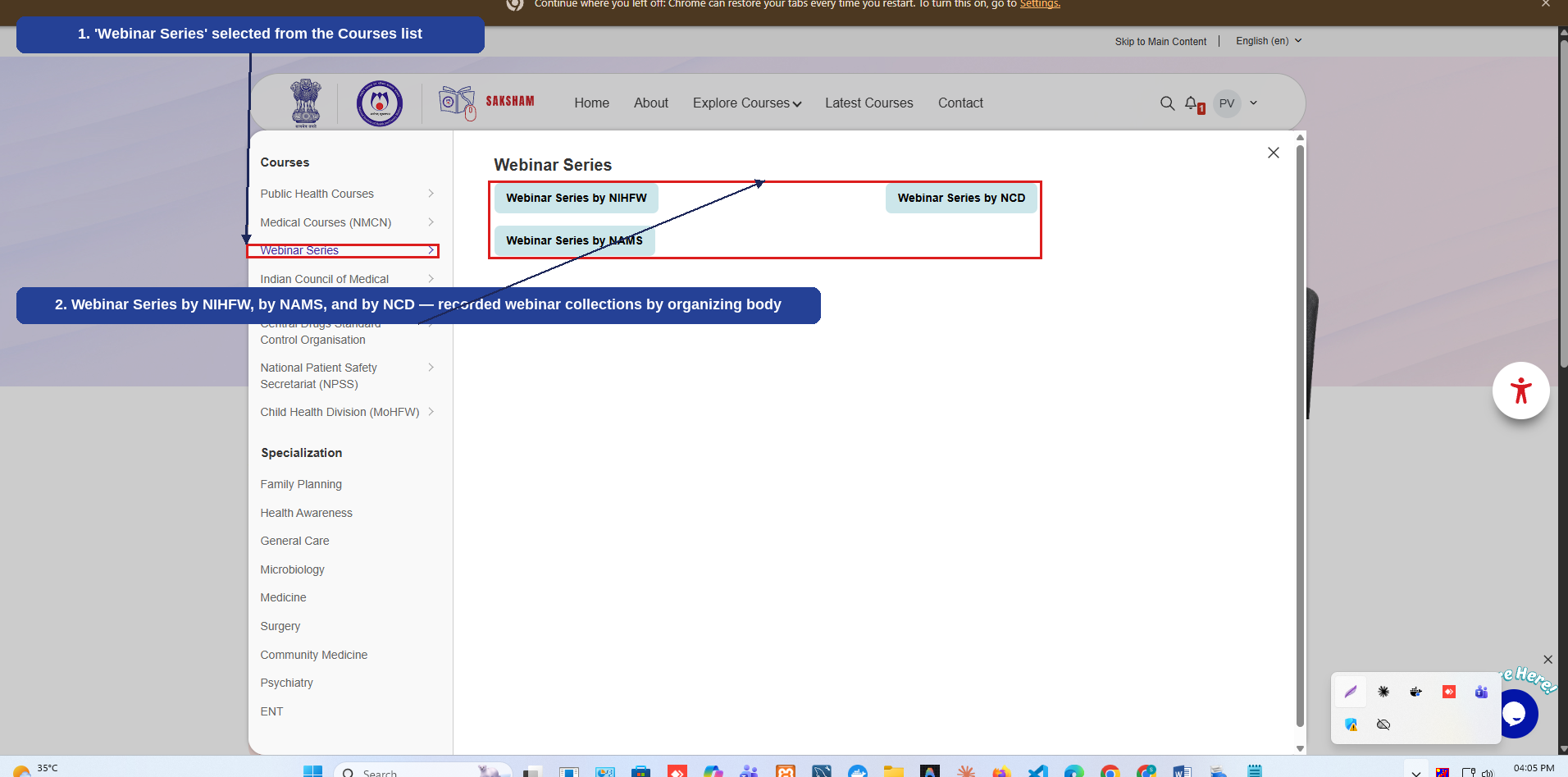
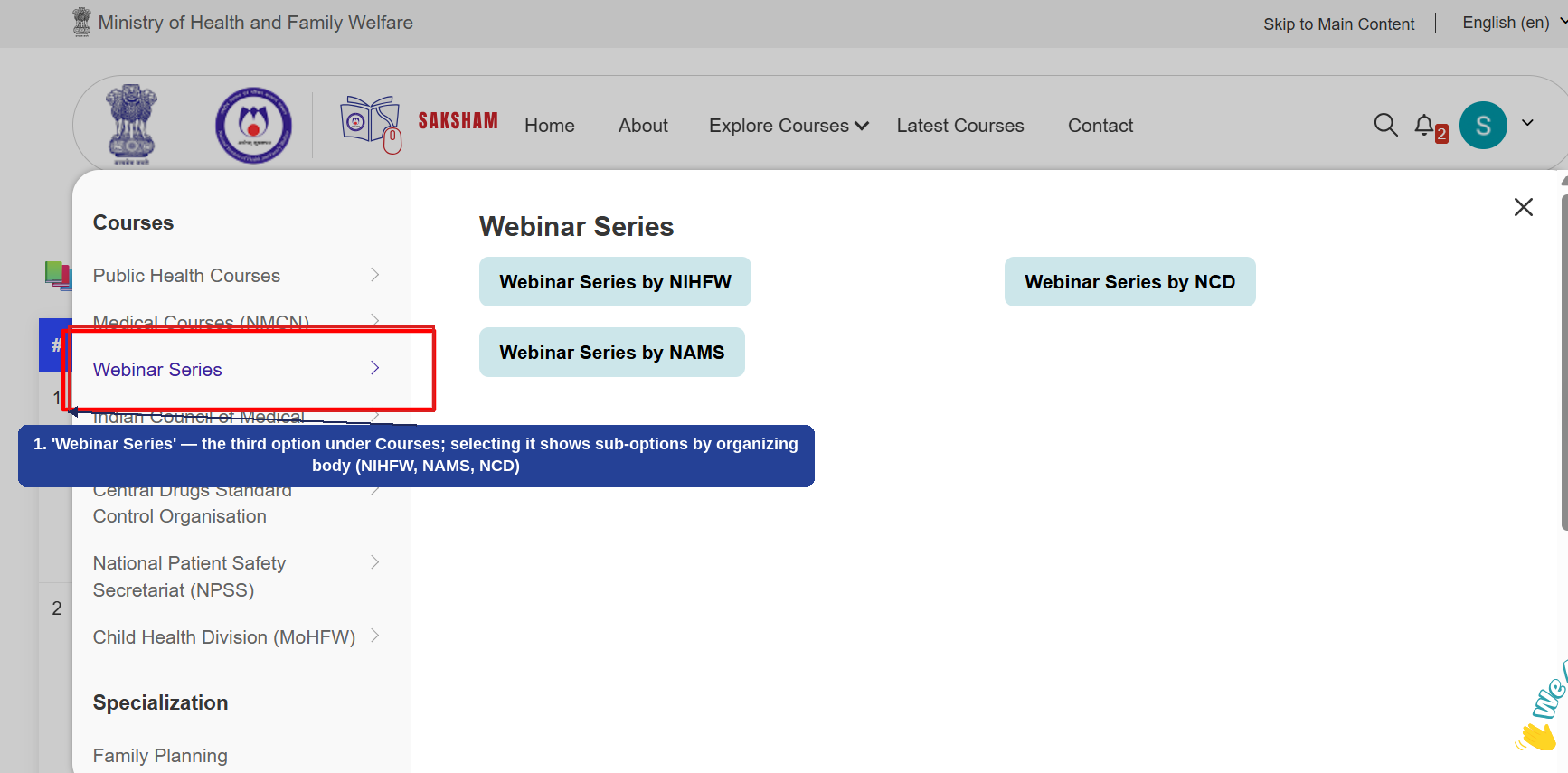
Selecting 'Webinar Series' — the third option under Courses in the Explore Courses menu — displays recorded webinar collections grouped by the organizing body. The numbered callouts below highlight this screen.
1
'Webinar Series' selected from the Courses list on the left.
2
Webinar Series by NIHFW, by NAMS, and by NCD — recorded webinar collections grouped by the organizing body.
1
'Webinar Series' — the third option under Courses; selecting it shows sub-options by organizing body (NIHFW, NAMS, NCD).
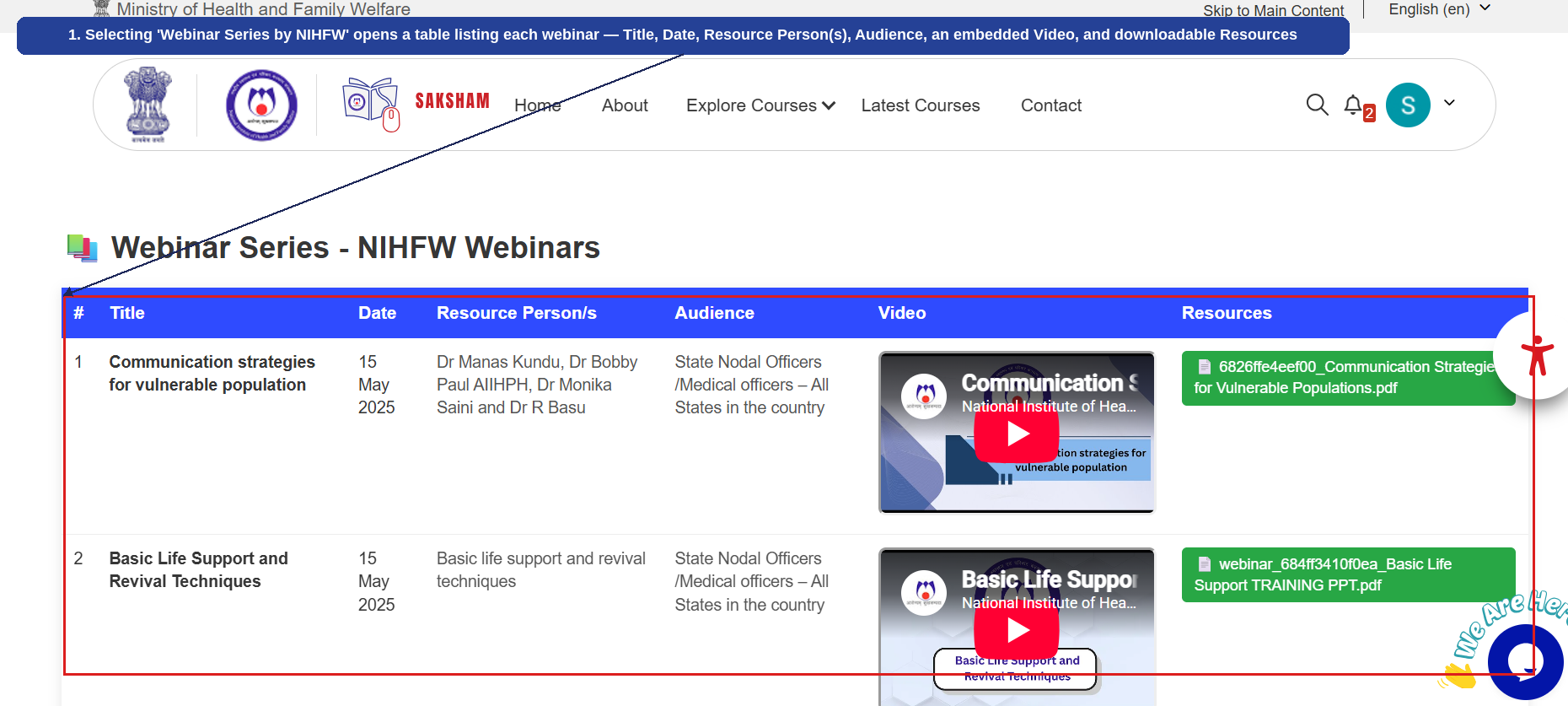
Selecting one of the organizing-body options (e.g., 'Webinar Series by NIHFW') opens a table listing each webinar under that body. The numbered callout below highlights this listing.
1
Selecting 'Webinar Series by NIHFW' opens a table listing each webinar — Title, Date, Resource Person(s), Audience, an embedded Video, and downloadable Resources.
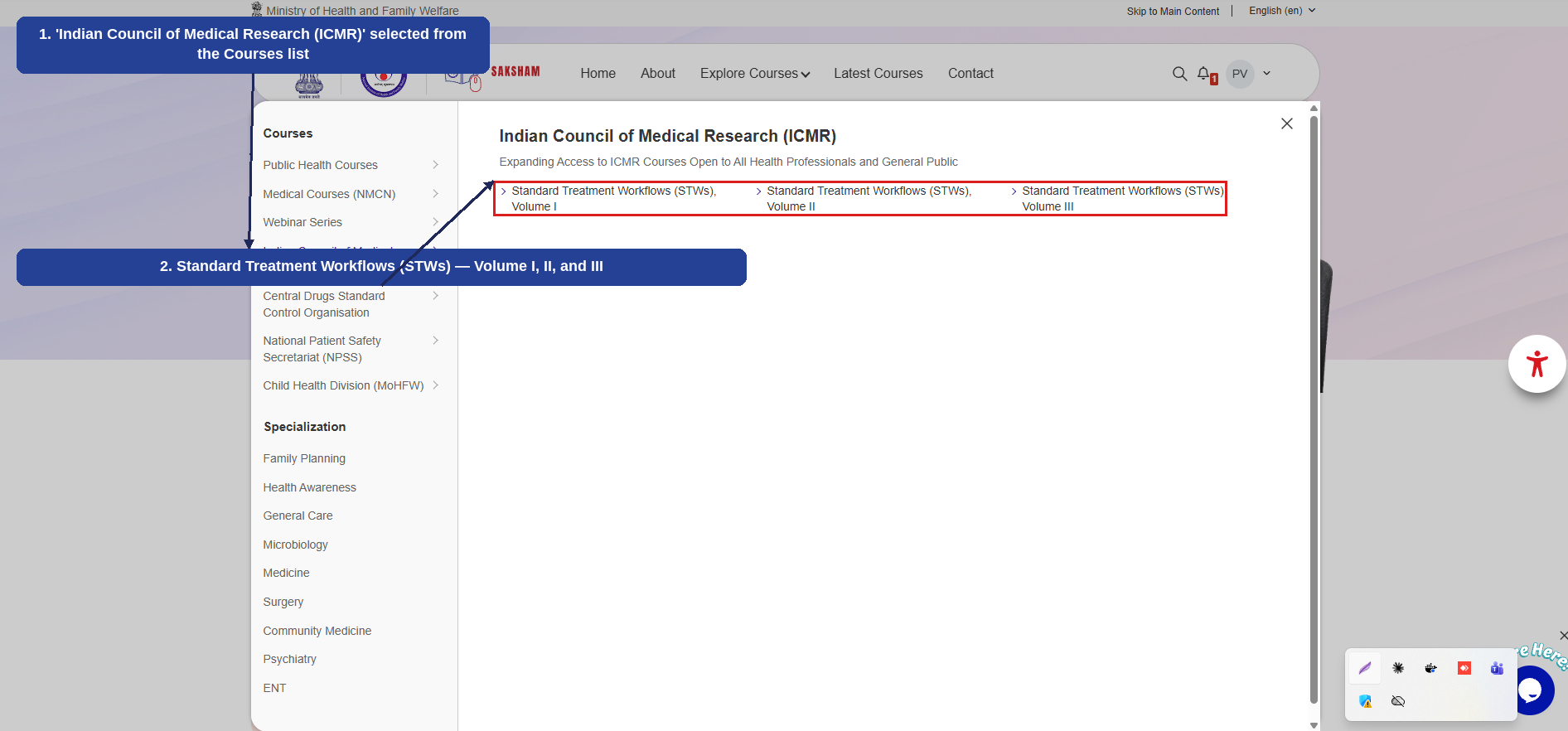
Selecting 'Indian Council of Medical Research (ICMR)' from the Explore Courses menu displays courses published by ICMR, open to all health professionals and the general public. The numbered callouts below highlight this screen.
1
'Indian Council of Medical Research (ICMR)' selected from the Courses list on the left.
2
Standard Treatment Workflows (STWs) Volume I, II, and III.
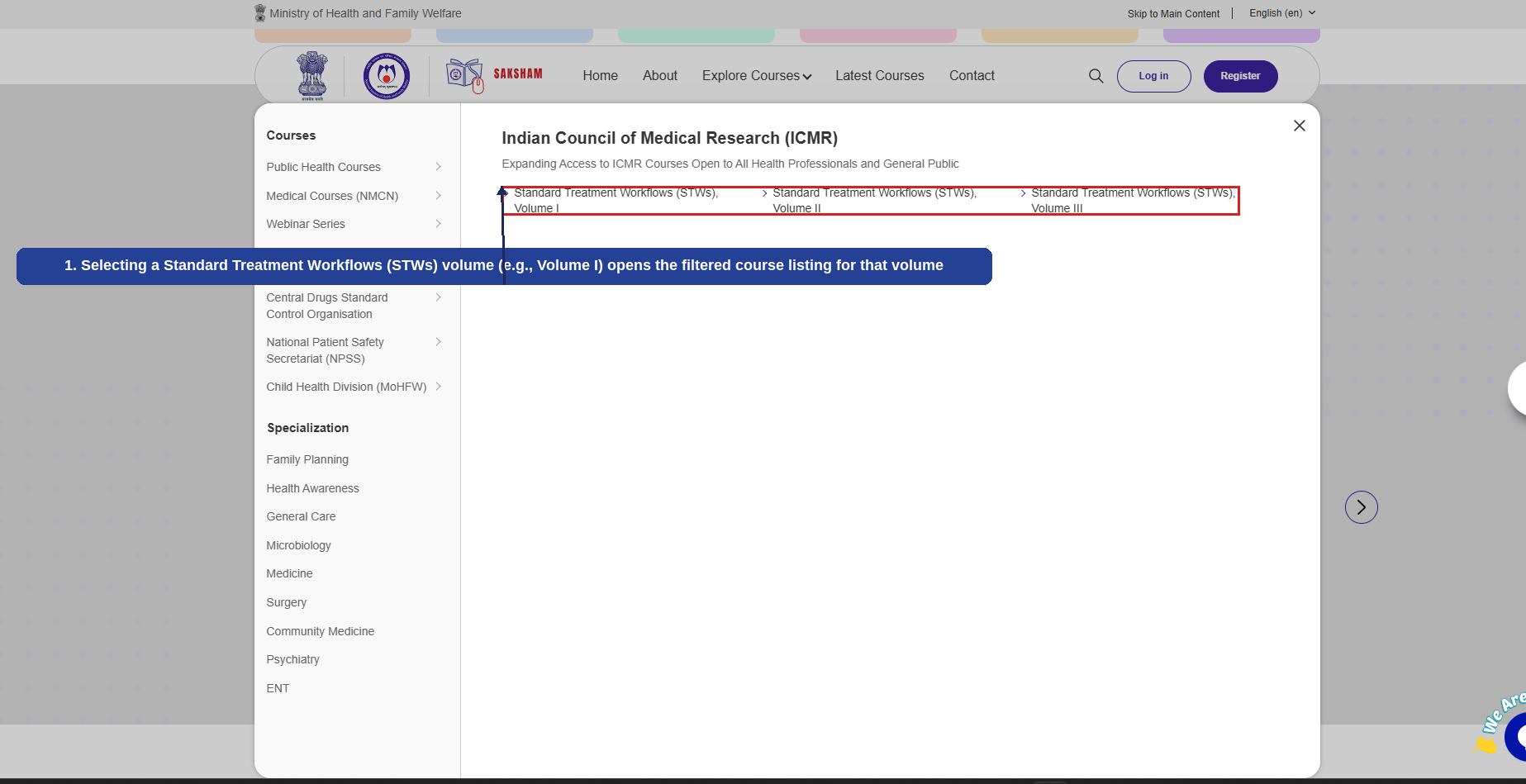
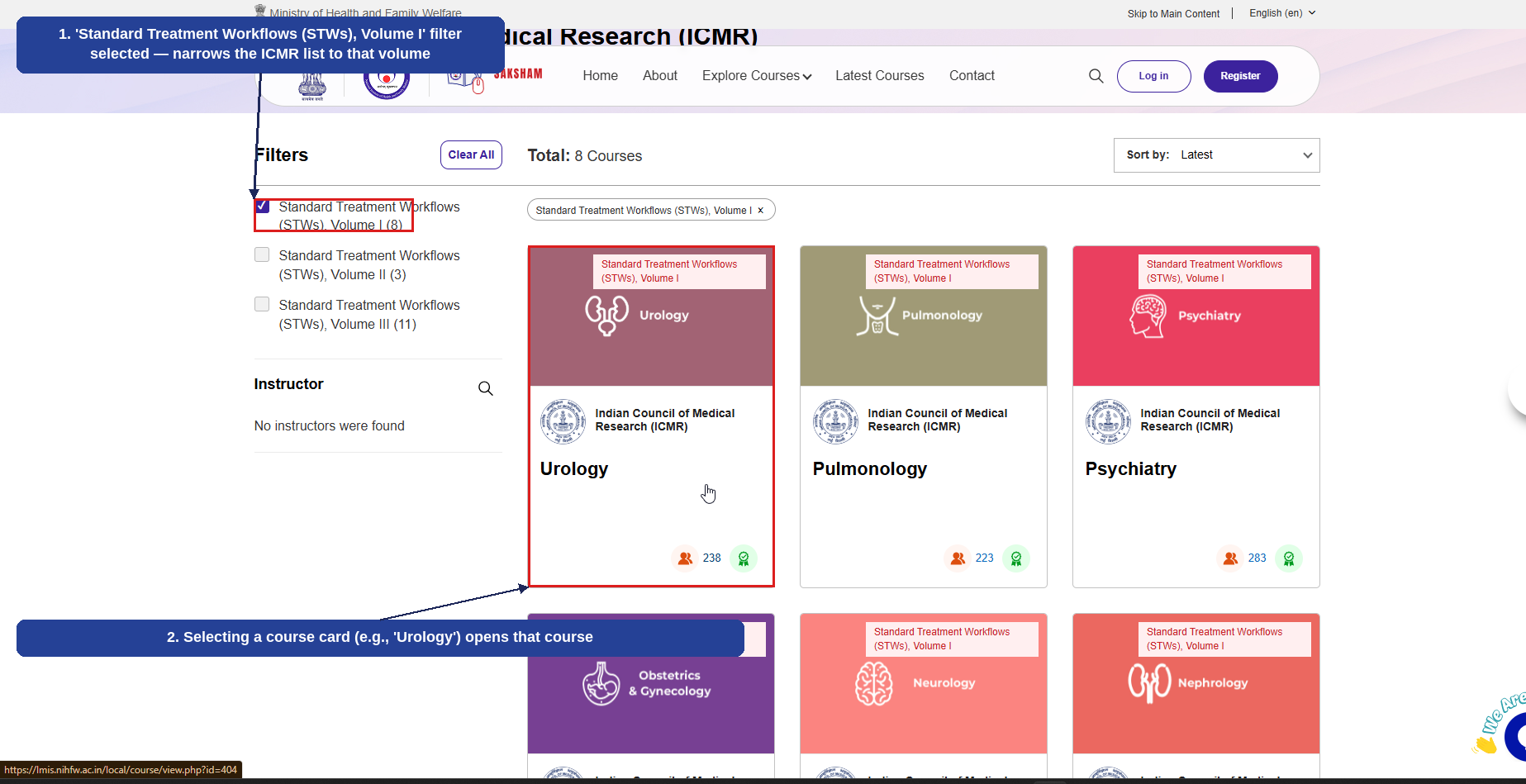
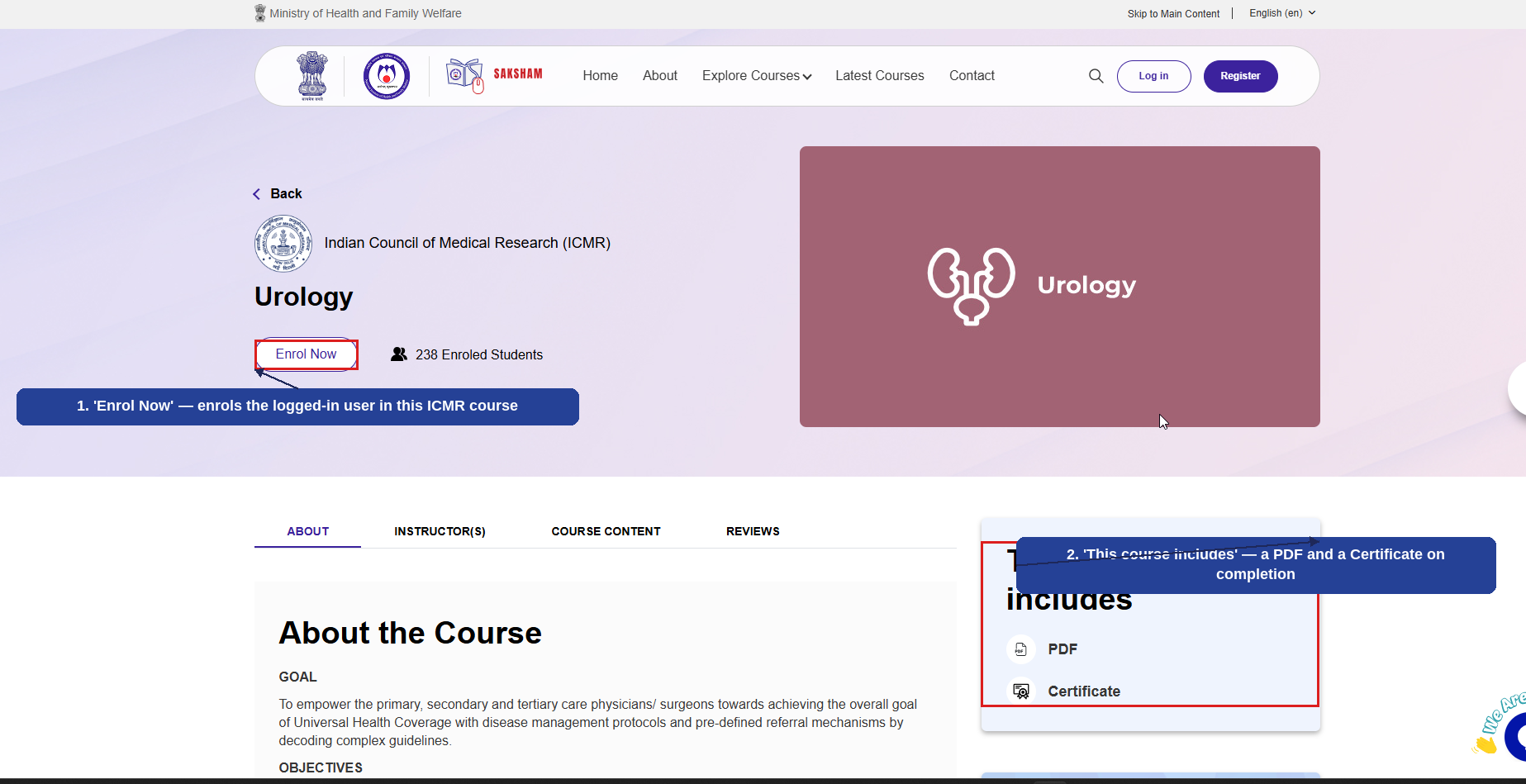
Selecting a Standard Treatment Workflows (STWs) volume opens the filtered course listing for that volume, from which a course can be enrolled in and completed through to an Acknowledgement of Completion. The example below uses the 'Urology' course under Volume I. The numbered callouts below highlight each step.
1
Selecting a Standard Treatment Workflows (STWs) volume (e.g., Volume I) opens the filtered course listing for that volume.
1
'Standard Treatment Workflows (STWs) Volume I' filter selected — narrows the ICMR list to that volume.
2
Selecting a course card (e.g., 'Urology') opens that course.
1
'Enrol Now' — enrols the logged-in user in this ICMR course.
2
'This course includes' — a PDF and a Certificate on completion.
1
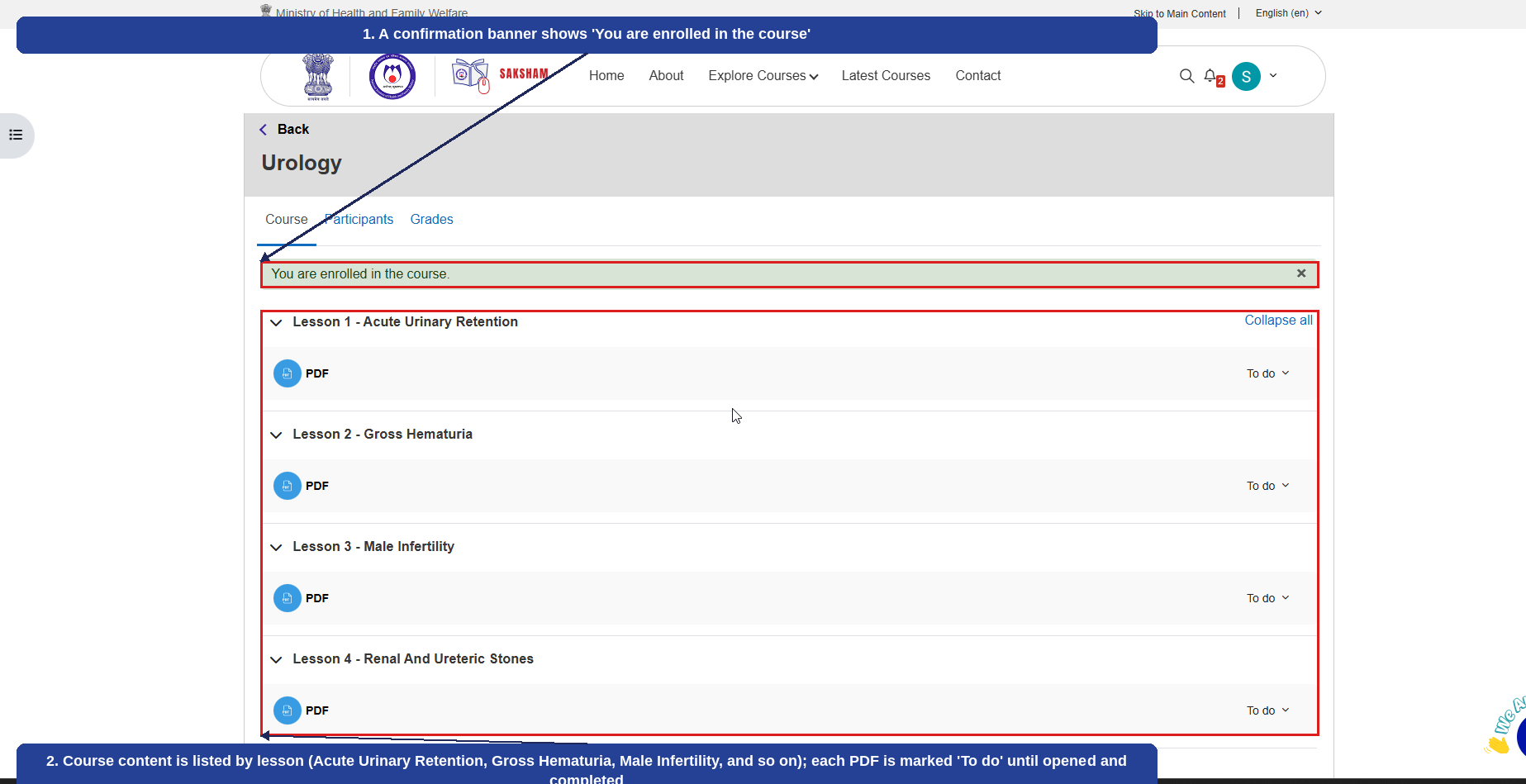
A confirmation banner shows 'You are enrolled in the course'.
2
Course content is listed by lesson (Acute Urinary Retention, Gross Hematuria, Male Infertility, and so on); each PDF is marked 'To do' until opened and completed.
1
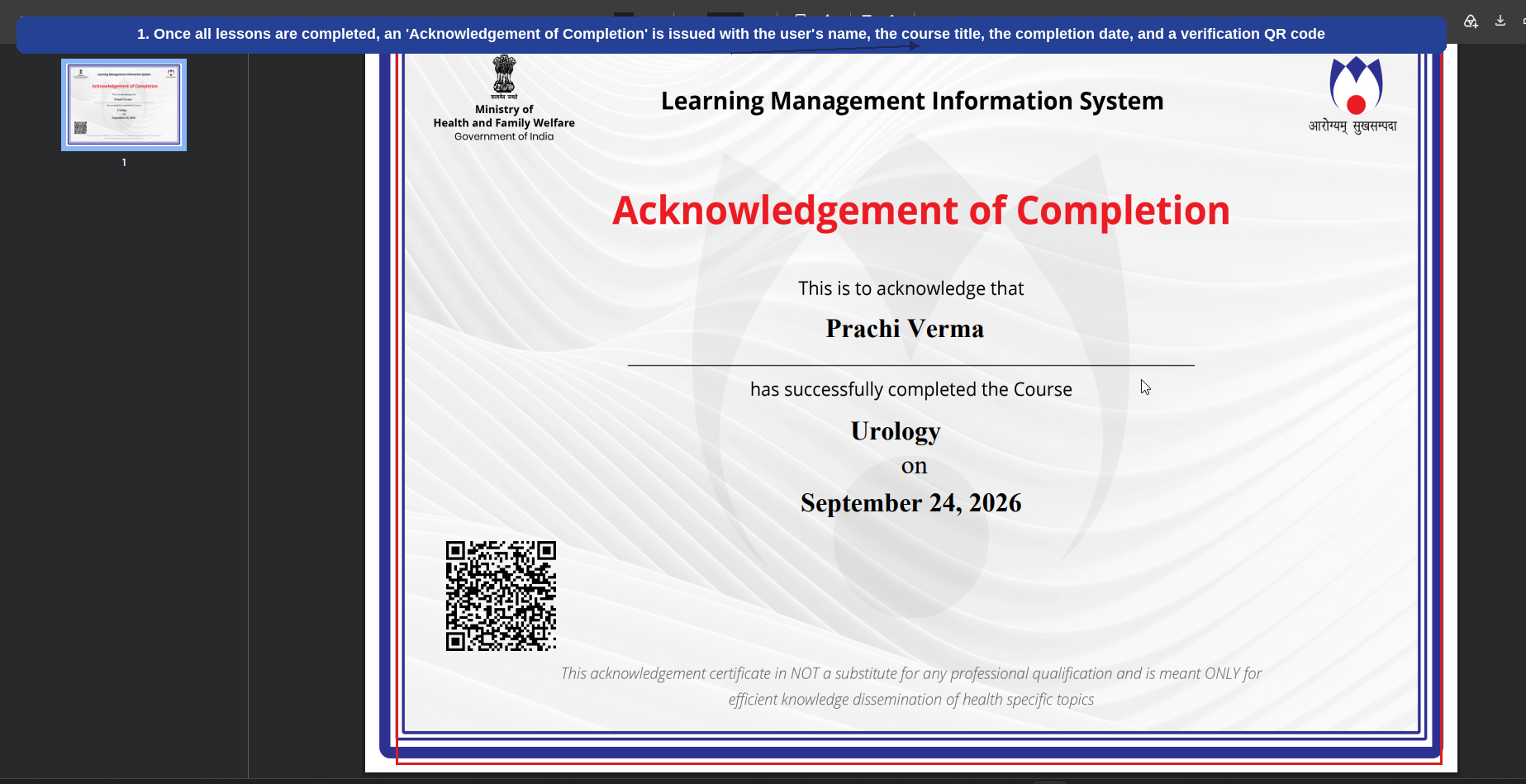
Once all lessons are completed, an 'Acknowledgement of Completion' is issued with the user's name, the course title, the completion date, and a verification QR code.
This completes the course enrolment-to-completion journey for an ICMR course. The same flow applies to other courses under Standard Treatment Workflows (STWs).
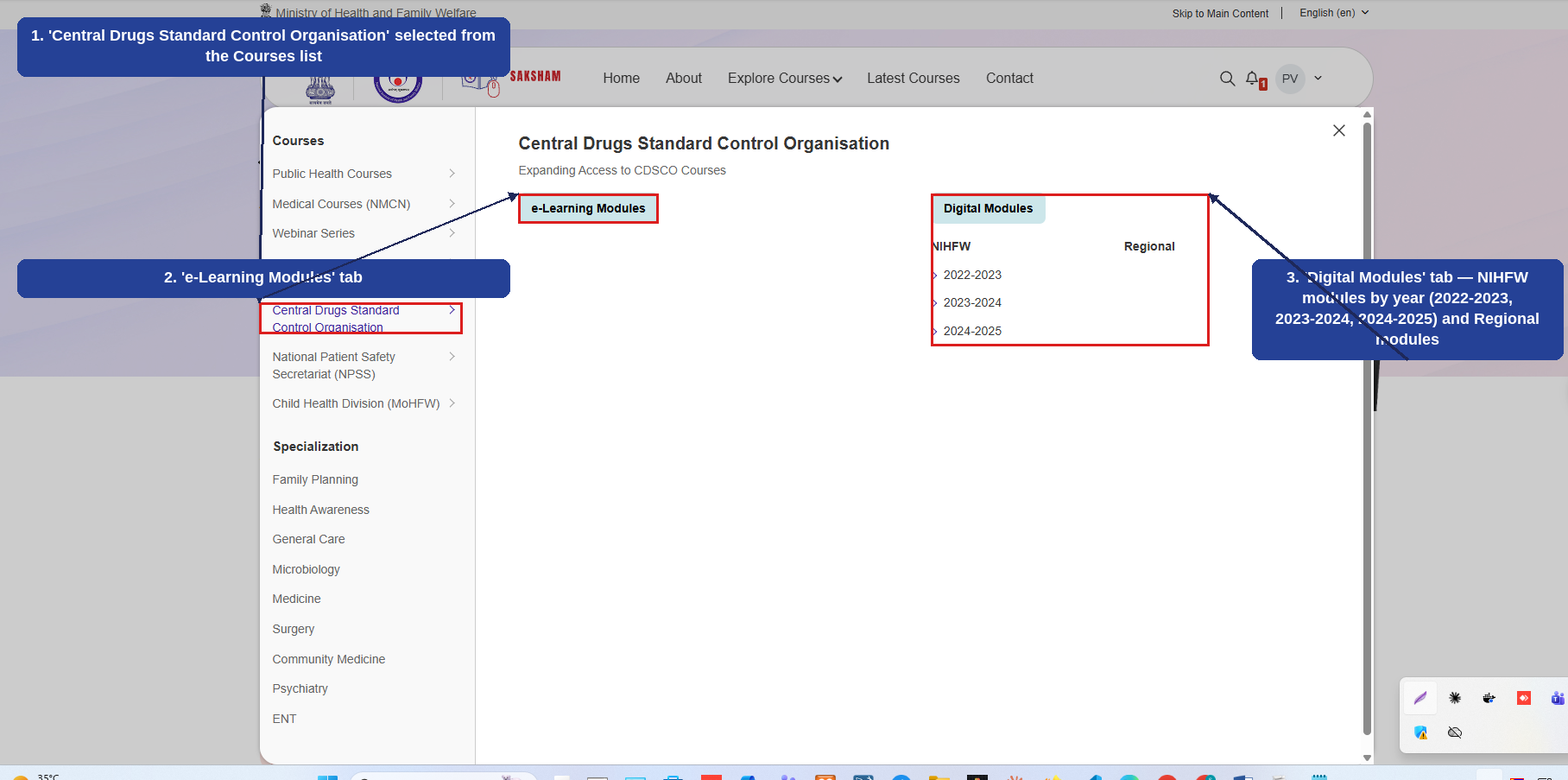
Selecting 'Central Drugs Standard Control Organisation' from the Explore Courses menu displays CDSCO courses under two tabs — e-Learning Modules and Digital Modules. The numbered callouts below highlight each part of the screen.
1
'Central Drugs Standard Control Organisation' selected from the Courses list on the left.
2
'e-Learning Modules' tab.
3
'Digital Modules' tab — NIHFW modules grouped by year (2022-2023, 2023-2024, 2024-2025) and Regional modules.
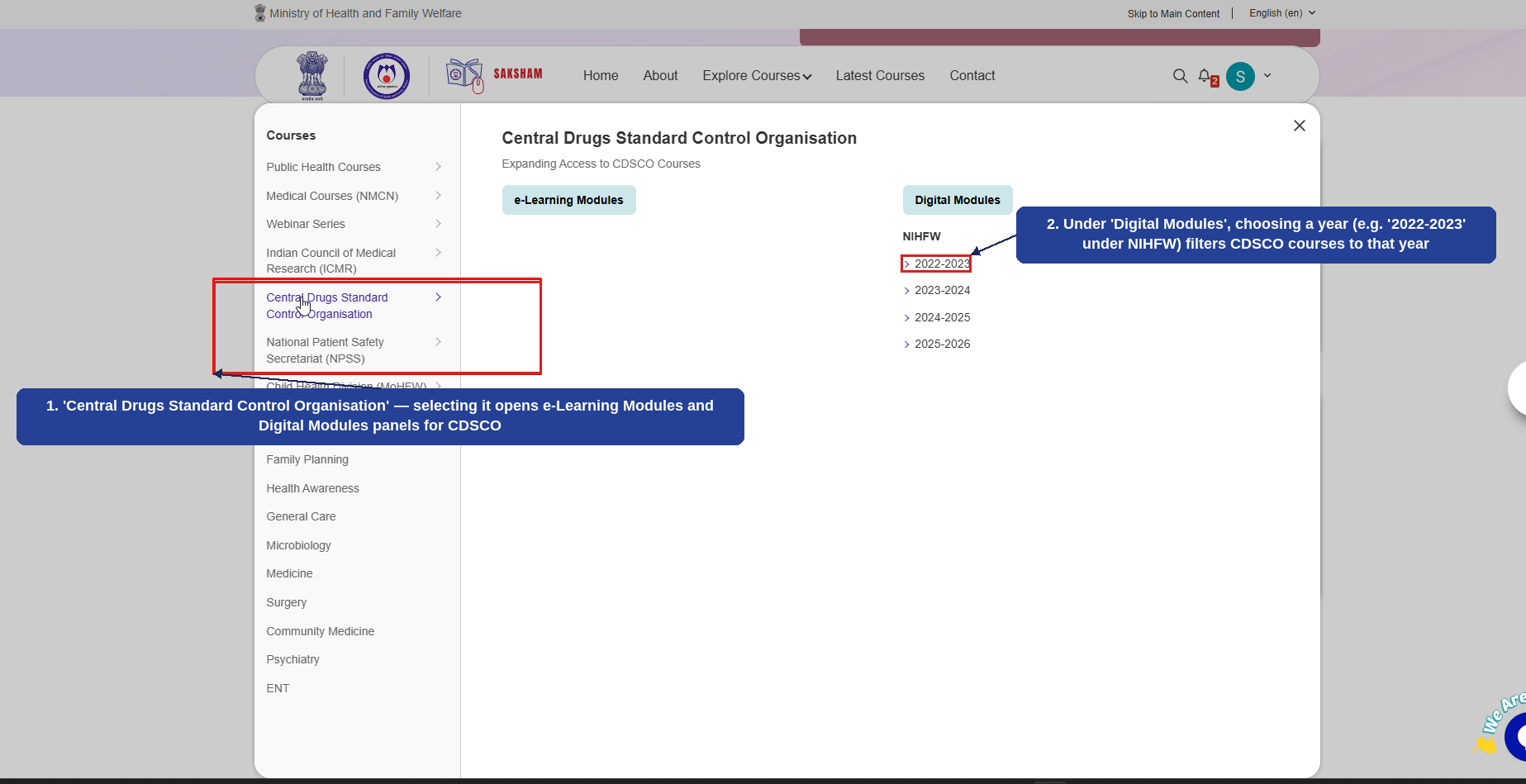
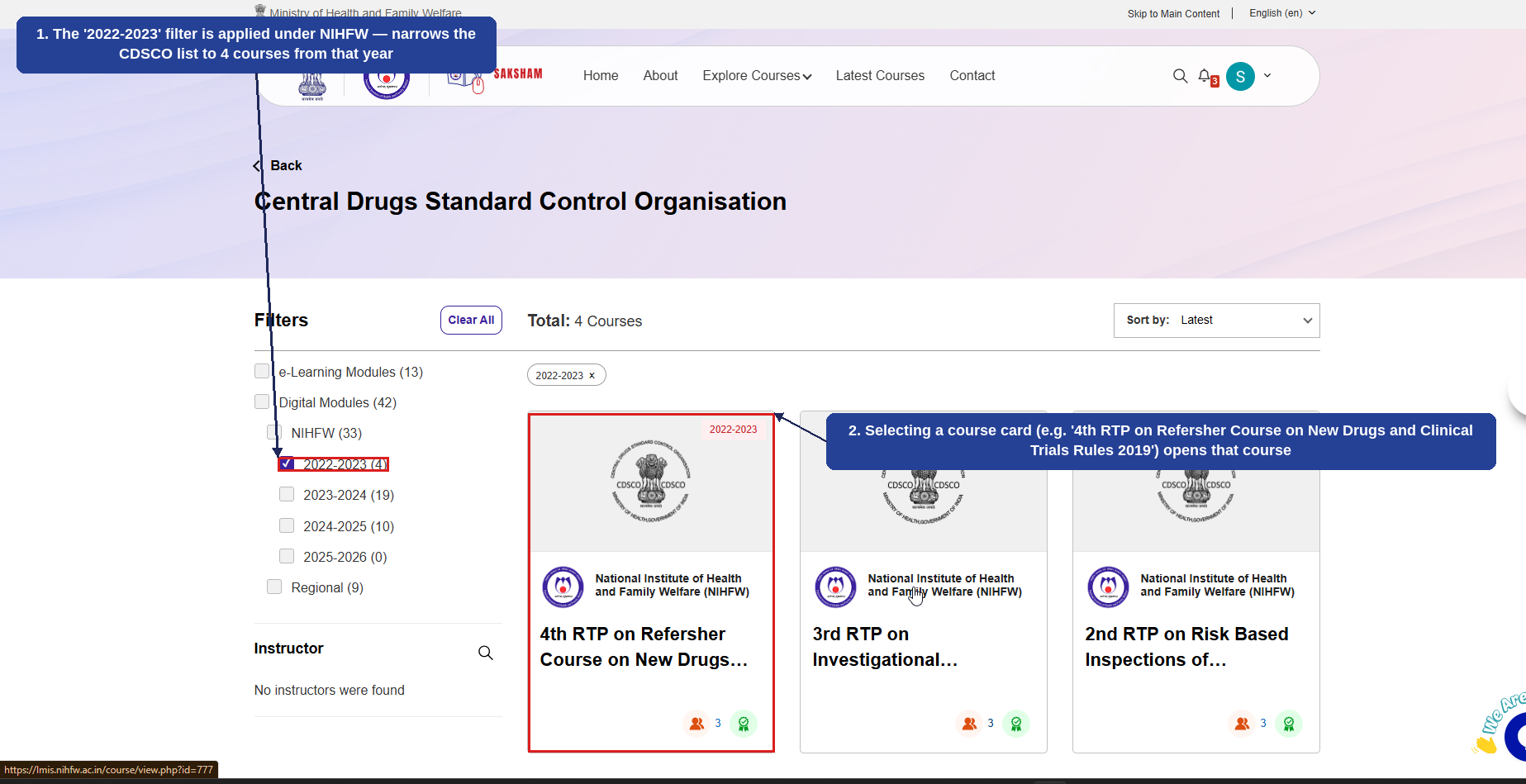
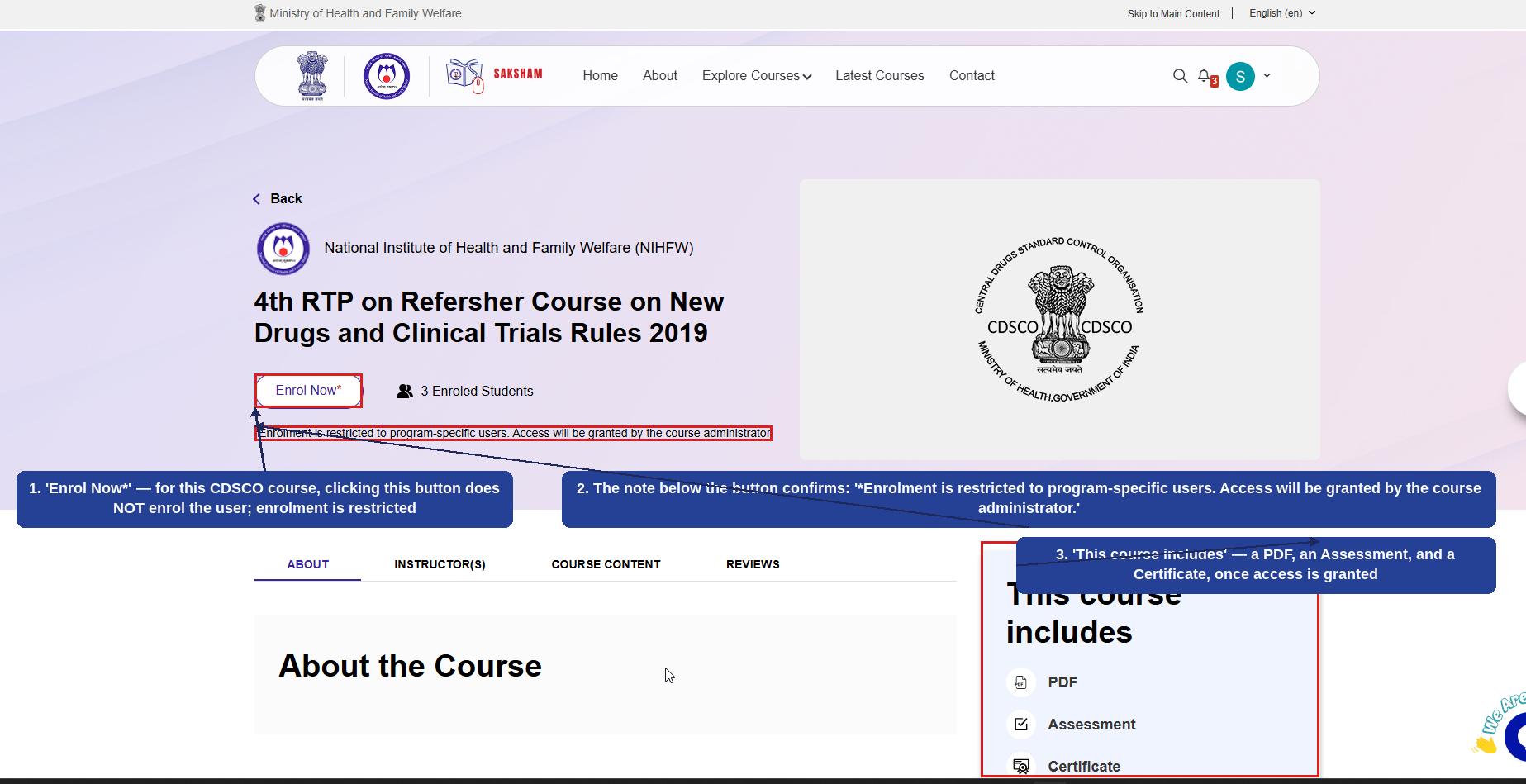
The example below walks through filtering the Digital Modules by year and opening a course. Under CDSCO, enrolment in these Digital Modules courses is restricted to program-specific users — clicking 'Enrol Now' does not enrol the user directly; access must instead be granted by the course administrator. The numbered callouts below highlight each step.
1
'Central Drugs Standard Control Organisation' — selecting it opens the e-Learning Modules and Digital Modules panels for CDSCO.
2
Under 'Digital Modules', choosing a year (e.g., '2022-2023' under NIHFW) filters CDSCO courses to that year.
1
The '2022-2023' filter is applied under NIHFW — narrows the CDSCO list to the 4 courses from that year.
2
Selecting a course card (e.g., '4th RTP on Refersher Course on New Drugs and Clinical Trials Rules 2019') opens that course.
1
'Enrol Now*' — for this CDSCO course, clicking this button does NOT enrol the user; enrolment is restricted.
2
The note below the button confirms: '*Enrolment is restricted to program-specific users. Access will be granted by the course administrator.'
3
'This course includes' — a PDF, an Assessment, and a Certificate, available once access is granted.
1
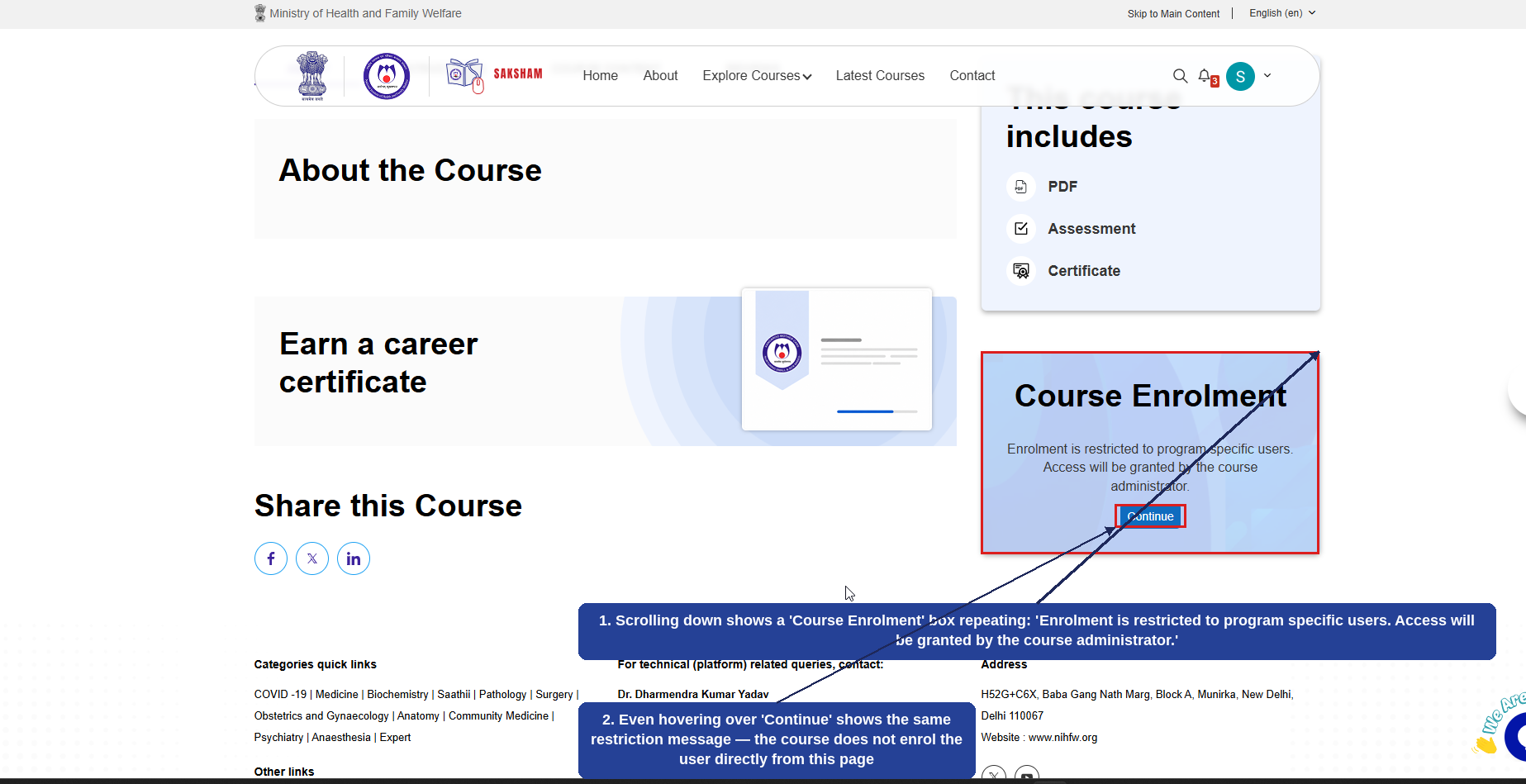
Scrolling down shows a 'Course Enrolment' box that repeats the same restriction: enrolment is restricted to program-specific users, and access is granted only by the course administrator.
2
Even the 'Continue' button shows the same restriction message on hover — this course cannot be self-enrolled in from this page.
Note: Unlike Public Health, NMCN, and ICMR courses, CDSCO Digital Modules courses under 'Central Drugs Standard Control Organisation' are program-specific and restricted. Clicking 'Enrol Now' or 'Continue' does not complete enrolment for the user — access to program-specific courses of this kind must be granted separately by the course administrator.
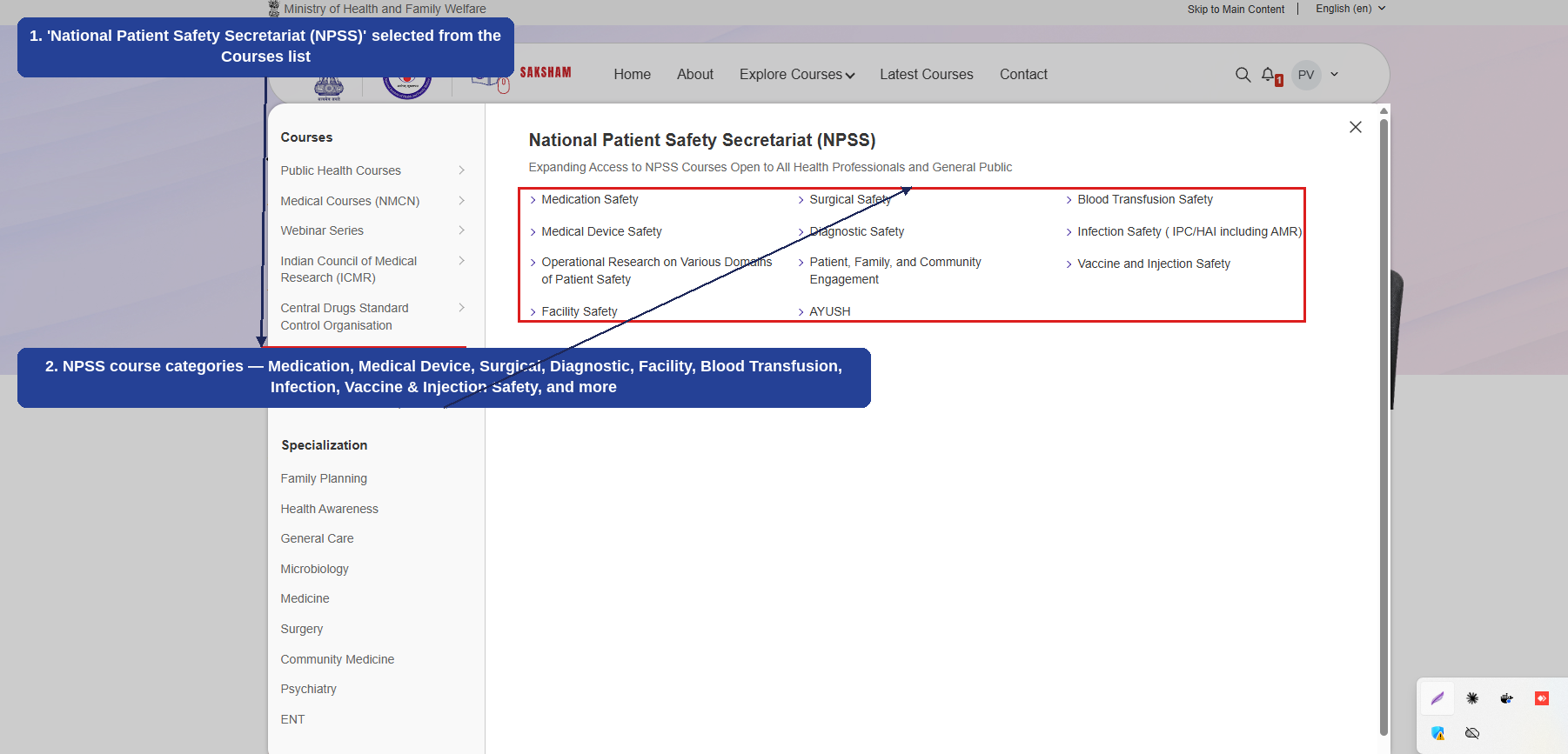
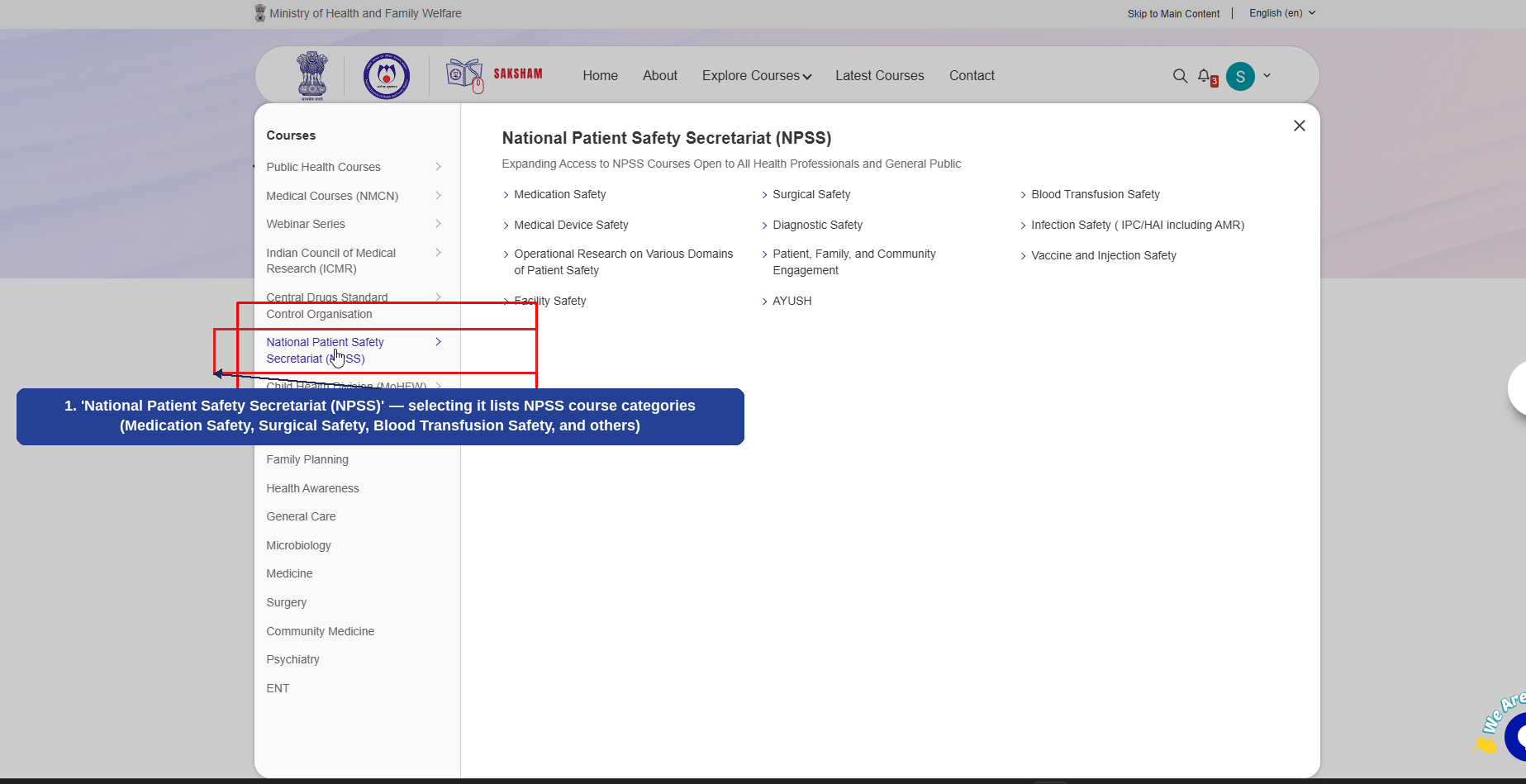
Selecting 'National Patient Safety Secretariat (NPSS)' from the Explore Courses menu displays NPSS courses, open to all health professionals and the general public. The numbered callouts below highlight this screen.
1
'National Patient Safety Secretariat (NPSS)' selected from the Courses list on the left.
2
NPSS course categories — Medication Safety, Medical Device Safety, Operational Research on Various Domains of Patient Safety, Facility Safety, Surgical Safety, Diagnostic Safety, Patient/Family/Community Engagement, AYUSH, Blood Transfusion Safety, Infection Safety (IPC/HAI including AMR), and Vaccine and Injection Safety.
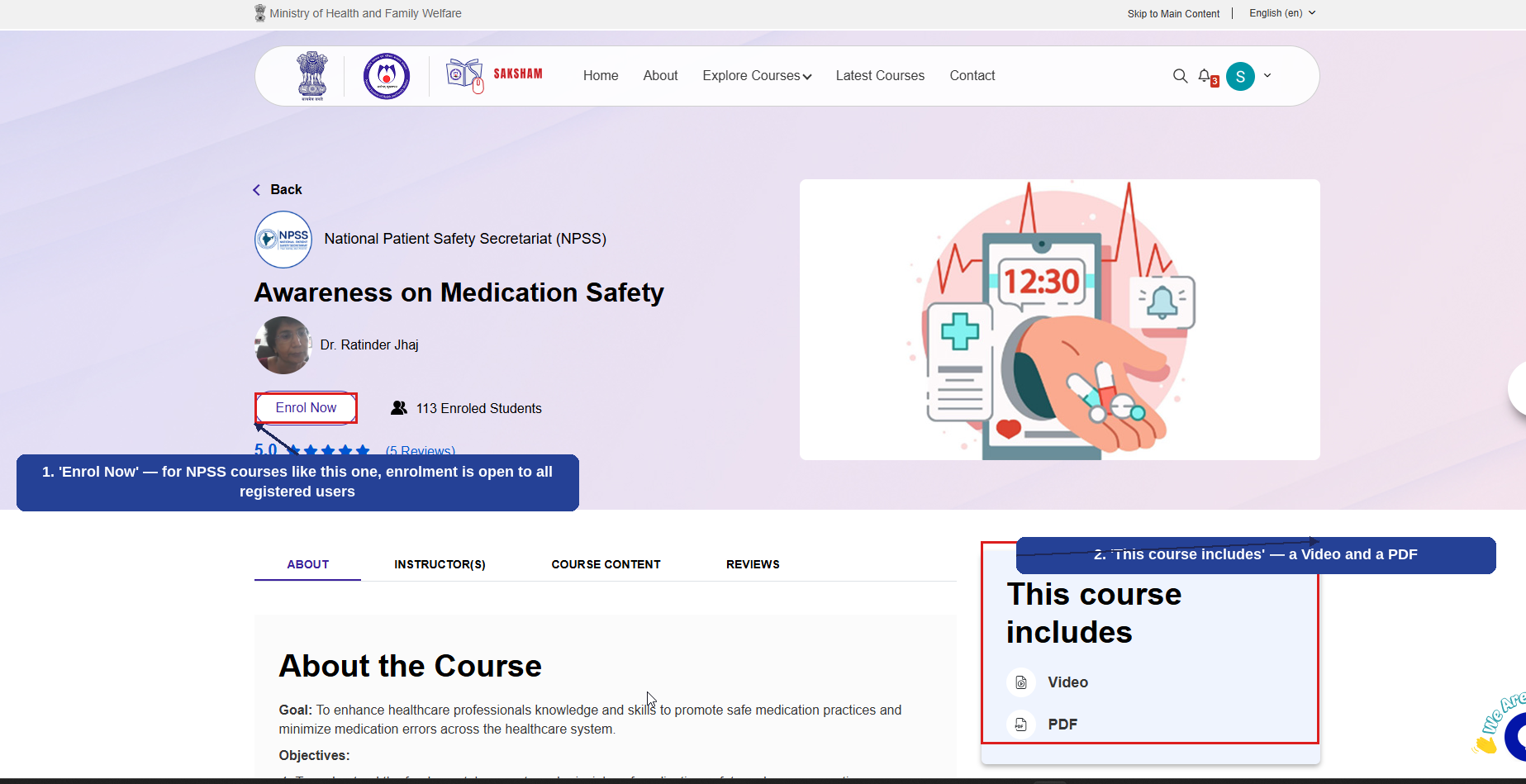
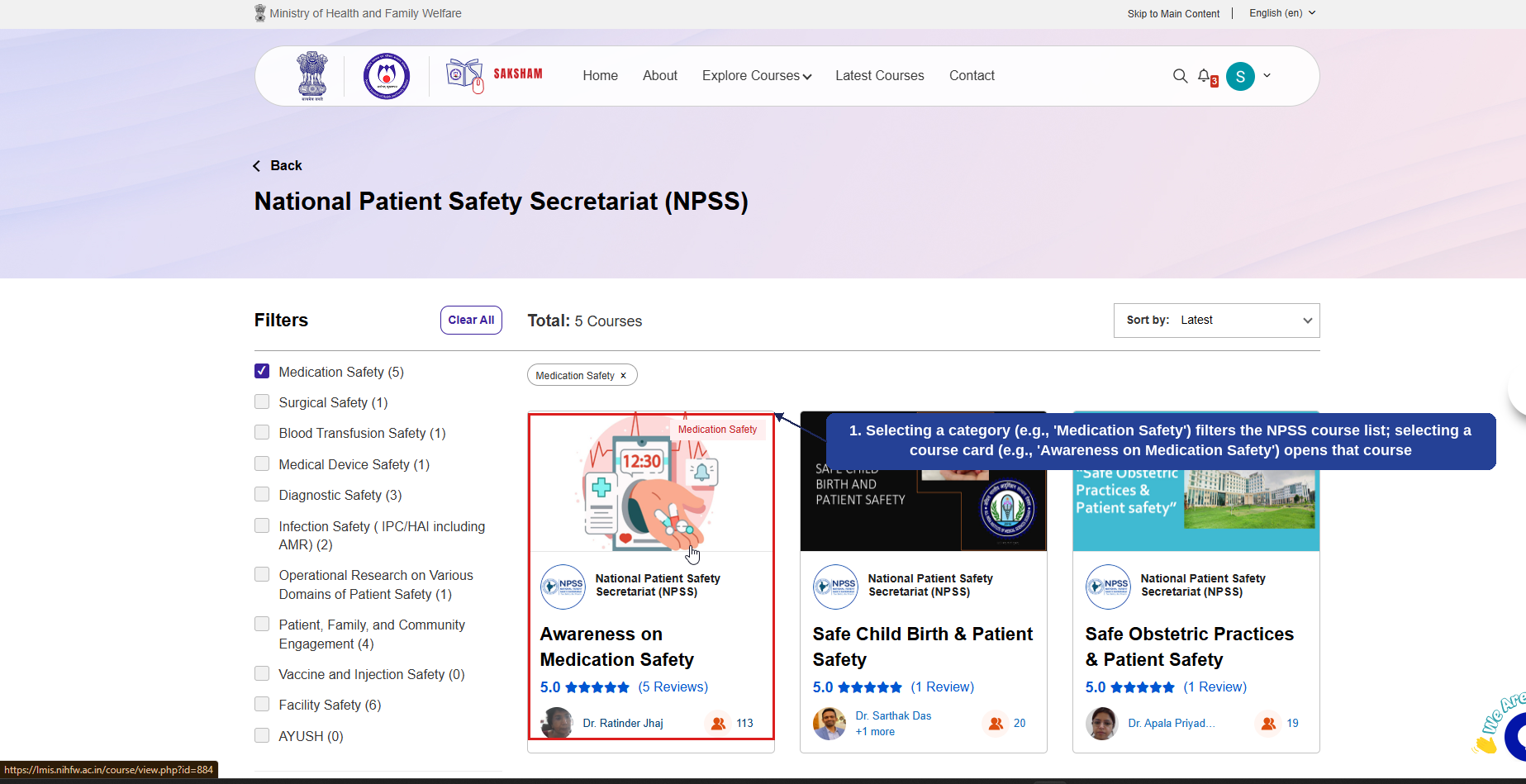
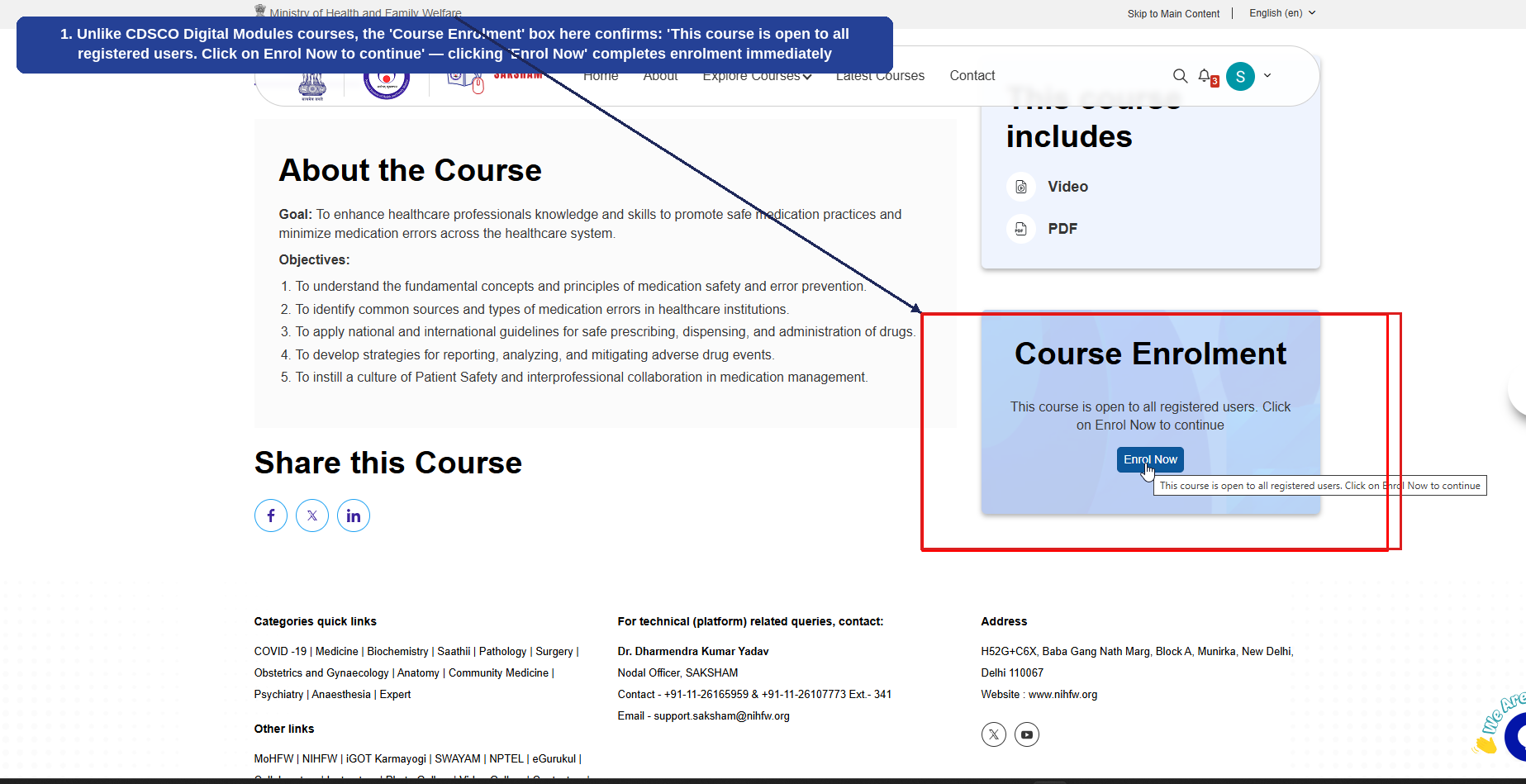
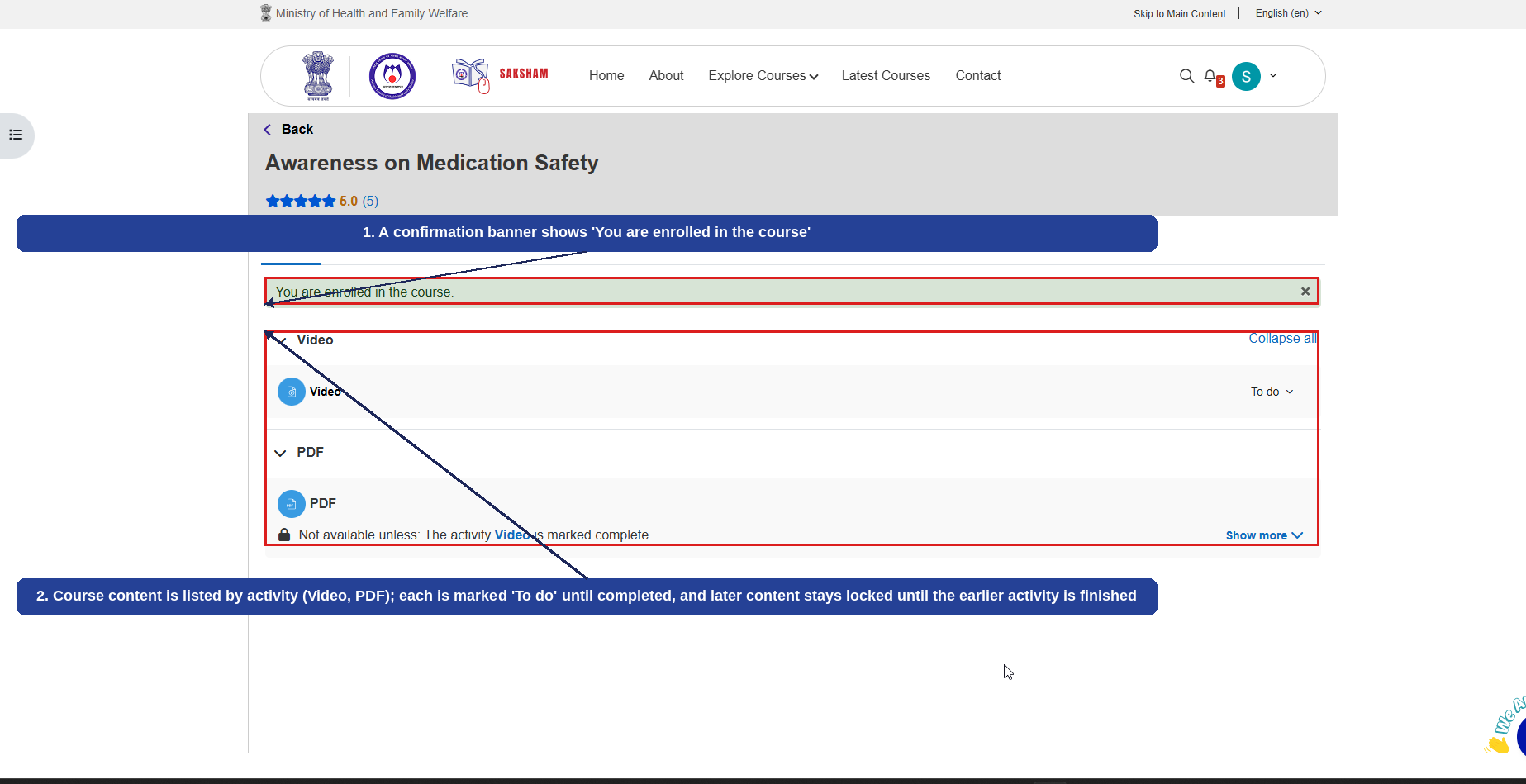
The example below walks through enrolling in and completing an NPSS course. Unlike the CDSCO Digital Modules courses covered above, NPSS courses are open to all registered users, so 'Enrol Now' completes enrolment immediately. The example uses the 'Awareness on Medication Safety' course. The numbered callouts below highlight each step.
1
'National Patient Safety Secretariat (NPSS)' — selecting it lists NPSS course categories (Medication Safety, Surgical Safety, Blood Transfusion Safety, and others).
1
Selecting a category (e.g., 'Medication Safety') filters the NPSS course list; selecting a course card (e.g., 'Awareness on Medication Safety') opens that course.
1
'Enrol Now' — for NPSS courses like this one, enrolment is open to all registered users.
2
'This course includes' — a Video and a PDF.
1
Unlike CDSCO Digital Modules courses, the 'Course Enrolment' box here confirms: 'This course is open to all registered users. Click on Enrol Now to continue' — clicking 'Enrol Now' completes enrolment immediately.
1
A confirmation banner shows 'You are enrolled in the course'.
2
Course content is listed by activity (Video, PDF); each is marked 'To do' until completed, and later content stays locked until the earlier activity is finished.
This completes the course enrolment journey for an NPSS course. Note the contrast with Section 2.8.5: CDSCO Digital Modules courses are program-specific and restricted, while NPSS courses (like Public Health, NMCN, and ICMR courses) enrol the user directly when 'Enrol Now' is clicked.
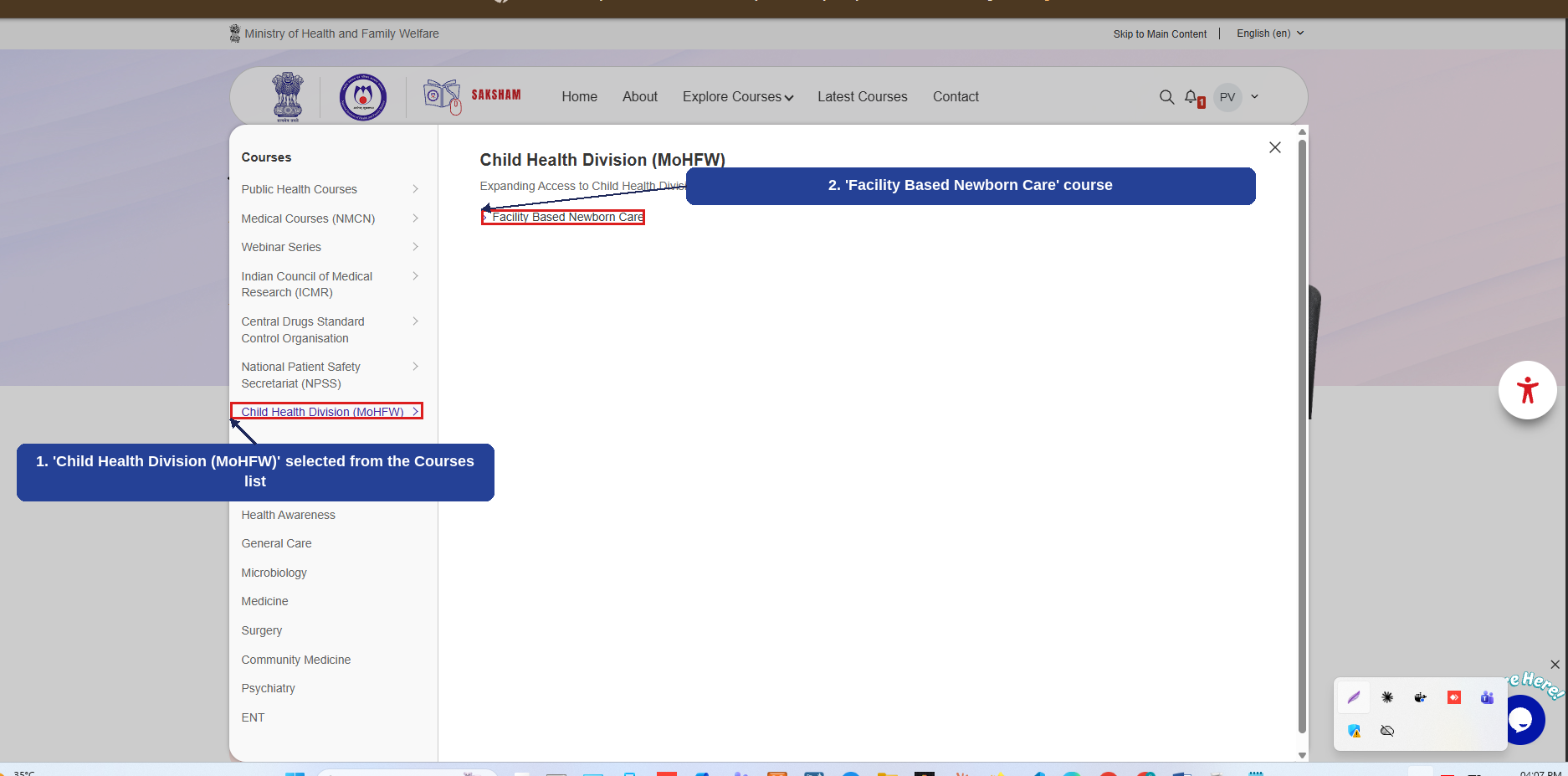
Selecting 'Child Health Division (MoHFW)' from the Explore Courses menu displays courses published by the Child Health Division. The numbered callouts below highlight this screen.
1
'Child Health Division (MoHFW)' selected from the Courses list on the left.
2
'Facility Based Newborn Care' course.
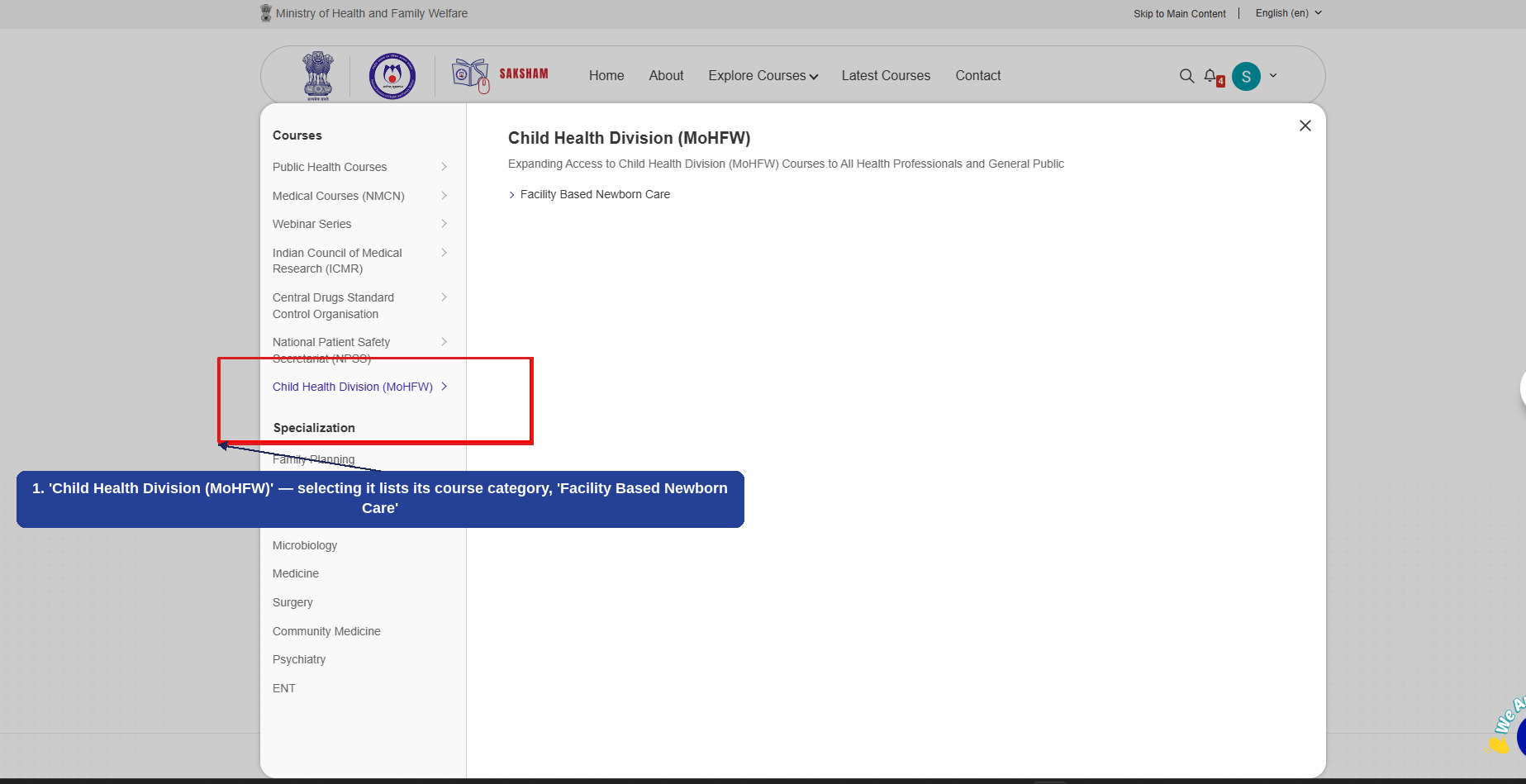
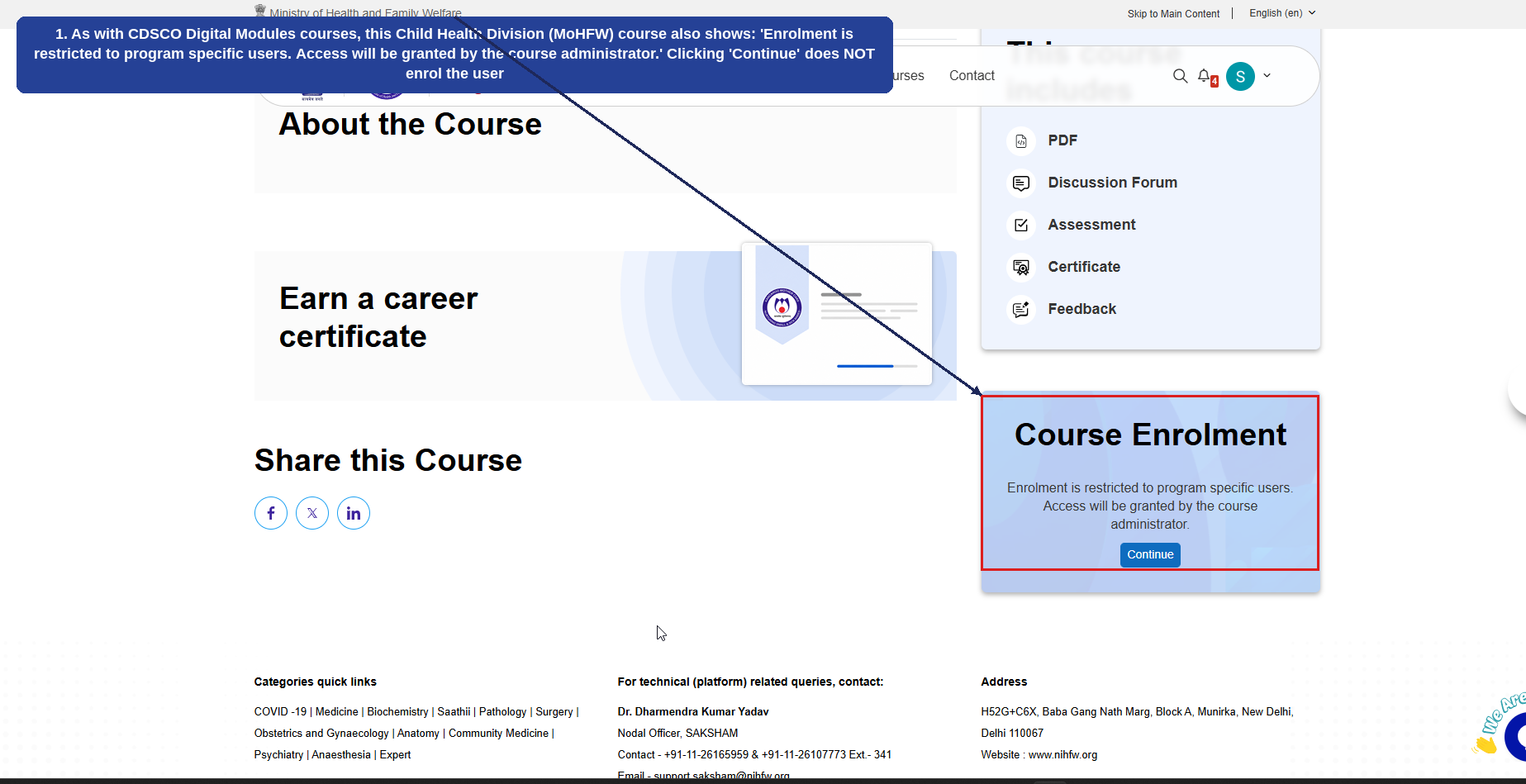
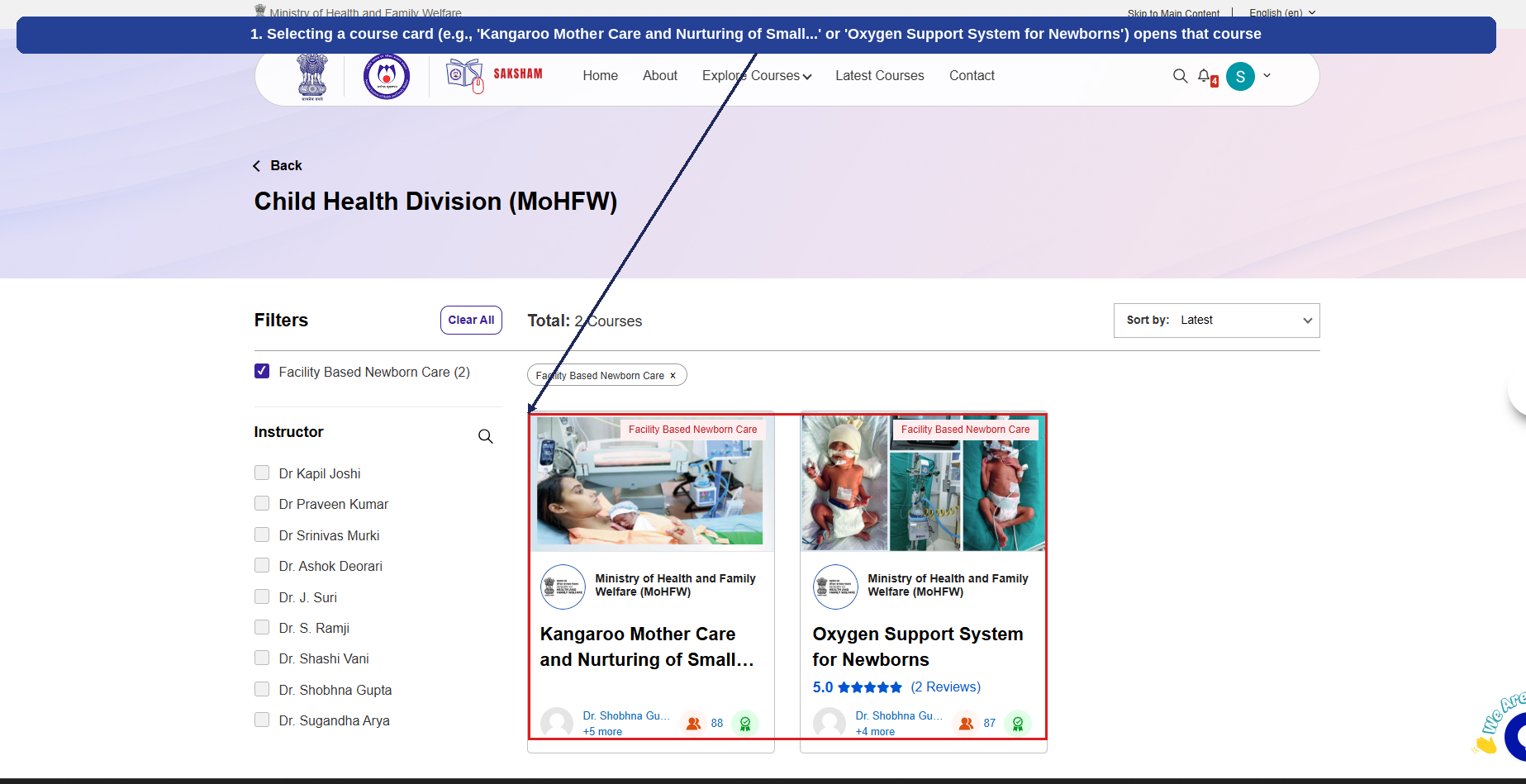
The example below walks through opening a course under 'Facility Based Newborn Care'. As with CDSCO Digital Modules courses (Section 2.8.5), enrolment in this Child Health Division (MoHFW) course is restricted — clicking 'Enrol Now' / 'Continue' does not enrol the user. The numbered callouts below highlight each step.
1
'Child Health Division (MoHFW)' — selecting it lists its course category, 'Facility Based Newborn Care'.
1
Selecting a course card (e.g., 'Kangaroo Mother Care and Nurturing of Small...' or 'Oxygen Support System for Newborns') opens that course.
1
As with CDSCO Digital Modules courses, this Child Health Division (MoHFW) course also shows: 'Enrolment is restricted to program specific users. Access will be granted by the course administrator.' Clicking 'Continue' does NOT enrol the user.
Note: Like CDSCO Digital Modules courses (Section 2.8.5), courses under 'Child Health Division (MoHFW)' — 'Facility Based Newborn Care' courses in particular — are program-specific and restricted. Clicking 'Enrol Now' or 'Continue' does not complete enrolment for the user; access must be granted separately by the course administrator.
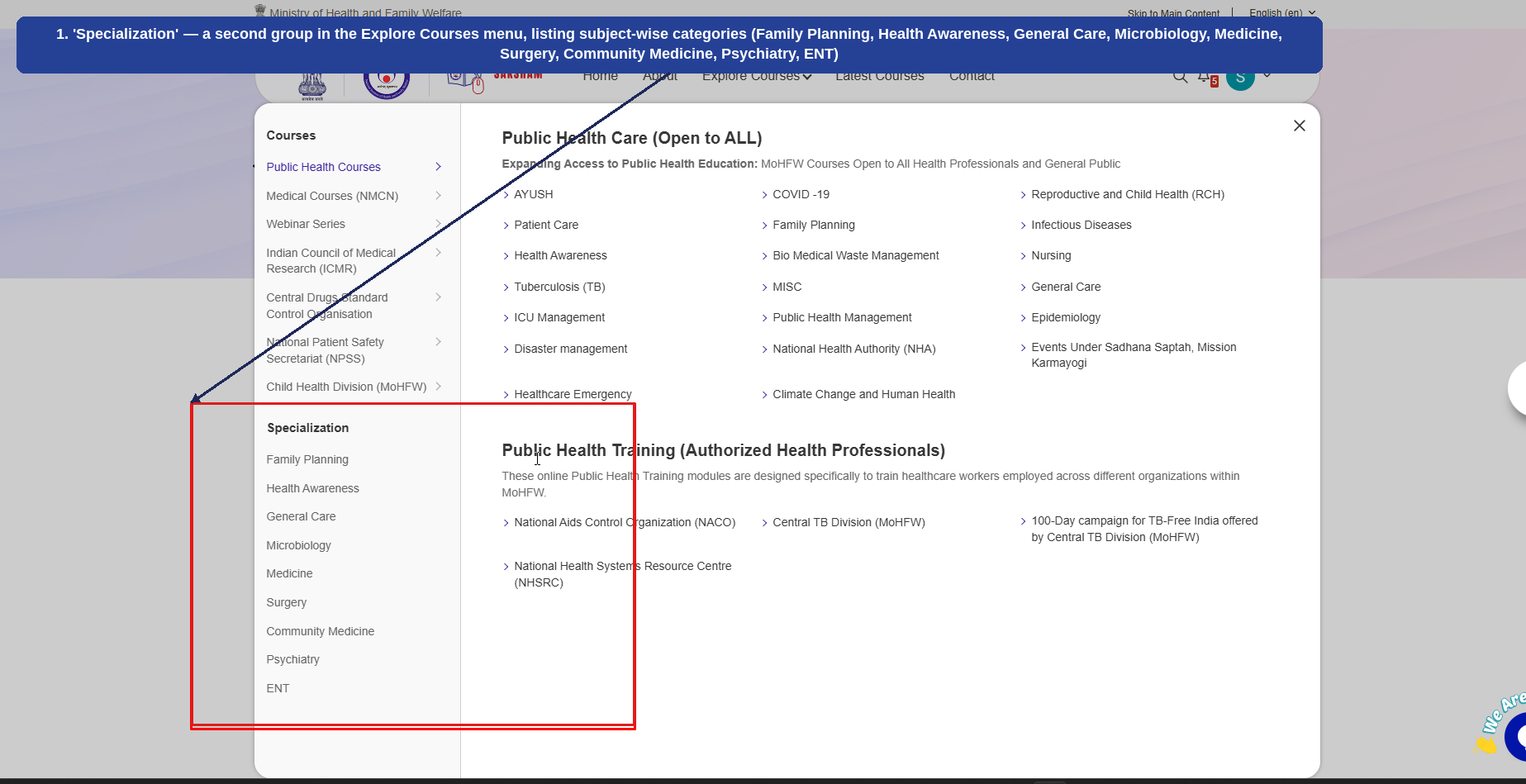
Below the 'Courses' group covered above, the Explore Courses menu has a second group, 'Specialization', listing subject-wise categories: Family Planning, Health Awareness, General Care, Microbiology, Medicine, Surgery, Community Medicine, Psychiatry, and ENT. The numbered callout below highlights this group.
1
'Specialization' — a second group in the Explore Courses menu, listing subject-wise categories (Family Planning, Health Awareness, General Care, Microbiology, Medicine, Surgery, Community Medicine, Psychiatry, ENT).
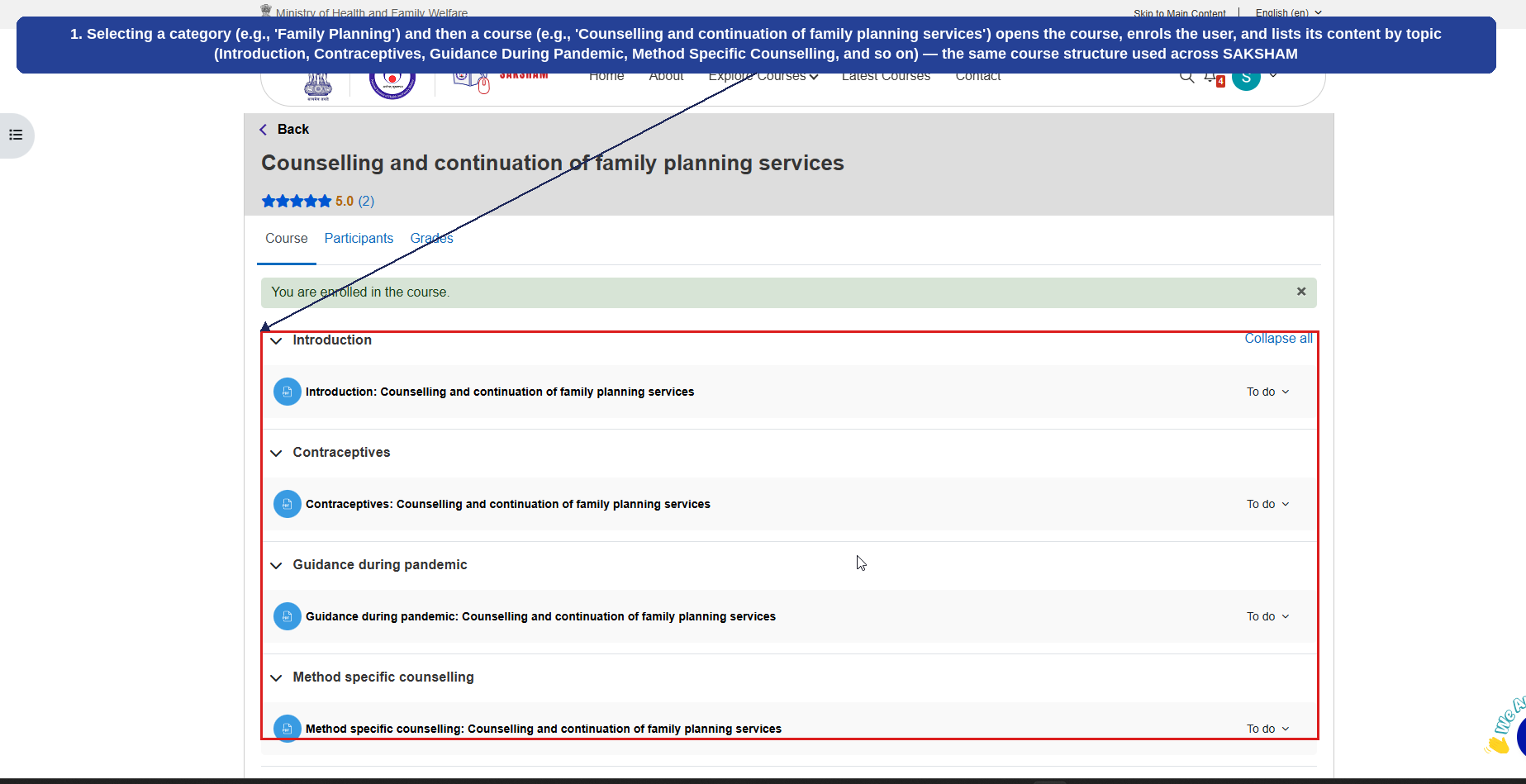
Courses under Specialization follow the same enrolment, content, and assessment pattern already covered in this manual, rather than a new flow. The example below uses 'Counselling and continuation of family planning services' under 'Family Planning'.
1
Selecting a category (e.g., 'Family Planning') and then a course (e.g., 'Counselling and continuation of family planning services') opens the course, enrols the user, and lists its content by topic (Introduction, Contraceptives, Guidance During Pandemic, Method Specific Counselling, and so on) — the same course structure used across SAKSHAM.
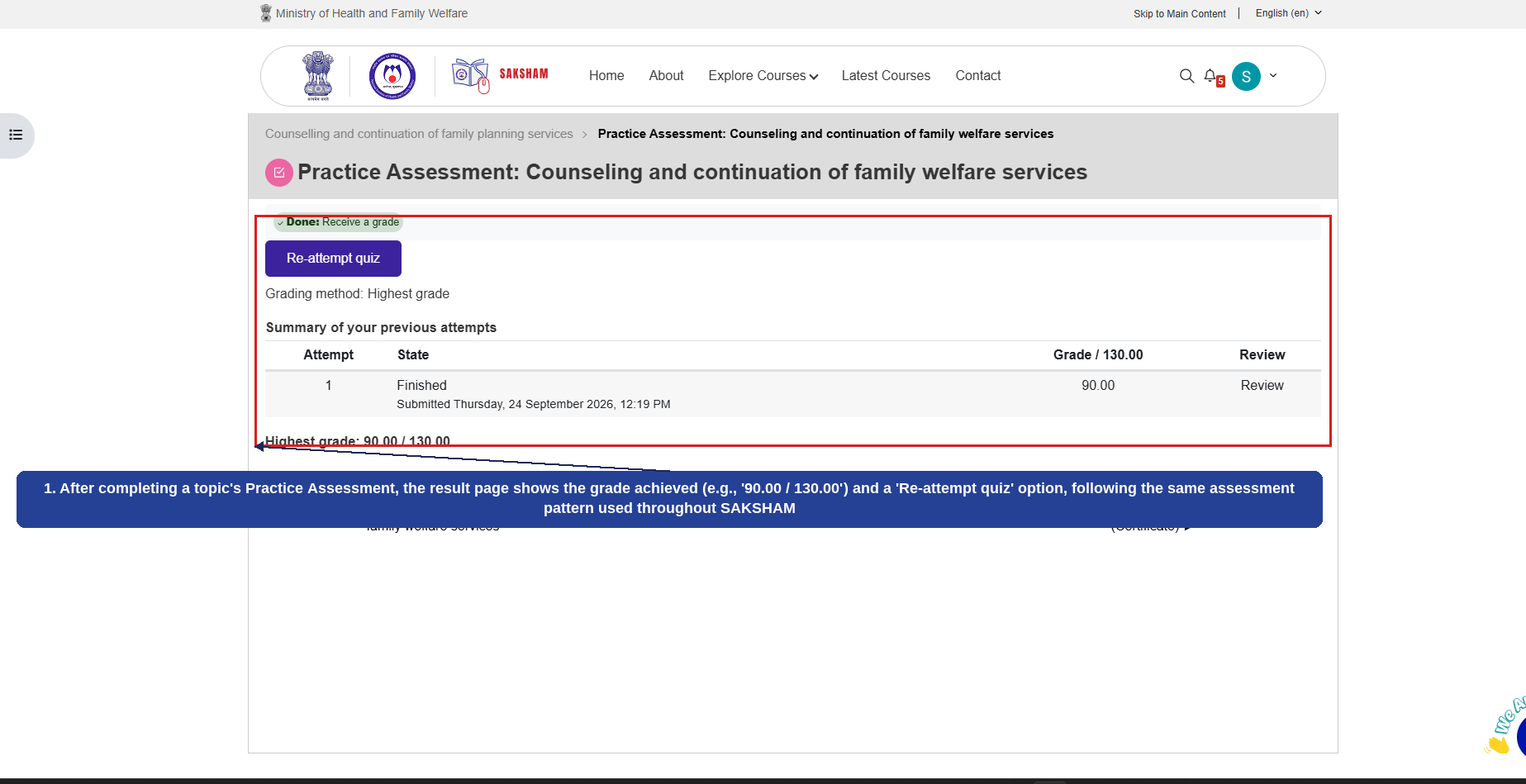
1
After completing a topic's Practice Assessment, the result page shows the grade achieved (e.g., '90.00 / 130.00') and a 'Re-attempt quiz' option, following the same assessment pattern used throughout SAKSHAM.
This covers every category under both the 'Courses' and 'Specialization' groups of the Explore Courses menu. Latest Courses and Contact are covered in the sections that follow.
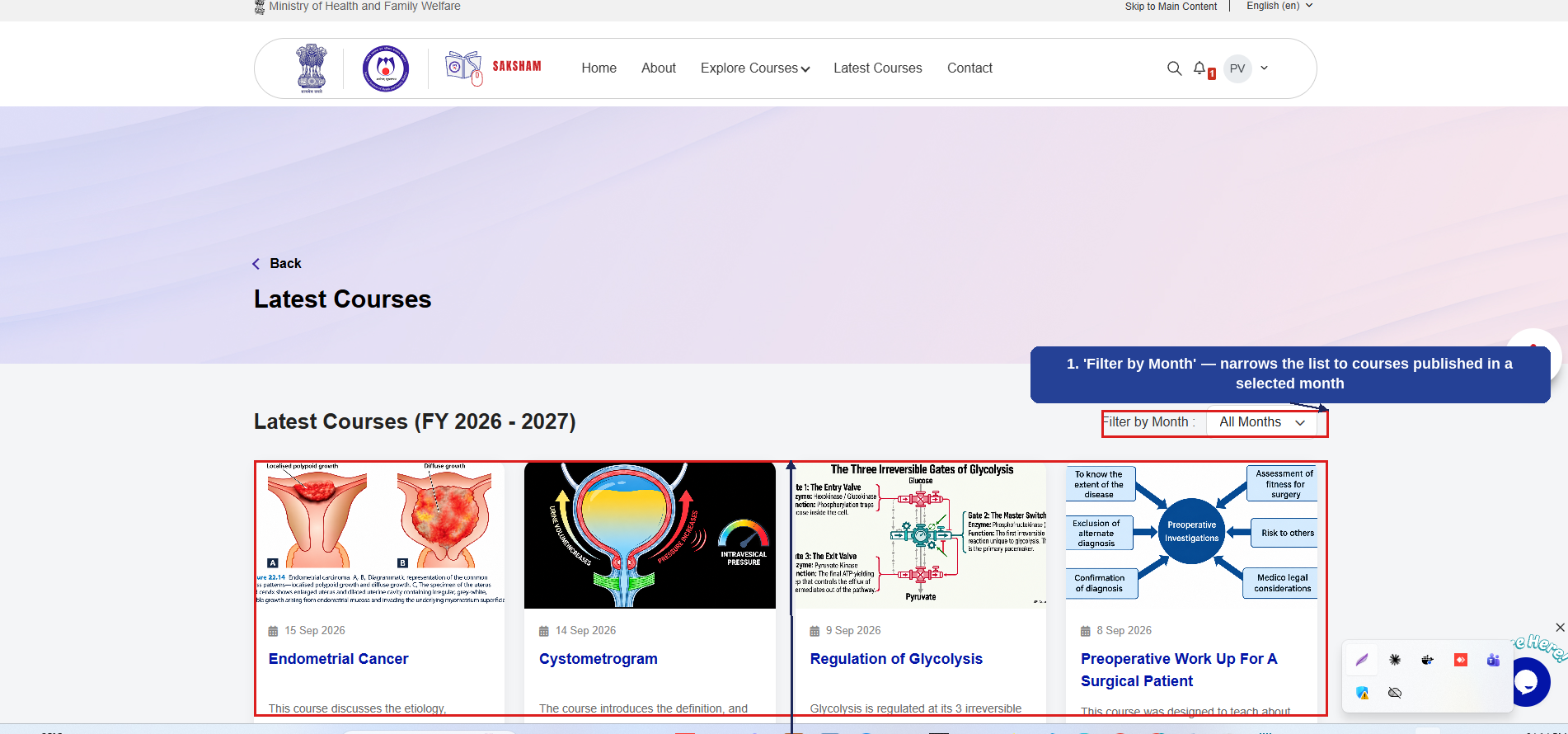
Selecting 'Latest Courses' from the navigation bar opens a running list of the most recently published courses across SAKSHAM for the current financial year, which can be filtered by month. The numbered callouts below highlight the key elements of this screen.
1
'Filter by Month' — narrows the list to courses published in a selected month.
2
Latest Courses (FY 2026-2027) — each card shows a thumbnail, publish date, title, and a short description; selecting a card opens the full course.
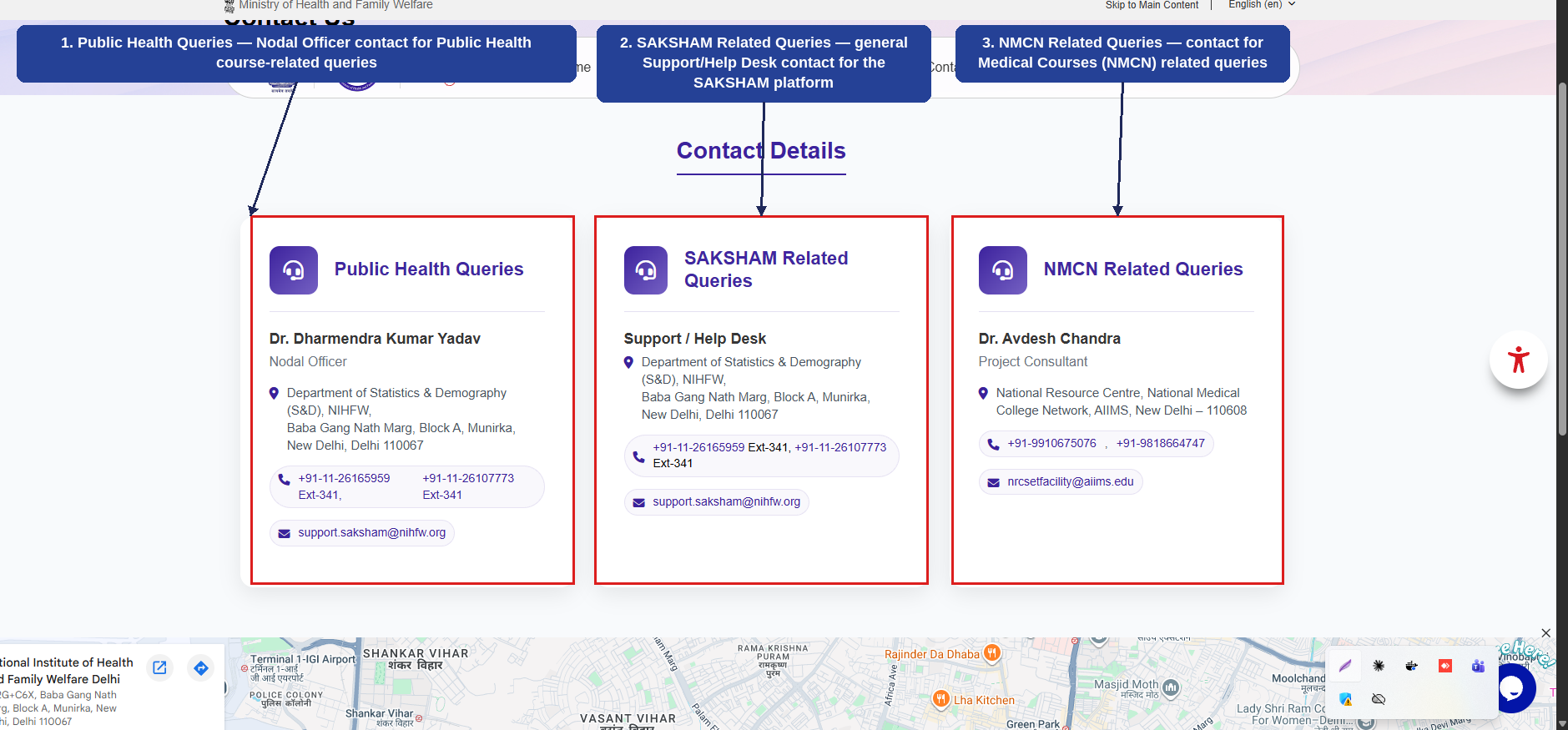
 Ministry of Health and Family Welfare